 Persona Help Center
This article describes how to integrate with Microsoft Entra Verified ID using Persona (withpersona.com) as a partner. The integration allows you to verify credentials using Microsoft's identity platform and the Persona platform.
Prerequisites
- A tenant configured for Microsoft Entra Verified ID service.
- If you don't have an existing tenant, you can create an Azure account for free.
- Complete the onboarding process with Persona.
- To create an account, go to the Persona Dashboard and register.
Overview
The integration between Microsoft Entra Verified ID and Persona enables customers to verify digital credentials issued via Persona and leverage them in decentralized identity scenarios.
Persona provides identity infrastructure to help businesses verify customers securely and scalably, offering solutions like ID document verification, database verification, and more.
Scenario description
Persona enables seamless and secure user onboarding by replacing manual, error-prone identity verification steps with dynamic, automated workflows powered by verifiable identities. Whether you're onboarding customers, employees, or partners, Persona allows you to verify identity remotely—eliminating the need for in-person verification or physical document handling.
For instance, instead of requiring a new hire to visit a corporate office to activate their employee badge, Persona can verify their identity online and issue access credentials remotely. Similarly, a user can prove their identity to access healthcare, financial, or government services—without needing to redeem codes or appear on-site.
By embedding trust directly into your onboarding flow, Persona ensures that identity verification is frictionless, secure, and tailored to your organization’s risk tolerance and compliance needs.
Learn more about account onboarding
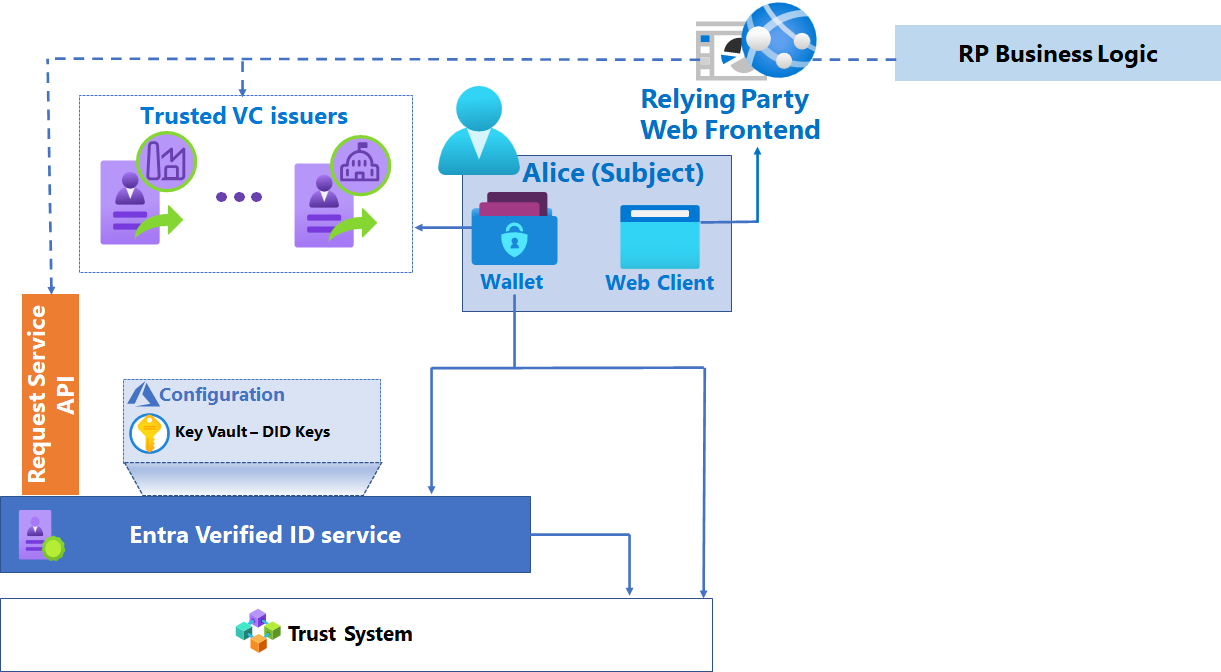
Configure your application to use Persona
To incorporate identity verification into your applications using Persona Verified ID, follow these steps.
Select issuer
As a developer you can share these steps with your tenant administrator to obtain the verification request URL, and body for your application or website to request Verified IDs from your users.
-
Go to the Microsoft Entra admin center - Verified ID
Confirm the tenant configured for Verified ID meets prerequisites.
-
Go to Quickstart
-
Select Verification Request.
-
Select Start.
-
Select Select Issuer.
-
In Search, in the Issuers drop-down, find Persona.
 8. Compare the Persona credential with attributes such as firstname, lastname, number, country, region, gender, birth date, nationality. etc.
9. Select Add.
10. Select Review.
11. Download the request body.
12. Copy/paste POST API request URL.
8. Compare the Persona credential with attributes such as firstname, lastname, number, country, region, gender, birth date, nationality. etc.
9. Select Add.
10. Select Review.
11. Download the request body.
12. Copy/paste POST API request URL.
Update an application or website
With the request URL and body from the tenant administrator, update your application or website.
-
To request Verified IDs from your users, add the request URL and body to your application or website.
Note
If you're using a sample app, replace the contents of the
presentation_request_config.jsonwith the request body obtained in the previous instructions. The sample code overwrites thetrustedIssuersvalues withIssuerAuthorityvalue fromappsettings.json. -
Copy the
trustedIssuersvalue from the payload toIssuerAuthorityin theappsettings.jsonfile. -
Replace the values for url, state, and api-key with your values.
-
To obtain an access token for the Verified ID service request Service Principal, grant needed permissions for your app.
Test the user flow
User flow is specific to your application or website. However, with a sample app, see related documentation.