 Persona Help Center
Overview
Across Persona — in Workflows, Inquiry Templates, Cases and Account layouts, and more — there are situations where you don't want to display or enter a fixed value. Instead, you want to pull in a dynamic value: the name a person entered, the cases attached to an account, the result of a check, etc. Sometimes you may want to mix a static value with a dynamic value. Data Expressions and Data Paths are how you represent that data.
What is a data path?
A data path is a way to locate and optionally transform a value in Persona's data model. Data paths start from a root object and use dot notation to navigate through attributes, fields, and relationships. Each segment moves one level deeper into the data hierarchy, from broad objects to the exact value you need. A data path can also include functions that transform or summarize the value before it is used, such as trimming whitespace, replacing text, or counting items in a list.
- Example -
trigger.fields.collected_email_address
What is a data expression?
A data expression is a piece of text that tells Persona to evaluate and substitute live data at runtime instead of treating the text as a literal string. A data expression can be a standalone data path wrapped in {{ }} (Handlebars syntax), or a combination of static text and one or more embedded expressions. Data expressions always evaluate to a string.
- Example - Hello, {{
current_case.fields.name_first}} is a data expression that evaluates to "Hello, Ryan" at runtime.
What is Smart Input?
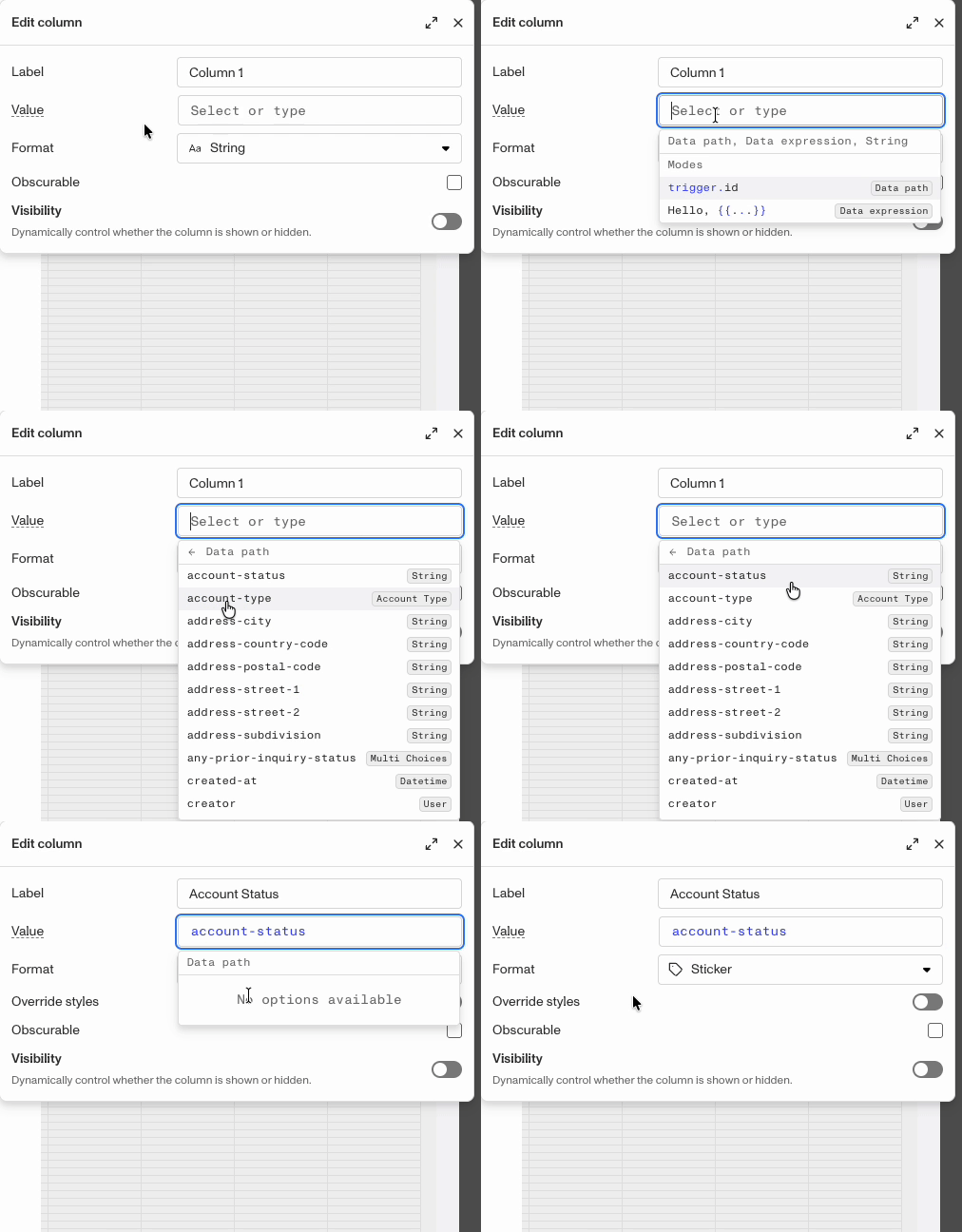
Smart Input is a Dashboard input component that helps you build data paths and data expressions without memorizing schema names or syntax. As you type, Smart Input suggests valid next steps, highlights expressions within the text, and flags unresolved or invalid paths.
- Example - Type Hello and then type {{ (or press the ↓ key) to open the expression picker. Selecting
current_case.in a Smart Input shows all available fields, attributes, and objects under that root, allowing you to navigate to the desired value instead of manually typing field names.
Data path details
A data path structure starts with a Persona object and then works down through lower data layers to the target information. For example if the triggering object is an Inquiry which includes a birthdate field, then the data path would be written as trigger.fields.birthdate.
If instead, you were trying to target the field, collected_email_address, it would look like trigger.fields.collected_email_address.
The first word in the data path is the Root — the starting object for a data path. Every data path begins at a root and then navigates through fields and relationships to reach a specific value. Common roots are trigger (the event that started the workflow), current_account, and current_case. Each dot steps you one level deeper.
For example:
trigger.fields.name— the name field on the triggering objectcurrent_account.cases— the cases attached to the current accountcurrent_case.accounts— the accounts attached to the current case
Data Paths and Functions
Many of the data types you can access with a data path are more complex than basic variables or true/false booleans. For example, many of them are arrays, which can contain multiple pieces of data. For such data objects, we include relevant functions like at, first, and sort that help you identify which part or parts of that array or data type you want to target.
An example data path with a function is: trigger.accounts.last.fields.address_city
This data path would find a list of accounts (accounts array) from the trigger object, pull the last account from the array, and return the address_city field from it.
Smart Input
Above: The Smart Input tool helping a user build a Data Path.
Wherever data paths and data expressions are accepted, you'll build them with help from the Smart Input tool. Smart Input is built into many input fields across the Dashboard. It assists you in creating data paths and data expressions in the following ways:
- Autocomplete & Dropdowns - As you build a data path, a dropdown lists the available valid next steps. Pick one and it's inserted for you — so you never have to guess field names or remember exact spellings.
- Start typing a path - Type a dot (
.) in an empty field, or just begin with a root liketrigger, and the input switches into path mode and opens the options list. - Syntax highlighting - Paths and static values are color-coded so you can see at a glance which parts of the expression are dynamic data.
- Built-in validation - If a path points at something that doesn't exist, or an expression isn't written correctly, the input flags it in red before you save.
- Helpers for functions - When a step takes extra inputs (parameters), the input opens a small form so you can fill them in correctly.
Quick examples
| You want… | What you'd enter |
|---|---|
| The submitted name, on its own | *trigger.fields.name* |
| A greeting that includes the name | *Hello, {{trigger.fields.name}}* |
| The cases on the current account | *current_account.cases* |