Why create a List?
Lists are a great way to automate the process of tracking or flagging repeat information across Inquiries. For example, instead of manually tracking instances of suspicious or fraudulent IP addresses, you can easily see when a new inquiry matches one on the Blocked IP Addresses List and quickly prevent that same bad actor from being approved again.
In order to automate actions or decisions for inquiries matching a List, you should implement the List within a Workflow. Workflows allow you to look for matches within a List on future Inquiries, and automatically mark these Inquiries for Review, Create Cases, or set up Accept or Decline logic for the matched Inquiries. For example, you can set up a Workflow that automatically declines inquiries where the IP address matches against your Blocked IP Addresses List.
How do I create a List?
- Navigate to your Lists page, Utilities > Lists.
- On the top right-hand side, click the Add List button.

- In the Add new List window, add the name of your List.
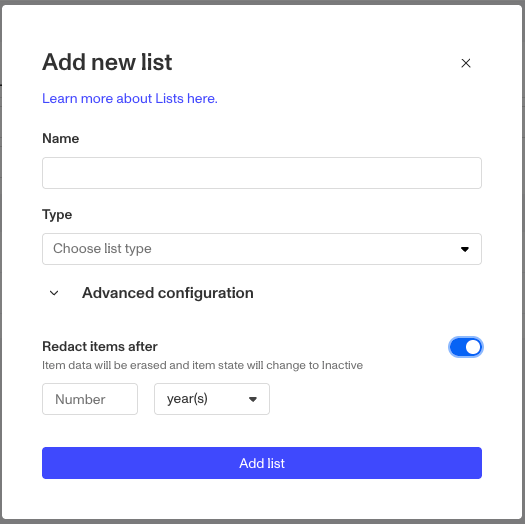
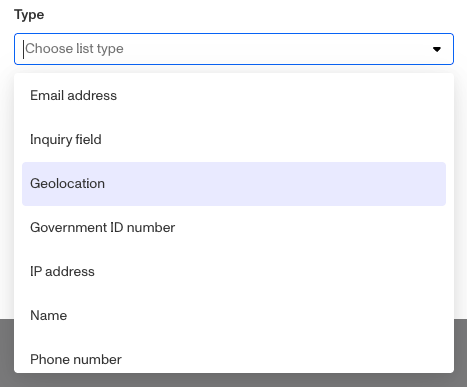
- Click into the dropdown for the Type, which will include a number of common formats for Lists like “Email Address”, “Browser Fingerprint”, and “Phone Number”. You can learn more about List types here.
- In the Advanced configuration section is the toggle for redacting items from the List. When you toggle the option on, you will be prompted to set the redaction window for items on the List.
- Click Add List.
Adding items to a List
- From the Lists page, select your List.
- Click the Add item button at the top right.
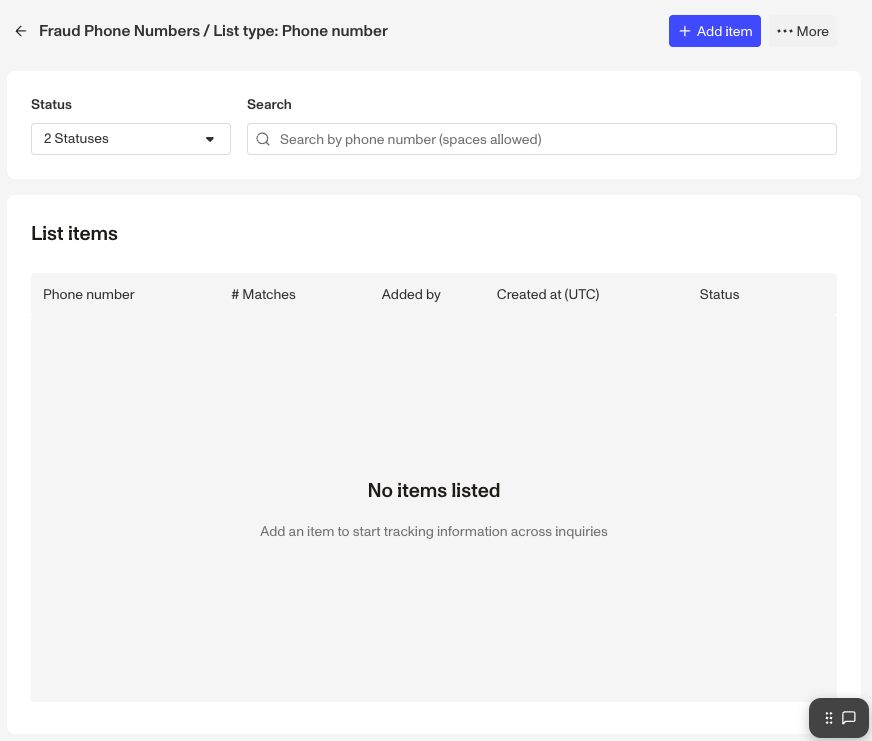
- In the Add item to list screen, enter the relevant information you want to add to the list.
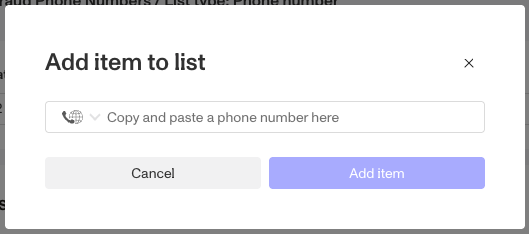
- Click Add item.
Filtering Inquiries via Lists
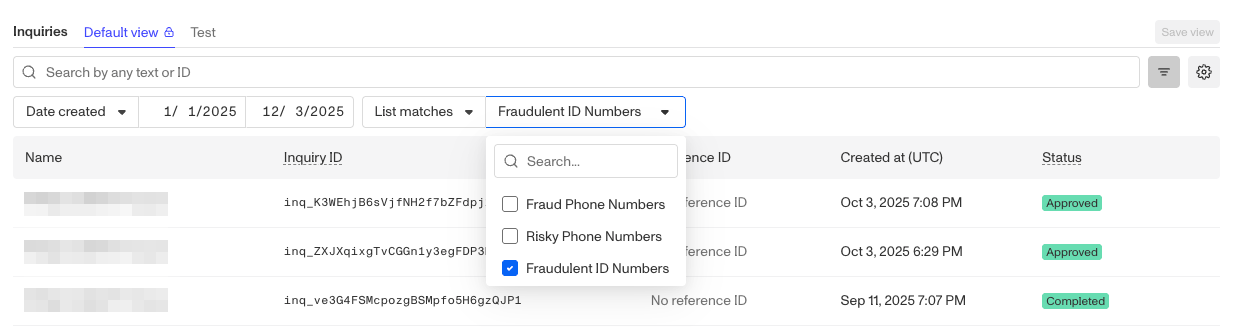
- After you’ve added information to your List, you can filter for all Inquiries that match the List in the Inquiries page.
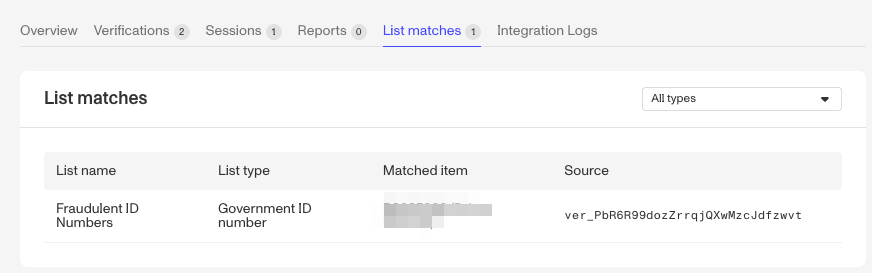
- If an Inquiry matches the List, this will also show up as a risk signal on the Inquiry details page — letting you quickly see the matches and make decisions based on this information.
Using Lists for automation
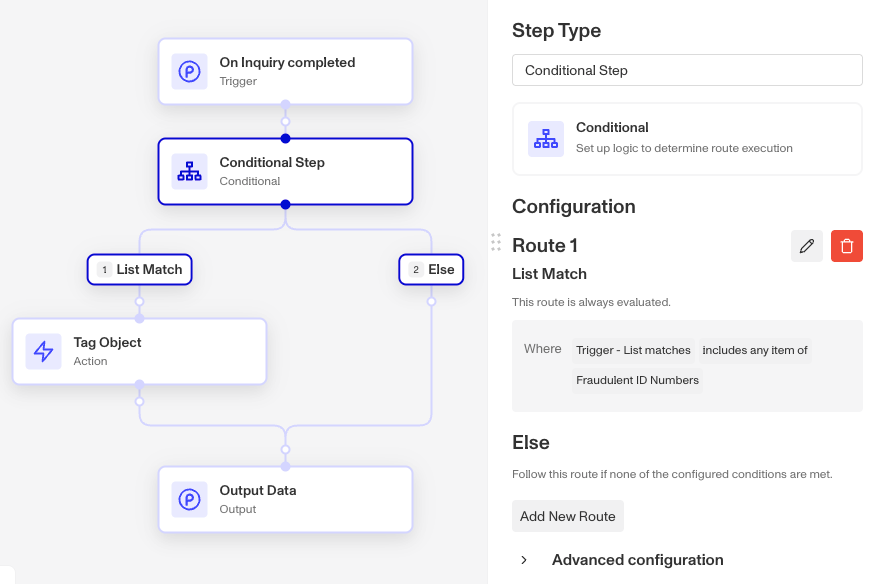
Once you’ve create a List and started populating it, you can then start including it in the logic of your Workflows. As part of the Conditional Branch step in the Workflow, you can reference the list by checking for matches or lack of match against items in the List.