
Overview
When using Cases for manual review, reviewers and other team members can help explain why a decision was made by leaving comments. Comments may be key for audit purposes. You may want to require that reviewers leave a comment on each Case at key moments, such as when they approve or decline a Case.
You can edit a Case Template to require comments on any Case that uses that Template. Specifically, you can require a Comment during a transition to a specific Case status—such as Approved or Declined.
Steps
To require a comment during a transition to a specific Case status:
-
In the Dashboard, go to Cases > Templates. Select the Case Template you want to edit.
-
Click Settings in the upper corner.
-
Select the Advanced tab.
-
In the Statuses section, find the status for which you want to require a comment when transitioning to it. Select “…” > Edit.
-
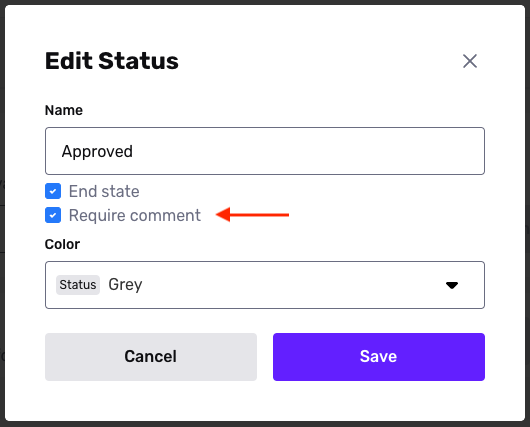
In the edit modal, check the Require comment checkbox. Click Save.
-
In the upper corner of the Case editor, click Save.