 Persona Help Center
KYB Overview
Persona’s Know Your Business (KYB) solution allows you to verify legitimate businesses quickly and confidently with one integration that connects to 150+ countries. Persona connects to governmental and commercial registries, applies localized matching, and ensures you’re checking the right data for each market. This solution not only scrutinizes the various records of the business, but also the individuals associated with the business via KYC Inquiries. Persona workflows automate and orchestrate a variety of Persona products to collect, verify, and organize the relevant information for review.
One Size Doesn’t Fit All
At Persona we have found that what our customers’ needs out of a KYB solution vary so radically that we’ve never built a standard KYB solution. One of the downsides is that it makes it hard to have a starting point for our customers to understand how the KYB solution could work for them. And with no starting point to deviate or customize from, conversations around getting the right version of KYB for them take longer.
So we’ve landed on an example “Vanilla” KYB solution that can be that starting point to better understand and talk about the KYB solution with you. Let’s start with the goals of a KYB.
Familiar with Persona products?
In this explainer, we going to explore how Inquiries, Workflows, Reports, Cases, & Verifications work together to create the KYB solution. If you’re not already familiar with those products, we recommend you first review the basics of each product above via the links provided.
Goals of the Vanilla KYB solution
- Collect and verify information about the company (website, registrations, watchlists)
- Collect and verify information about the Business’ owners and/or Controllers (watchlist, PEP)
- Organize and present the results of those verifications and reports to a decision maker
- Present the results of that decision in the form of approving or declining the KYB inquiry
- Create Accounts for the Business and all Associated Persons
Ecosystem of Inquiries, Workflows, and Cases
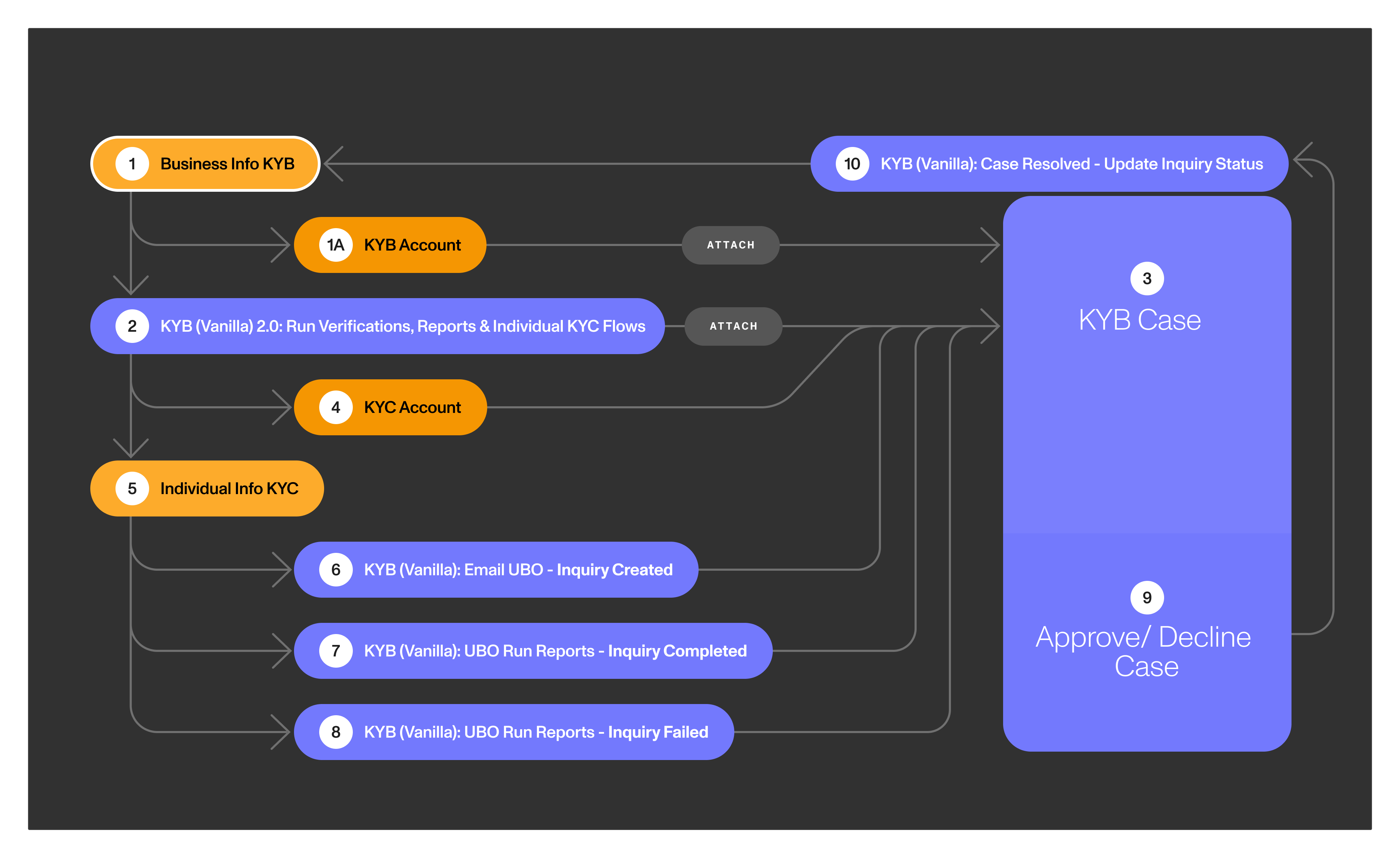 The KYB process involves three interacting Persona products: Inquiries for data collection, Workflows for handling multiple automated actions, and the Case for presenting all the collected and verified information to a decision maker on your team. Let’s outline the different objects and how they interact at a high level first.
2 Inquiries: Business Info KYB vs. Individual Info KYC
The Business Info KYB inquiry starts the KYB process. It’s used to collect the initial information about the business and the person filling out the inquiry. That person will indicate if they are any combination of:
- Control Person / Controller: (Usually seen with Financial companies): Someone, usually an officer or director who has the authority to act on behalf of a corporation
- UBO (Ultimate Beneficial Owner): Anyone with typically 25% or more ownership. Some states (anecdotally New York/Georgia) define UBOs as anyone with over 10% ownership.
- Form Filler: Someone tasked with filling out the inquiry but is not necessarily a Control Person nor a UBO.
Typically there is a minimum of 1 Control Person / Controller and 1 UBO for each KYB solution.
 The various people that are connected to the business are known as Associated People, and each one is identified by the person filling out the KYB. Each will be asked to fill out their own Individual Info KYC inquiry. Then each of those inquiries will be attached to the KYB Case object. And for the Individual Info KYC inquiries, they will each have their own set of workflows that will trigger off them.
Automated Workflows
There are five Workflows built into this solution, each with a specific trigger to start them and then actions to take within them. From the list below, the workflow names hint at what they do and their triggers.
- KYB (Vanilla) 2.0: Run Verifications, Reports & Individual KYC Flows
- KYB (Vanilla): Email UBO - Inquiry Created
- KYB (Vanilla): UBO Run Reports - Inquiry Failed
- KYB (Vanilla): UBO Run Reports - Inquiry Completed
- KYB (Vanilla): Case Resolved - Update Inquiry Status
The primary workflow
 KYB (Vanilla) 2.0: Run Verifications, Reports & Individual KYC Flows is the primary workflow and is triggered once the Business Info KYB inquiry status is “Complete”. As the title of the workflow implies, it’s going to run a lot of Verification and Reports along with sending out Individual Info KYC inquiries to all the identified Associated People. It’s a big workflow and we’ll cover it in detail later.
Three Inquiry workflows
Let’s pull out three of the other workflows from the list above:
- KYB (Vanilla): Email UBO - Inquiry Created
- KYB (Vanilla): UBO Run Reports - Inquiry Failed
- KYB (Vanilla): UBO Run Reports - Inquiry Completed
 Those workflows trigger, or start running, when each Inquiry for a UBO is
 Created, Failed, or Completed.
So when the Inquiry for any UBO is created, the workflow pulls the email submitted for that person from the Business Info KYB inquiry and uses it to send an email asking them to fill out the Individual Info KYC inquiry.
If the person finishes the Individual Info KYC inquiry and it meet all the conditions to reach the Completed screen, the KYB (Vanilla): UBO Run Reports - Inquiry Completed workflow is triggered.
If the person instead fails the KYC inquiry, the inquiry still finishes but the “KYB (Vanilla): UBO Run Reports - Inquiry Failed” workflow is triggered.
These last two workflows, regardless of failed or completed, will run multiple reports on the Associated Person. That workflow will note the failed inquiry by placing a UBO INQUIRY FAILED Tag on the inquiry. That tag will get surfaced, via the case, to the person reviewing the case.
The KYB Case
 The KYB solution generates a lot of data. You could have up to 10 UBOs, maybe a form filler, each with their own KYC inquiry, each inquiry with their own verification and reports. There are also reports generated about the business by the main workflow too. All that data is collected and organized in the KYB Case. This is nearly the end of the process. The person reviewing the case can approve or decline the case itself. They might first take some case actions, like requesting addition documentation or other actions that give them more context on the business. But once they pick to approve or decline the case, the last workflow is triggered.
Case Resolved
 The
The KYB (Vanilla): **Case Resolved** - Update Inquiry Status workflow is very accurately titled. It’s trigger is the KYB case being resolved, and all the workflow does from there is either approve or decline the inquiry in alignment with the case.
The KYB Goal - Informing a choice
You want to get to the point where you can decide if you want to approve a business to move forward with or to reject them. That point in the process is at the end, after you’ve collected, verified, and reviewed all the relevant docs and reports and relevant information. That information is organized in the KYB Case, and in the case is where you and your review team can make the choice to approve or deny the business.
All along the KYB process, information is collected, verified, and selectively attached to the case. Additional context in the form of Tags are also attached to the case, allowing the reviewer to make a more informed choice.
Let’s work our way backwards through the KYB process, from the case back to the first Inquiry, to understand how relevant information is collected.
What should the case include?
The KYB Case will collect information into 4 tabs:
- Business Information
- Business Verifications and Reports
- Associated People
- Document Verification
 In the Business Information tab numerous fields will be populated with collected information. This information will come from Business Info KYB inquiry and from some of the reports.
Note that the right side tiles on this tab will persist through the other tabs. For instance the Tags tile on the right will be visible regardless of which tab you’re currently viewing.
 The Business Verifications and Reports tab surfaces those verifications and reports. Each verification and report will have its own tile down the left of the tab surfacing its data.
 Businesses and corporations can have multiple owners associated with it. As those people complete their individual KYC inquiries, those inquiries and accounts will be updated and surfaced in the Associated People tab.
 The last tab is the Document Verification tab, which collects and surfaces all the documents that were submitted during the process.
Which Tags and Why?
We’ve mentioned that Tags can be attached to the case during the KYB process and we’d like to identify the Tags in this version of the solution and how they help provide context for the case reviewer.
- BIZ-ACCOUNT
- BWV FAILED (Business Website Verification)
- BIZ WATCHLIST HIT
- BIZ ADVERSE MEDIA HIT
- BRV PASSED (Business Registry Verification)
- BRV FAILED
- BAPR MATCH (Business Associated Persons Report)
- BARP NO MATCH
- BRR MATCH (Business Registrations Report)
- BRR NO MATCH
- FAILED TIN CHECK (Tax Identification Number)
- IRS UNAVAILBLE
Each of the tags above could be conditionally added to the case by the primary workflow, “KYB (Vanilla) 2.0: Run Verifications, Reports & Individual KYC Flows”. In that workflow, those verification and reports are run, and then conditionally attach the relevant tag depending on the result. With those tags a reviewer can tell at a glance if there are any red flags that need to be investigated or followed up on.
Let’s switch over to the workflow to see how those Tags are informed by the various verifications and branching logic paths.
The KYB workflow is very large, with multiple parallel branches to cover the separate goals its needs to fulfill. The below screenshot cuts off a 3rd of the full flow off to the right.
 Let’s break down each of the four main parallel branches into manageable chunks to see how they populate the information in the KYB Case. Each of these parallel branches will start at the same time, allowing each to complete separating to avoid bottlenecks if a single process takes longer than the others.
 Starting from the left, the first of the four parallel paths is the Country-specific conditional branch. The condition checks if the business registered address is in the United States (US) or not. If so, it goes down the left hand “Route 1” path, else it goes down the right hand “Else” or non-US path.
 The US path itself has a branching parallel step, one on the left for handling the TIN Database verification and the path of the right for handling all the other business verifications.
Then a condition will check if the verification Passed, Failed, or if the IRS database was unavailable. If it failed or IRS was unavailable then the workflow will Tag the case with FAILED TIN CHECK or IRS UNAVAILABLE.
This sequence too will be used throughout the workflow. Run report > attach report > conditionally tag case is a best practice sequence to avoid losing data.
Other business verifications path
Going down the other US only path, we first have a parallel path with four branches.
 These four branches contain Evaluate Code steps that are sorting through the inquiry fields of the Business Info KYB inquiry to determine who among the associated people are owners. Once those names are sorted and assigned to the fields for
 associated persons 1 and associated persons 2, they can be conditionally included with other collected data into the Run Business Registry (BRV) Verification step.
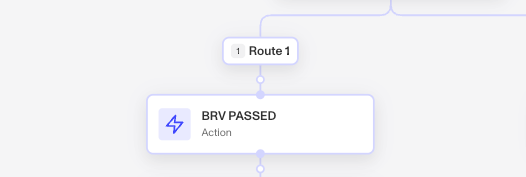
Next a conditional step checks if the BRV was passed, and if it failed it takes the right side path to conclude the US parallel path. If it passed and goes down the left side path, three more key processes will happen:
- The Case will get tagged with
BRV PASSED.
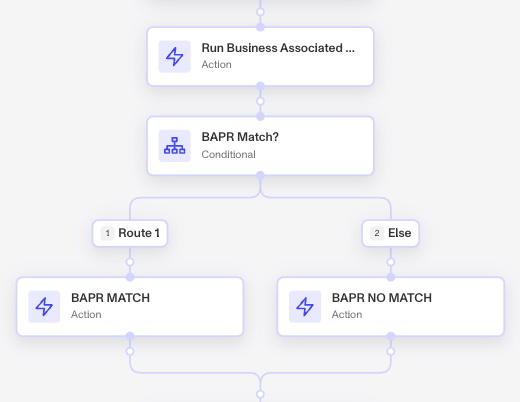
- A Business Associated Persons Report will be run, followed by a condition to tag the case with either BAPR MATCH or BAPR NO MATCH.
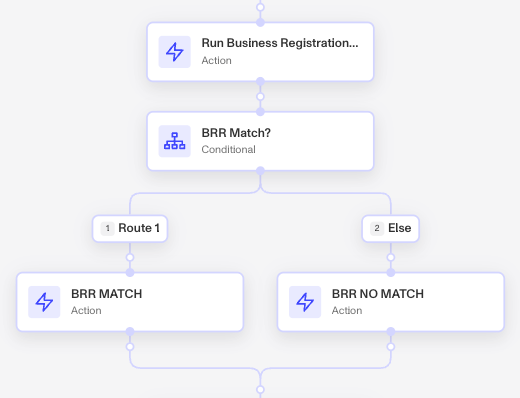
- A Business Registrations Report will be run, followed by a condition to tag the case with either BRR MATCH or BRR NO MATCH.
- And at the end of the that path, both BAPR and BRR verifications are attached to the case.

Back to Country-specific
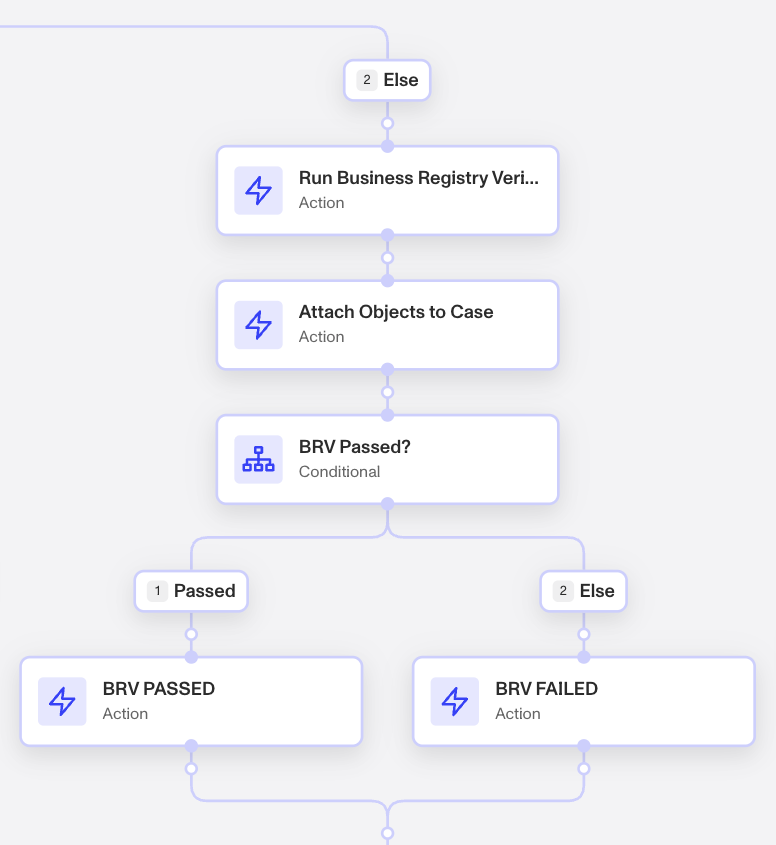
Now that we’ve covered the Route 1 into the US paths, let’s back up and head down the other non-US path. This shorter path:
- Runs BRV (Only BRV is run since BRR and BARP are limited to US-only)
- Attaches it to the Case
- Conditionally tags the Case with either
BRV PASSEDorBRV FAILED
Business Risk Reports
 Then back at the top of the workflow, the next main parallel path is for Business Risk Reports. It also uses parallel paths to split the two reports, Business Adverse Media and Business Watchlist Report. Again they follow the same pattern, run, attach to case, conditionally tag.
The next main parallel path conditionally branches based on if the business’ website was provided. If provided, it goes down the left path and if not the right.
 On the left, the Business Website Verification is run and attached to the case. A conditional step checks if the verification passed, and if so both a Business Classification Report and a Business Online Presence Report are run and then attached to the case.
No website provided
Back to the path with no website provided, we can see many of the same Reports being run but in a different order and logic. This is based on two elements:
- Just because a website was not provided, doesn’t mean the business doesn’t have one.
- The Business Online Presence Report might find it and return it’s homepage.
Assuming it finds the homepage, we can then run the Business Website Report and then conditionally the Business Classification Report.
Associated People
The last of the main parallel processes is focused on creating accounts and inquiries for all the associated people related to the business being verified. There are three important types of people that need to be identified from the legal compliance perspective:
- Control Person / Controller: (Usually seen with Financial companies): Someone, usually an officer or director who has the authority to act on behalf of a corporation
- UBO (Ultimate Beneficial Owner): Anyone with typically 25% or more ownership. Some states (anecdotally New York/Georgia) define UBOs as anyone with over 10% ownership.
- Form Filler: Someone tasked with filling out the inquiry but is not a Control Person nor a UBO.
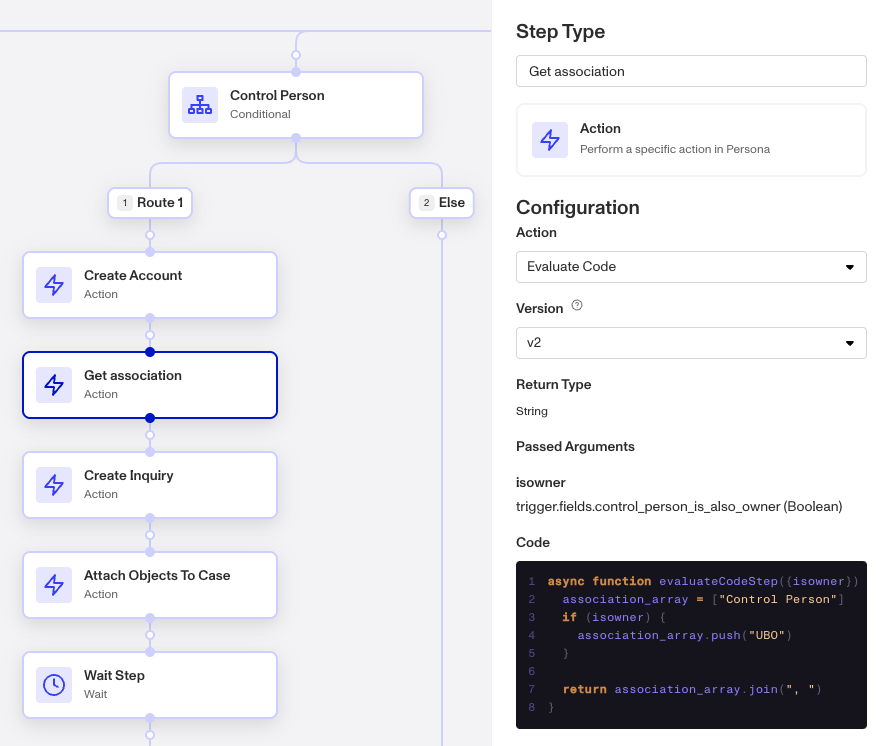
 For all these various type of people that might need to have their data collected, what does each one of these parallel paths entail? Each of the UBO paths follows this sequence of steps:
- Create Account - creates a account object that will be populated by the inquiry.
- Create Inquiry - creates the inquiry run that will be used by that person to submit their PII.
- Attach Objects to Case - attaches both the account and inquiry to the Case
- Wait Step - This wait steps holds until the inquiry is either
completedorfailedfor 30 days.
 For the Form Filler and Control Person paths, there is an extra step called Get association. This step includes custom code looking to see if the person that filled out the KYB Inquiry marked themselves as a Form Filler or Control Person, and then passes that information to their KYC inquiry.
Ready for Review - Case
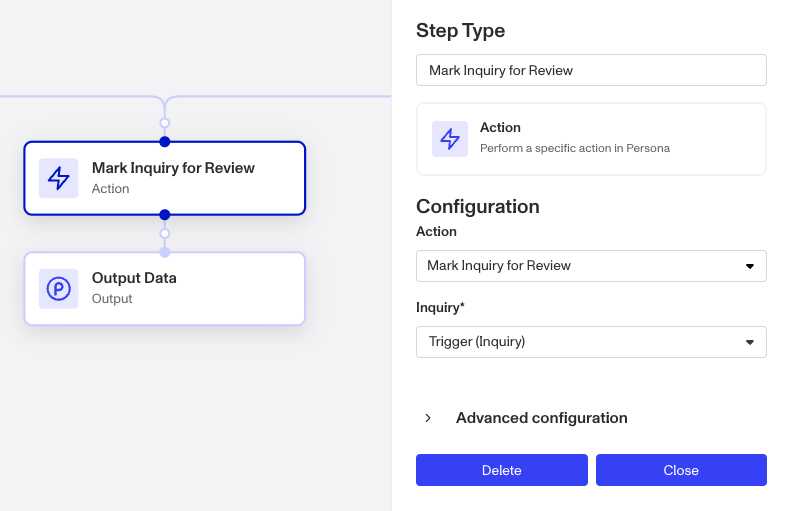
Once all the Associated Persons paths clear their wait step (completed / failed / 30 days), this set of parallel paths collapse back down the 1 path and 1 step: Ready for Review.
 This will surface the attached case as ready for review.
Ready for Review - KYB Inquiry
Once all four main parallel paths finish, with the Associated Persons certainly being the last, they also collapse into 1 path. The last last steps is to mark the KYB Business Info inquiry as Ready for Review.
The KYB Inquiry
The structure of the KYB: Business Info inquiry that starts the whole process is structured to collect three categories of information that will drive the KYB Workflow:
- Business Info
- Associated People
- Required documents
Business info
 The Initial Information & Business details screens will collect information that will feed into the various reports and business verifications, like Registration numbers and the Business website.
Associated People
 The next two screens, Form Filler Information & Associated people, will collect information from the form filler about themselves, their relation to the company, and information on other associated people. The info collected will populate into the KYB workflow and be used to send out the needed KYB: Individual Info inquiries to be filled out.
Document Home Collection screen
 The Document Home Collection screen is a module that simplifies the collection experience for users while making designing the inquiry flow easier too. The module is a combination screen and branching step. Each required doc and optional document has their own route. Those routes handle the usual retry logic for the passing, failing, and retrying of the specific document verification. At the end of each path, the user is connected back to the doc home screen. Any completed docs are greyed out. Once the required documents are submitted, end users can exit the Document Home screen by clicking the “Submit documents” button. That will allow the flow to continue down the last route and complete the inquiry.
And once the inquiry is Completed, that triggers to the “KYB (Vanilla) 2.0: Run Verifications, Reports & Individual KYC Flows” workflow.
Accounts
While the short term goal of the KYB solution is to verify a business, in the long term you want to be able to review, maintain, and update the data related to that business and it’s associated people. For each of the inquiries, the KYB and KYC versions, an account will be created to hold the verified and updated PII from each one. These accounts can then be checked against and updated with re-verification inquiries in the future.
 Persona Accounts include a feature called Relations, which allow you to point at other account objects and define their relationship to the first account. This can be very useful for a KYB situation as you define the relations between the Business account and then all the Associated People’s accounts, forming a organized web of connections. This Vanilla KYB solution do not include the steps for creating the Account Relations, but we wanted to call it out so you know it is an option.