
Overview
Verification checks are the individual tests run during a Verification. Each check scrutinizes a specific piece of information and returns a passed, failed, or not applicable result.
You can configure Verification checks directly in the Dashboard by enabling or disabling individual checks and setting which ones are required for a Verification to pass. For information on creating a Verification, see Creating a Verification.
Not sure which Verification checks you want? Read Configuring Government ID Verification checks as an example of how to approach it.
If your Verification check configurations are fully managed by your Persona team, reach out to your customer success manager to make changes.
Verification check attributes
Each Verification check has the following attributes:
- Name: the name of the Verification check.
- Status: the high-level result of the check. Possible values are:
Passed: The check passed in the verification attempt.Failed: The check failed in the verification attempt.Not applicable: The check was not evaluated in the verification attempt. (This may happen because this check depends on a piece of information that was not collected as part of the Inquiry.)
- Type: whether the Verification check falls into the
FraudorUser action requiredcategory.Fraud: Checks in this category are designed to help catch fraudulent submissions. If a check in this category fails, there may be a higher chance the submission is fraudulent.User action required: Checks in this category are designed to flag instances when a user submits information that does not meet the quality bar Persona requires. If a check in this category fails, it does not necessarily indicate a higher chance that the submission is fraudulent.- “Verification type” is used to refer to the difference between functional categories of Verifications, such as Government ID, Selfie, and Document.
- Required: Indicates if the Verification check was required to pass in order for the Inquiry to successfully complete.
Configure Verification checks inside an Inquiry Template
-
In the Dashboard, navigate to Inquiries > Templates.
-
Select the Inquiry Template you want to edit.
-
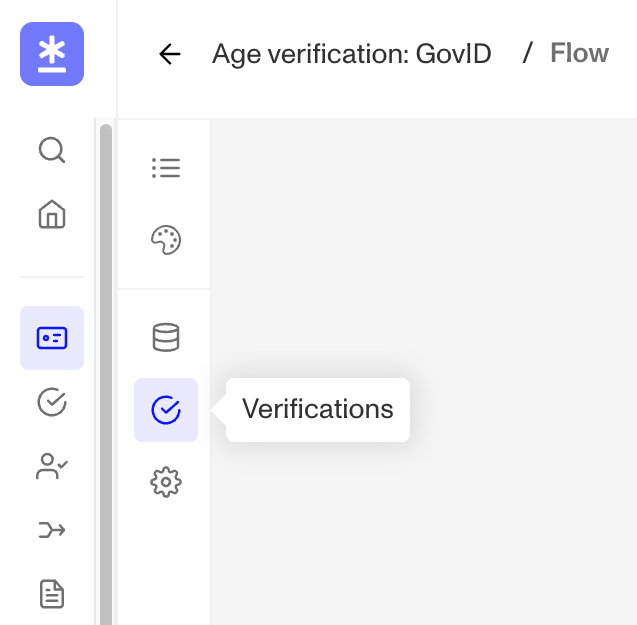
In the left sidebar of the Flow Editor, click the Verification icon (checkmark in a circle).
-
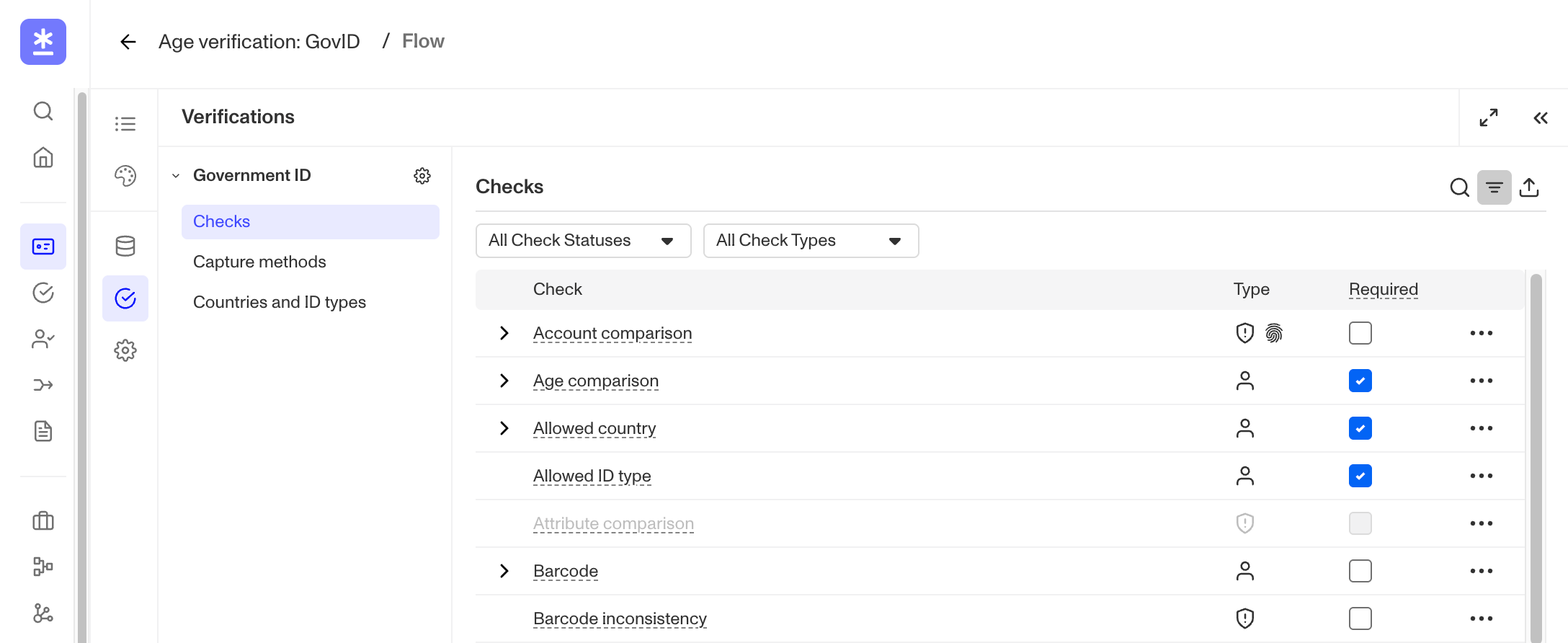
Select Checks in the Verifications sidebar for the type you want.
-
Enable or disable select Verification checks, as needed, and set whether each check is required or non-required using the Required checkbox. To learn more, see Enabled vs Disabled and Required vs. Non-required Verification checks.
-
Click Save in the upper right corner of Flow Editor.
Configure Verifications checks alongside a Workflow, Transaction, or API request
-
In the Dashboard, navigate to Verifications > Templates.
-
Select the Verification Template that you’d like to change.
-
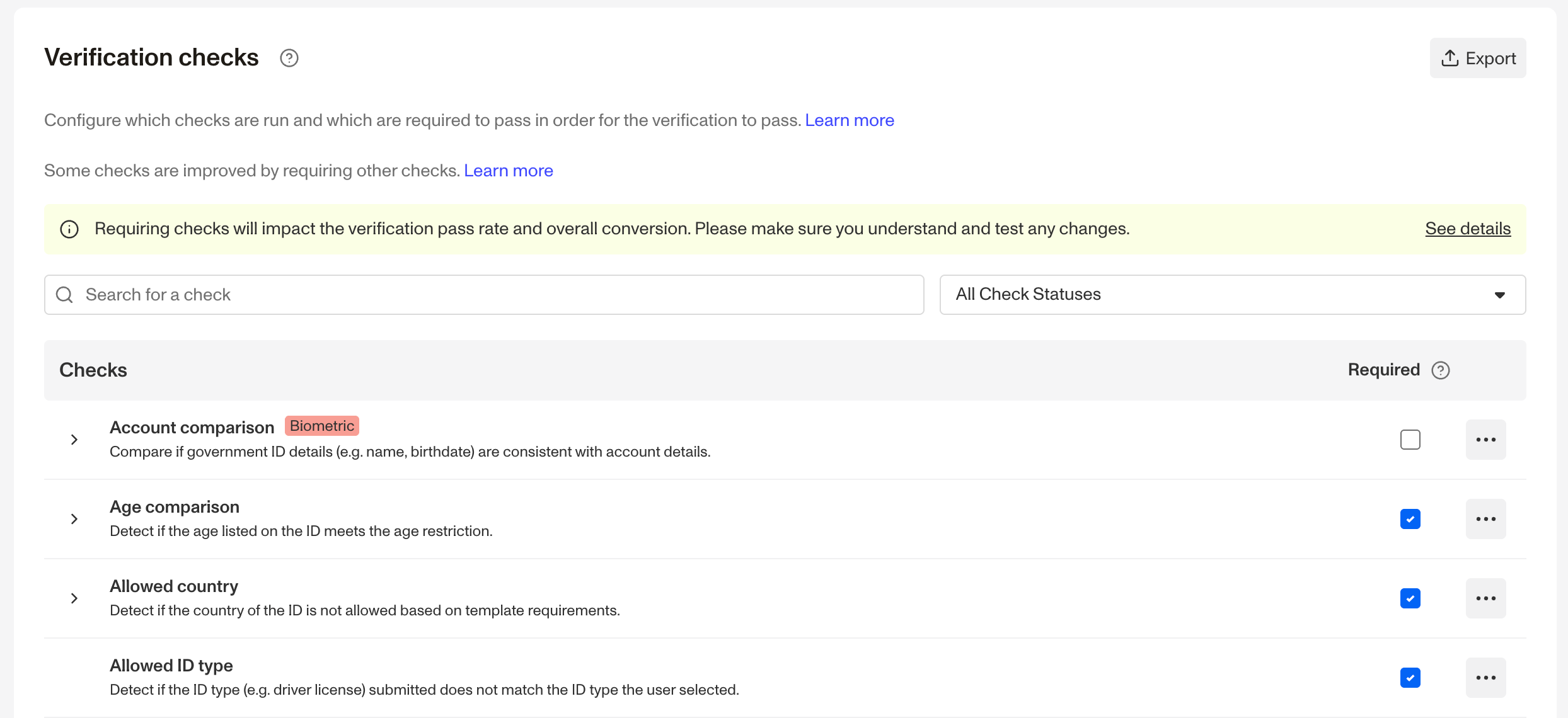
Enable or disable select Verification checks, as needed, and set whether each check is required or non-required using the Required checkbox. To learn more, see Enabled vs Disabled and Required vs. Non-required Verification checks.
-
Click Save in the header.