
Signals surface data about the network, device, and behavior observed during an Inquiry. Understanding what each Signal value means and how it compares to the rest of your user population helps you identify which Inquiries warrant closer attention. For a general introduction to Signals, see the Signals Overview.
Overview
Each Signal has a name and a value. The Signal being measured, such as Age Ratio, Behavior Threat Level, or Geolocation Language Mismatch. The value is what was returned for that Signal on a specific Inquiry. Customers can view a full list of Inquiry Signals and their definitions in the Inquiry Signals section of the Persona dashboard.
| Format | Definition | Example |
|---|---|---|
| Boolean | A true or false value indicating whether a condition was detected. | Proxy Detected returns true if any Inquiry session was conducted through a proxy. |
| Integer | A whole number value. | Session Count returns the number of sessions started during an Inquiry. Bot Score returns a score from 0 to 100. |
| Number | A numeric value that may include decimals. | Sessions Geolocation Delta returns the largest calculated distance in meters between two Inquiry session locations. |
| Enum | A fixed set of possible values. Depending on the Signal, these may be risk levels or other defined categories such as country names, timezones, or locales. | Risk Level returns low, medium, or high. Locale returns a language such as English (US) or Spanish (Mexico). |
| Array of Strings | A list of text values. | Bundle Names returns the unique app bundle identifiers observed across Inquiry sessions. |
| Array of Enums | A list of values drawn from a fixed set of options. | IP Connections returns the connections detected across Inquiry sessions, such as Residential, Corporate, or Mobile. |
| String | A single text value. | Government ID Issuing Subdivision returns the state or province from the last completed Government ID verification. |
Viewing Signals
There are three ways to view Signals in Persona depending on what you are trying to do.
For broader analysis across all Inquiries, navigate to Signals > Overview in the dashboard. The Signals dashboard displays Signal values across all Inquiries over a selected time period. It offers two views:
- The distribution view shows how your user population is distributed across the range of values for a selected Signal, which is useful for understanding what’s normal for your users and spotting outliers.
- The time series view shows how a Signal’s values have trended over time, which is useful for spotting spikes or changes in patterns that may indicate a new fraud vector.
For a quick overview of Signals on a specific Inquiry, navigate to Inquiries > All Inquiries, select the Inquiry, and view the Overview tab. This shows a summary of the Featured Signals for that Inquiry.
For reviewing Signals on a specific Inquiry, navigate to Inquiries > All Inquiries, select the Inquiry, and click the Signals tab. This view shows Signal values collected for that Inquiry only.
View Signals on an Inquiry
Navigate to Inquiries > All Inquiries in the dashboard, select the Inquiry, and select the Signals tab.
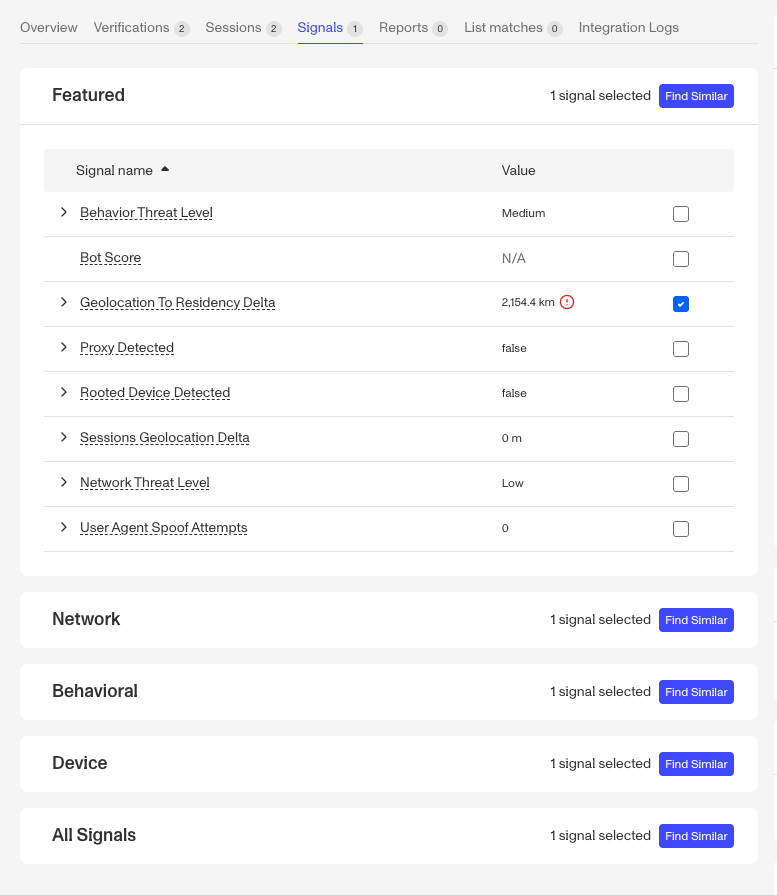
The Signals tab provides an overview of the risk data collected for that Inquiry. It is organized into multiple sections: Featured, Network, Behavioral, Device, and All Signals. Featured highlights the most relevant Signals for review, while the remaining sections organize Signals by category.
Featured Signals
The Featured section highlights the Signals most relevant for fraud review for that Inquiry. Signals marked with a red alert icon indicate a value that warrants closer attention. Hovering over the icon shows a description of why that Signal was flagged.
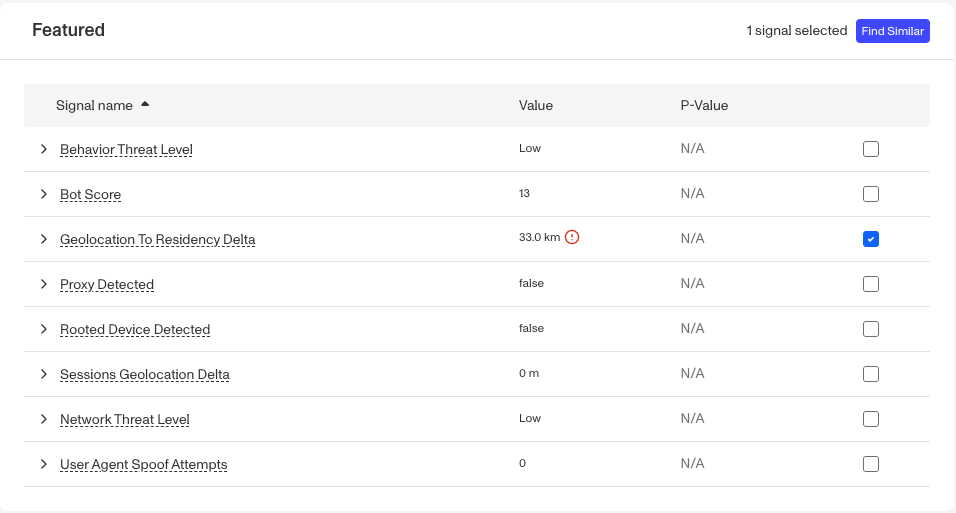
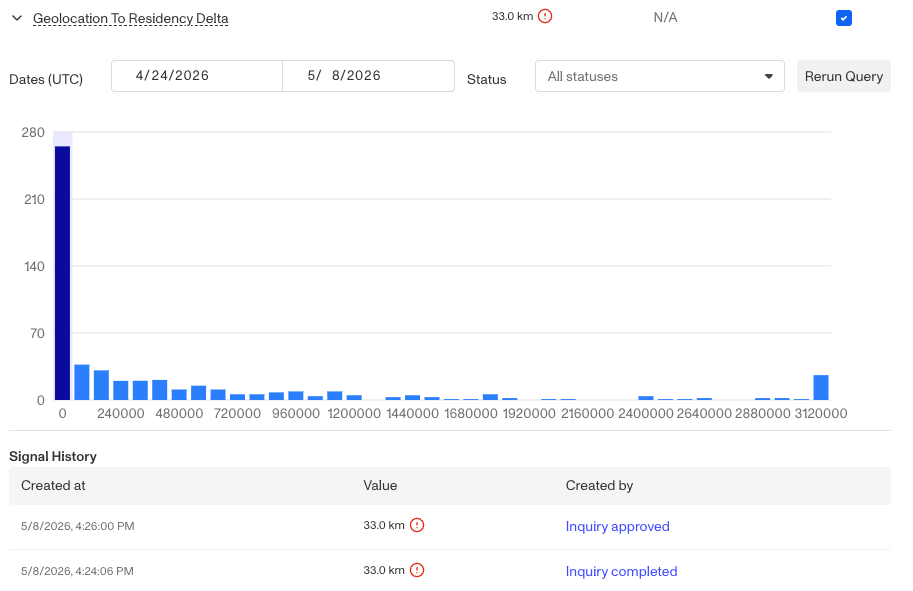
Each featured Signal displays its current value. Click to expand a Signal to open the distribution view, which shows where that value falls across your broader user population. Use this to assess whether the value is an outlier worth investigating.
A single elevated Signal is rarely conclusive. Look at Signals together, patterns across multiple Signals tend to be more meaningful than any single Signal on its own. For example, a high bot score combined with an unusually high session count is more significant than either Signal on its own.
Signals don’t produce a pass or fail result. They surface data you can use to inform your review. For guidance on taking action based on Signal values, such as routing an Inquiry for manual review or setting up Workflow conditions, see How to Use Signals.
Behavior Risk Signals
Behavior Risk Signals reflect patterns in how a user interacted with the Inquiry flow, including form filling patterns, session activity, and signs of spoofing or tampering. Behavior Threat Level provides a high-level summary of behavioral risk, returning low, medium, or high at Inquiry completion. Bot Score is a numeric score from 0 to 100 indicating the likelihood the Inquiry was submitted by a bot.
For a deeper look at Behavioral Risk Signals, see Understanding Behavior Risk Signals in an Inquiry.
Device and session Signals
Device and session Signals reflect the technical attributes of how and where the Inquiry was accessed.
- Sessions geolocation delta: Measures the geographic distance between sessions on the same Inquiry. A large delta may indicate the Inquiry was accessed from significantly different locations.
- Rooted device detected: Indicates whether the device used appears to have been rooted or jailbroken.
- Proxy detected: Indicates whether the session was routed through a proxy.
- Threat level: Reflects the risk level associated with the IP address used during the Inquiry, based on network metadata. Returns
low,medium, orhigh. - Risk level: Indicates whether the IP address has been associated with a high volume of recent activity, which may suggest programmatic or at-scale usage. Distinct from threat level. Returns
low,medium, orhigh. - Session count: The number of sessions associated with this Inquiry. Most users complete an Inquiry in 1–2 sessions. Three or more sessions may indicate that multiple devices were used, which is worth reviewing.
A high value in any of these Signals doesn’t automatically indicate fraud. It indicates the value is notable and worth examining in context with your broader user population.