
This article covers how to configure which Signals are collected, where Signal data appears in Persona, and how to take action based on Signal values. For a general introduction to what Signals are and how they work, see the Signals Overview.
Configuring Signals on an Inquiry Template
To configure which Signals are collected during an Inquiry:
-
In the Persona Dashboard, select Inquiries > Templates in the navigation bar. Select the Inquiry Template you want to edit.
-
Once you are in the Flow Editor, use the Left Panel to navigate to Settings > Signals. This is where you select the attributes you want the Persona widget to collect from the user’s session and device.
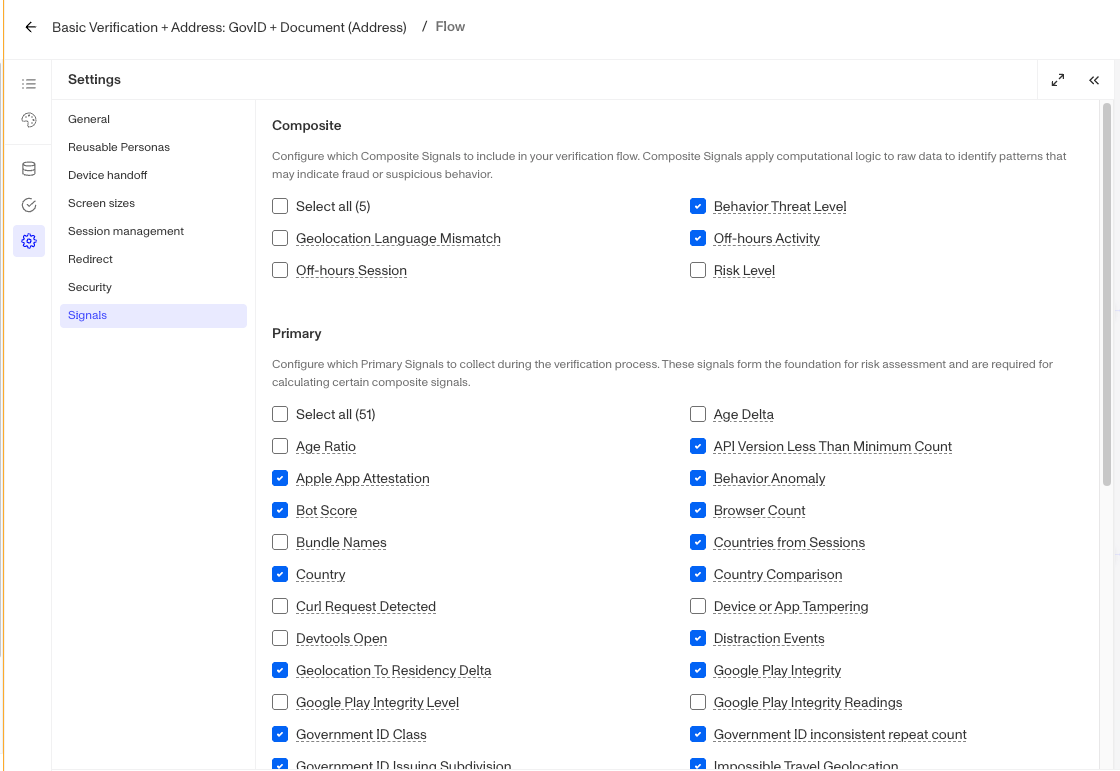
Only Signals that are configured on your template will appear in the Inquiry’s Signals tab or be returned in the API. If a Signal isn’t showing up on an Inquiry, check that it’s enabled on the template first.
Taking Action Based on Signals
Unlike Verification checks, Signals don’t produce a pass or fail result. Enabling a Signal on your template means that data will be collected and surfaced. It doesn’t automatically influence the outcome of an Inquiry.
To take action based on a Signal value, you need to set up logic in a Workflow.
Setting Up Signal-Based Decisioning in Workflows
In a Workflow, you can add conditions based on Signal values to route Inquiries automatically. For example, if session count is above a certain threshold you can route the Inquiry for manual review, or if behavior threat level is high you can create a case for a fraud analyst to review.
Persona recommends using Signals to flag Inquiries for review rather than to auto-decline. A common pattern is:
- Set a condition based on one or more Signal values
- Mark the Inquiry for review
- Create a case for a team member to investigate
- Let a human make the final call
Customers can choose to auto-decline based on Signals, but human-in-the-loop review is generally recommended since Signals indicate risk, not confirmed fraud.
For a pre-built starting point, see Fraud Signals Solution, a Workflow template that evaluates fraud-related Signals and creates cases for review.
Building a Signal Strategy
Signals are most useful when you know which ones are meaningful for your user population. A good starting point is to work backwards from known fraud:
- Find an Inquiry you know was fraudulent
- Open the Signals tab and review the Signal values
- Use the distribution view to see where those values fall relative to your broader user population
- Identify which Signals are consistently elevated for fraudulent Inquiries
- Use those Signals as the basis for your Workflow conditions
There’s no fixed set of Signals that works for every organization. What matters is finding the Signals that are most predictive for your specific use case, and revisiting that assessment as fraud patterns change over time. For guidance on reading individual Signal values, see Interpreting Signals.