
Overview
When presenting Best Practices to you, our customers, we offer them as Recommendations, not Rules. A recommendation works best, in the provided context, 99.99% of the time. But there are always edge cases along with different use cases that change the context. And workflows, due to their flexibility of use, can be utilized in countless use cases. With this article we’ll focus on some common use cases.
Decisioning Workflow Goals
- Surface to reviewers key information from the inquiry and workflow verifications in the form of tags
- Action off the tags to move the inquiry, even via a case, towards a post-inquiry status
Q: Why should we tag the inquiry in the first place??
A: A few reasons.
- It can be difficult for a reviewer to look at an inquiry and reports and know what to review to make the decision. You can use tags to point out the signals the you care about to your review team
- The presence of tags on an inquiry can be used to decision the inquiry (auto-decline, create a case, or approve)
- Applying tags is the most straightforward way to filter inquiries that meet a certain criteria. It is difficult or impossible to search for the following sets of inquiries via dashboard (or exporting) without tags
Inquiries that…
- Failed a certain verification check on the last attempt
- Had an IP address that was outside of the US
- Had any graph hits or report matches
- Were auto-approved or auto-declined via workflow
What to Tag?
You can capture a variety of information in the form of tags:
- Device or IP signal tagging
- Tagging specific inquiry fields like age
- Tagging verification check failures— where the customer did not require the verification check but wanted failures to be manually reviewed
You’ll need to determine what information you want to capture as a tag either for the reviewer, to help with automation, or for improving search.
Custom tags
Tags are custom objects that can been named whatever you what, so we recommend selecting very descriptive tag names. Also, you should only create new tags as you need them to avoid keeping track of tags for every unnecessary variable. You can manage tag in the Tag Manager.
- Verifications: Since verifications have two outcomes (passed, failed, not-applicable) you can create tags for each state of a verification, but we recommend creating just the failed versions. So you might have “GovID-Failed” and optionally “GovID-Passed” and maybe even “GovID-NA”.
- Inquiry Signals: We recommend that for Inquiry Signals to just copy the name of the signal with the relevant level like “Behavior Risk High”.
- Reports: Many reports are structured on getting a “hit” if information is found. That’s why for many reports you can just tag with something like “Business Verification Hit”.
Post Inquiry-Phase
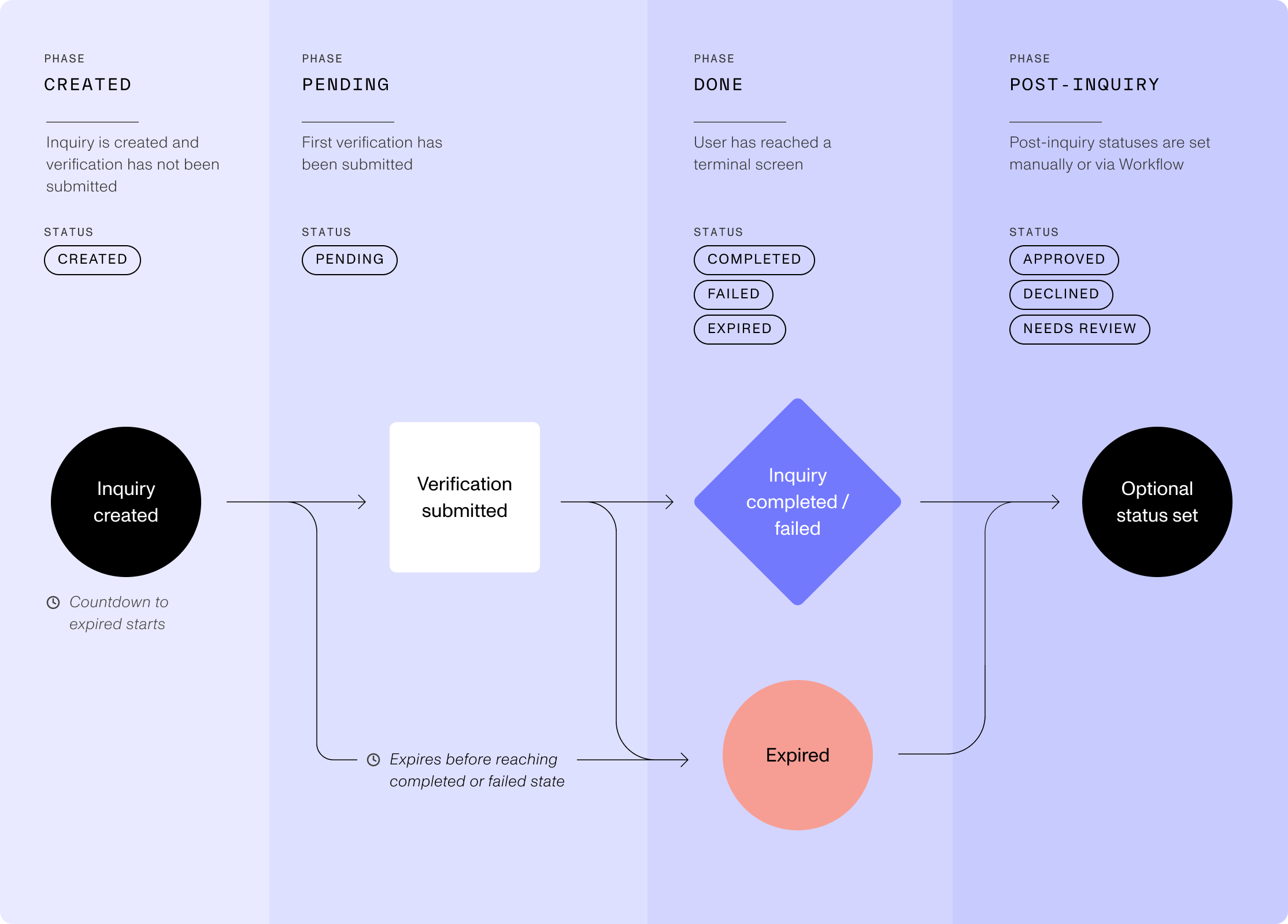
The primary utility of an inquiry is to inform a decision, allowing you to move forward on a business action with that entity. And the best representation of that choice is the inquiry moving to either the “Approved” or “Declined” status. You can set up webhooks to listen for when those events happen and then your systems can move forward with the related business action or not.
- To that goal, workflows should end in an “Approved” or “Declined” status
- If using a Case for manual review, make sure the Case Resolution updates the Inquiry status
-
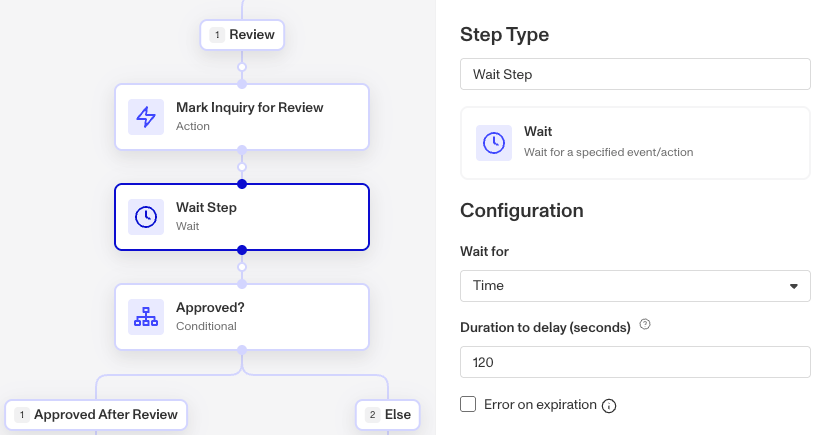
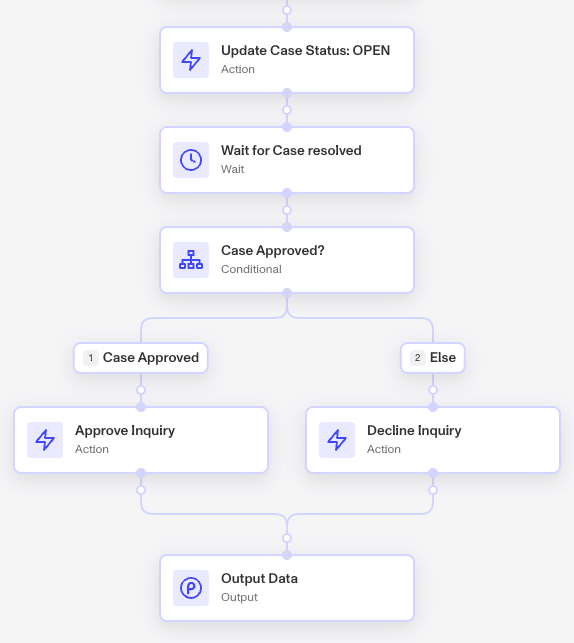
You will in most situations set up a “Wait for case resolved” step at the end of your workflow and once the case is resolved the workflow with update the Inquiry status accordingly
-
You can set up webhooks to also listen for case status updates, not just updates from inquiries.
-
A webhook is an automation that can be configured on a system like Persona that will send messages to your server with an updates. Good for giving your automated system the details it needs to proceed.
Some workflows are focused on other or smaller goals like sending out a new inquiry as an email. These workflows might be better served triggering off other statuses inquiry statues, while still working to move an inquiry to a Post-Inquiry status.
Guidelines
- Structuring your workflow
- Always decision the inquiry
- Case Considerations
- Lists
- Ordering of workflows
- Report Errors
Structuring your workflow
- At the top: Apply tags based on the inquiry
- In the middle: Non-Inquiry steps like reports, graph queries, etc
- At the bottom: Decision the inquiry (approve, decline, or Mark for Review)
At the top: Applying Tags
Parallel Paths
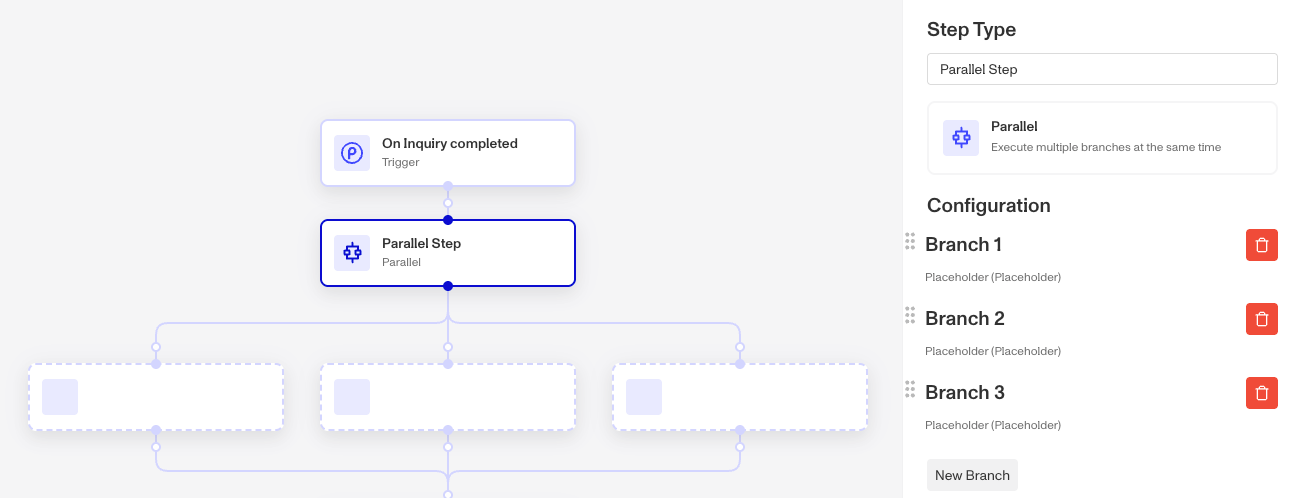
When applying tags, we recommend to handle their logic via parallel paths, with each path getting a separate conditional branch. We create a parallel step here for two reasons:
- Each of the conditionals can run independently from each other, so processing them “in parallel” will be speedier
- It helps with visualization of the workflow since the parallel doesn’t take up too much vertical space
You’ll want to use the Tag Object step, which you can read up on here.
For readability, you will also want to name the action step the same as the tag name. The Step does not do this automatically.
Early Auto-decline or continue
If the inquiry already meets the criteria for an auto-decline, you can do it here and save yourself the cost of running any reports.
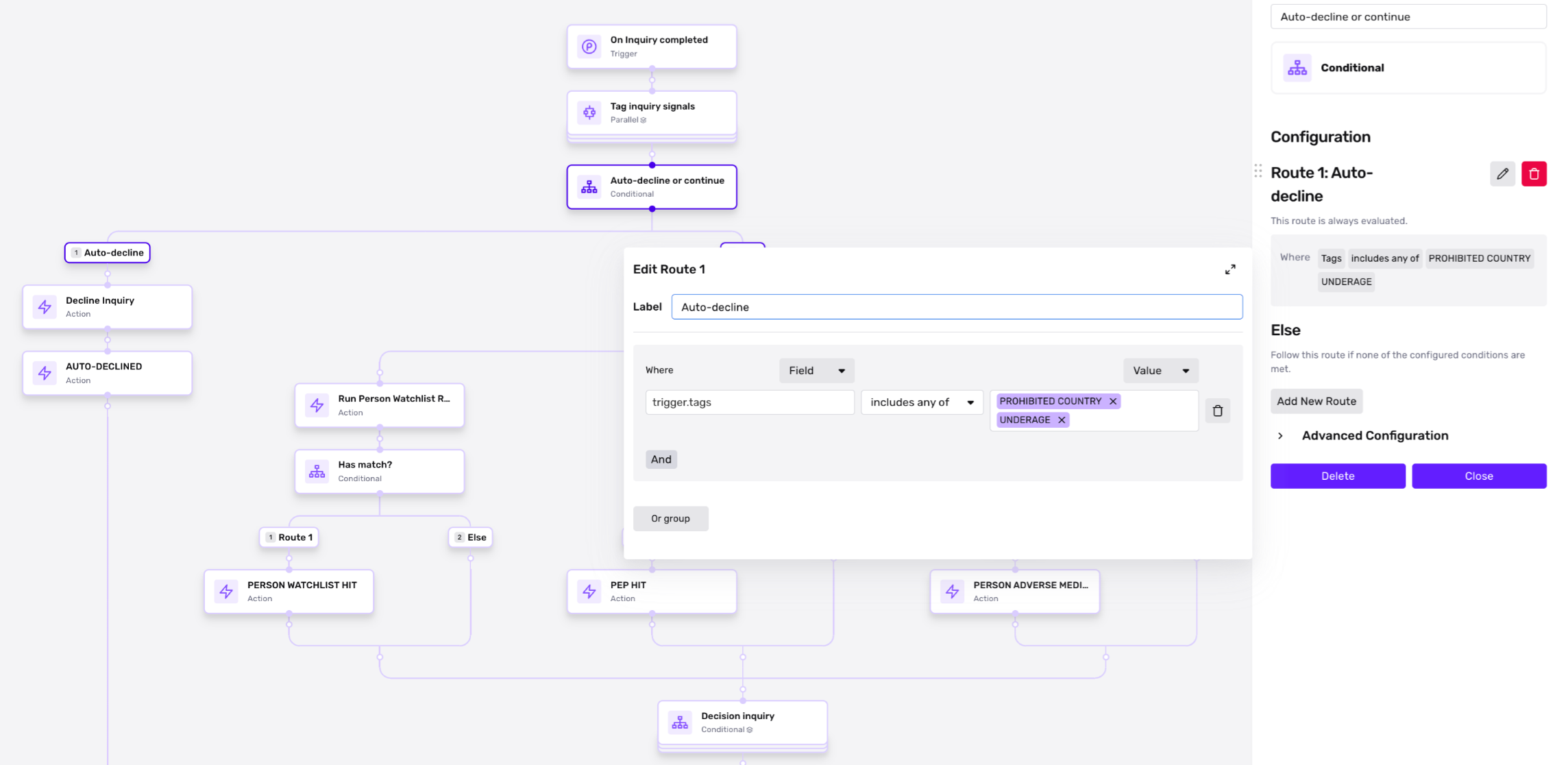
Q: Why check the presence of the tags instead of rewriting the raw conditional?? A: It’s to only have the logic expressed in one place. Imagine you set the age limit is 18, and then apply an UNDERAGE tag at the top and write a conditional to auto-decline if age < 18. This works great until a few months later when you need to raise the age limit to 21. You look at your workflow and you spot the existing UNDERAGE tag, so you change the conditional there. However, you’ve forgotten that you duplicated this logic in the auto-decline step! Then your users get declined when they shouldn’t. By keeping the key logic in one place, you avoid missing logic updates when applying changes to the workflow.
In the middle: More context and tags
In the middle of the workflow is where you want to:
- Run reports
- Query Graph
- Run verifications outside of the inquiry
- Tag all the results
This is a similar loop to the ‘top’ part of the workflow, focused now on adding additional data and then tagging based on the results.
Report and Tagging
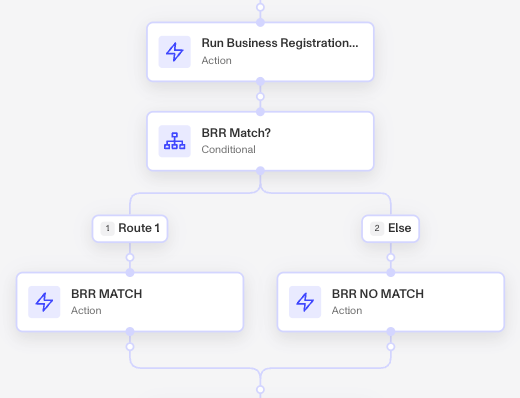
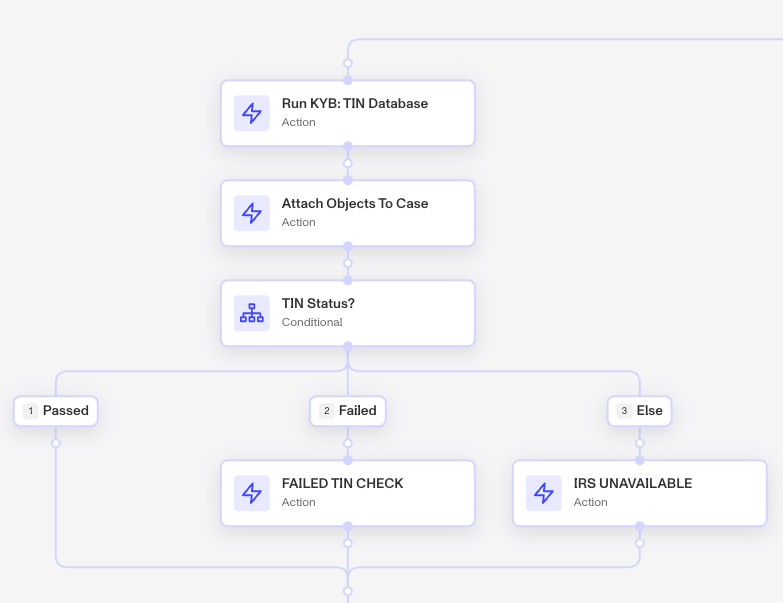
Below are two examples of reports being run and then conditionally tagging based on the results. In the first example with the Business Registration report, the conditional paths tag on a “Match” and on “No Match”. In the 2nd example with TIN Database, it only tags on Failed and Unavailable while Passed is not. This reflects a prioritization of problems being flagged and tagged. You can adapt your tagging to reflect your priorities.
Example 1: Tagging Business Registration Verification
Example 2: Tagging TIN Database Verification
At the bottom: Decision the Inquiry
Now that you’ve tagged your inquiry you can start building the logic that will move it via the workflow to a terminal state. We recommend building the logic to flag the inquiries you want to mark the inquiry and/or case for review first, and having the else branch auto-approved everything else.
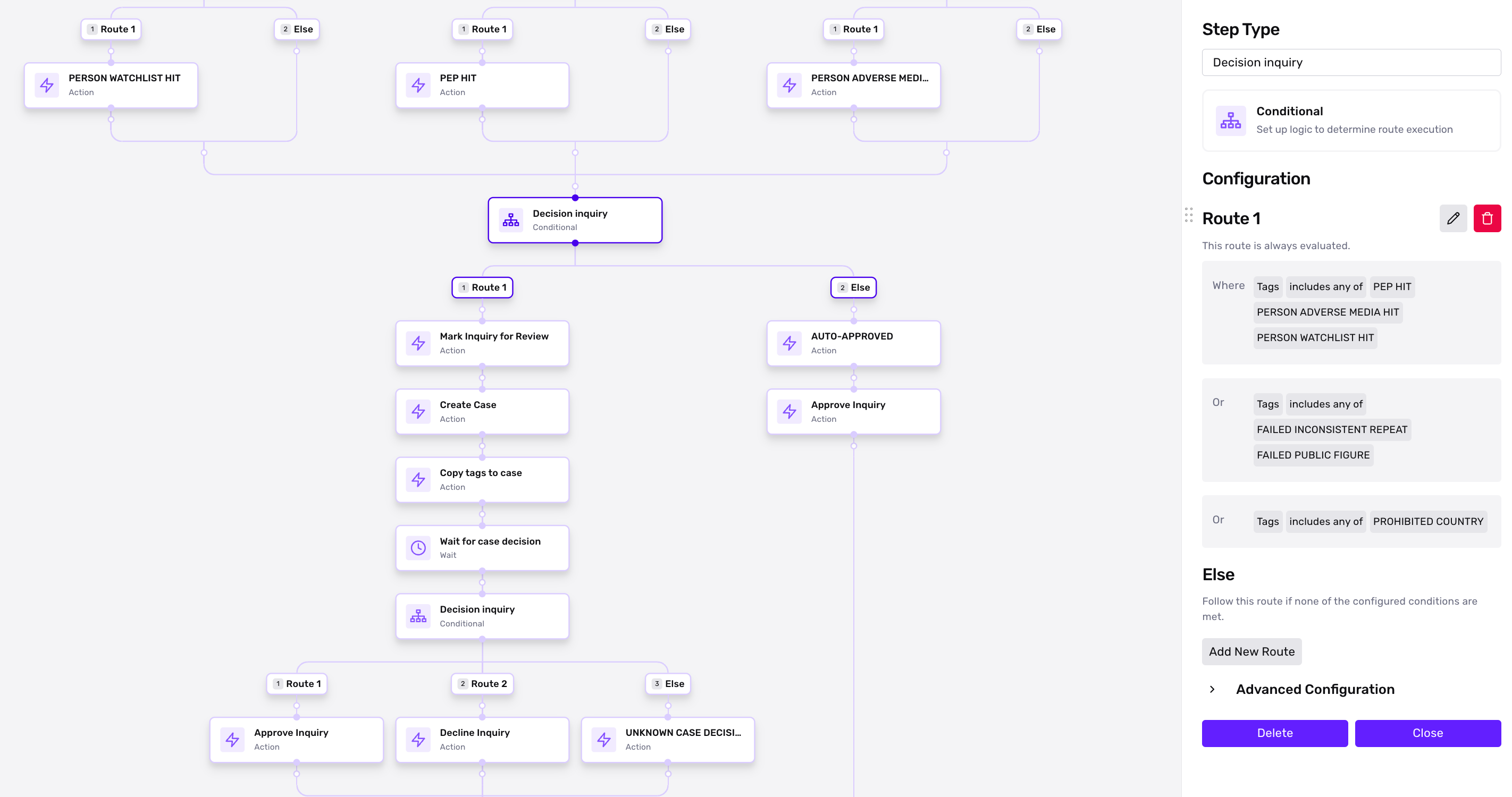
Then after your review team has reviewed the case, the workflow can move forward with conditionally approving or declining the inquiry.
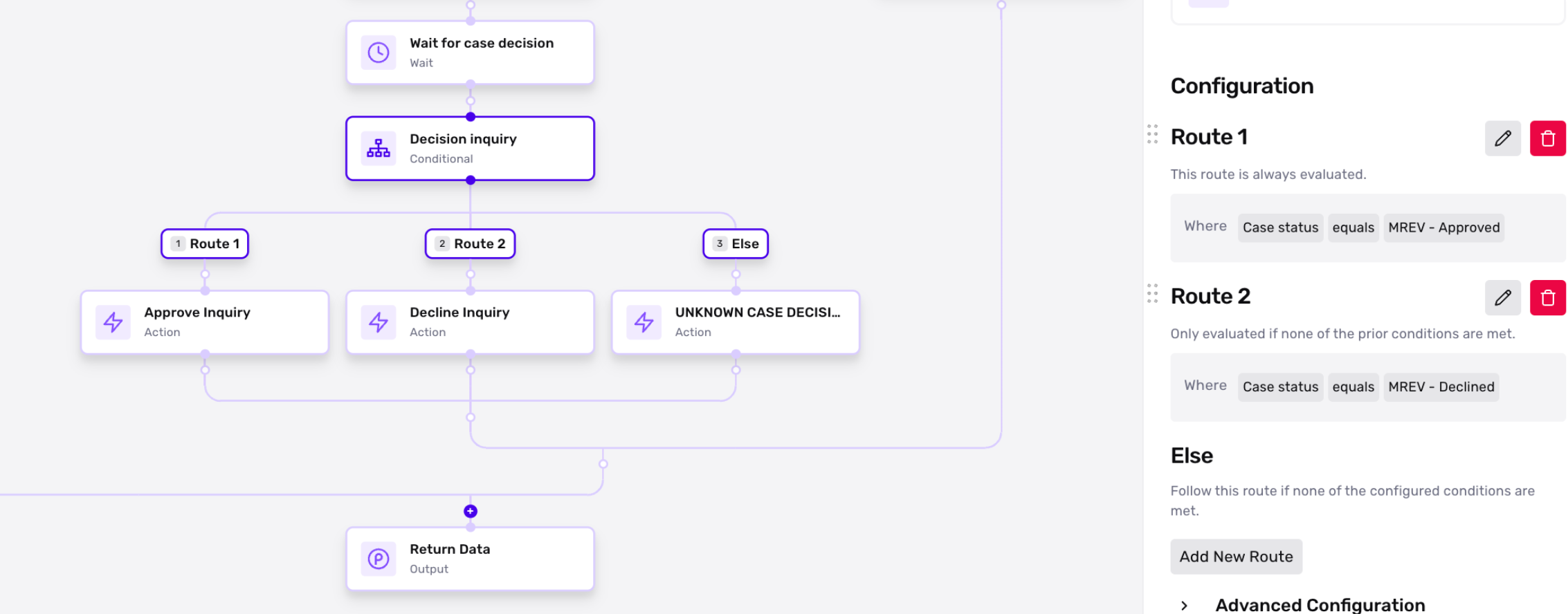
If you’re creating a case, you’ll need to also wait for the decision of the case and then decision the inquiry.
Q: Wouldn’t it be cleaner if we did this in a separate workflow, for all cases? A. It might be! Theoretically, we would always want the case to decision the inquiry respectively. However, because there’s not a good organization of workflows, it is easier to understand and more maintainable to have all of the logic surrounding a particular flow in one place.
You’ll also want to copy the inquiry tags to the case, for the same tagging reasons as mentioned above.
Always decision the Inquiry - when Inquiries fail
We recommend setting up workflows not only for when an inquiry is completed, but another just for when it fails. You can use the “On Inquiry Failed” workflow to move that inquiry to the “Declined” status.
- One triggered on
inquiry.completed> move towards Approve inquiry - One triggered on
inquiry.failed> move towards Decline inquiry
Keep in mind that approve or decline action steps DO NOT end the Workflow Run! A Workflow Run continues its operation through to the Output step.
Case Considerations
Placing Case steps within the Workflow
Creating and populating a Case via a workflow requires related steps, but also some consideration of when and where to place them within the Workflow sequence. This can be chunked in to three key phases: Case Creation, Case Population, Case Status Update.
Case Creation
The placement of the Create Case step should be very early in the workflow, certainly before you begin applying any tags. The case must first be created so you can then tag the case and attach objects to the case.
Case Population
As you move through the first two recommend workflow phases, Applying Tags and More Context and Tags, you’ll want to use the Tag Object step for tags and the Attach Object To Case step. We recommend building in these steps in small conditional chucks.
In the above example from our Example KYB Solution, after the TIN Database is run, that run is attached to the case. Then the conditional will tag the case depending if it Failed or didn’t respond. This keeps all the related logic for TIN Database in one area of your workflow, and avoids your developers from losing track of related elements.
Case Status Update
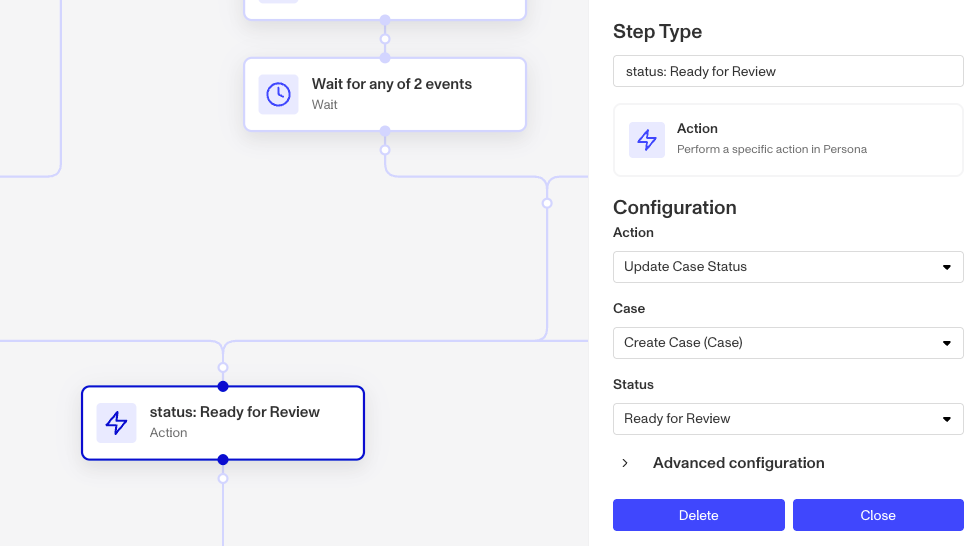
Finally down in the Decisioning phase of the workflow, you can use the same logic that you would to determine if an inquiry should be Approved, Declined, or Marked for Review, but now you also update the Case Status version of Marked for Review, “Open”. In the event that your logic Approves or Declines the Inquiry, you can also do the same for your Case.
Resolving the Inquiry via the Case
As our generic workflow goal is to help resolve an Inquiry into either Approved or Declined, we want the resolution of the Case to cause the Inquiry to be resolved too. There are three ways to accomplish this with increasing automation:
- Your reviewers navs to the inquiry and manually resolve it. Very inefficient.
- Your case template includes a Case action that when triggered by the reviewer, updates the status of the Inquiry, requiring an extra click or two.
- The inquiry status is resolved by a workflow after the case status is resolved, which is fully automated.
To resolve the inquiry based on the case by workflow, you have two options to resolve the inquiry: Have the workflow that created the case resolve it or have a separate workflow that riggers off of the resolved case status update the inquiry. Below you can see an example of a workflow that waits for the Case to be resolved before conditionally resolving.
Managing Case Templates
When creating case templates for manual review, you can avoid confusion by limiting the number of types of Case Templates created, i.e
- One case template for all manual review efforts or
- Two case templates:
- One for for Report hits (which a Compliance-focused team reviews)
- One for everything else (verification issues, potential fraud signals)
For compliance-focused situations you might even want a separate case template just for Watchlist reports, since those are very important to resolve correctly.
Controlling asynchronous activity
There are a few ways to control asynchronous activity in Workflows:
- Wait Steps (less than 30 days)
- Wait Steps have a validation that force a default resolution time no greater than 30 days.
- Manual Run Workflows / Scheduled Workflow step (+30 days)
- For this reason, if you need to model a very long-lived (e.g. a 6 month redaction policy), we recommend using Manual Run Workflow / Scheduled Workflow step.
Ordering of workflows
Workflows will execute in the order they are triggered. So even if you plan or expect Workflow A to execute before Workflow B, if B triggers first it will execute first.
For example, if two workflows are separately triggered by inquiry.created and inquiry.completed respectively, then the inquiry.completed workflow should not assume the other workflows have fully executed before it began.
For another example, if you set up one workflow to trigger on inquiry.completed and another for inquiry.failed but there is a path where failed inquiries can get overturned back to completed, you can end up with both workflows running.
Expecting Prior Workflows
If your expected path includes a sequence of workflows, with later workflows relying on data generated in earlier workflows, there are two options on how to build and setup that data.
- One option is to have the later workflow check for information that would be added by the earlier workflow in a conditional in the form of a tag, then wait if that tag does not exist. This would hopefully give the earlier workflow the time needed to finish and then include the tag.
- Another option is to have the earlier workflow schedule the later workflow far enough in the future to ensure the earlier workflow has time to complete.
Above all else, design your workflows to avoid ordering dependency if possible.
Testing Transaction Verifications in Sandbox
In order to create a Sandbox verification for Transaction Workflows, make sure to use the Sandbox API key when you hit the Transactions API:
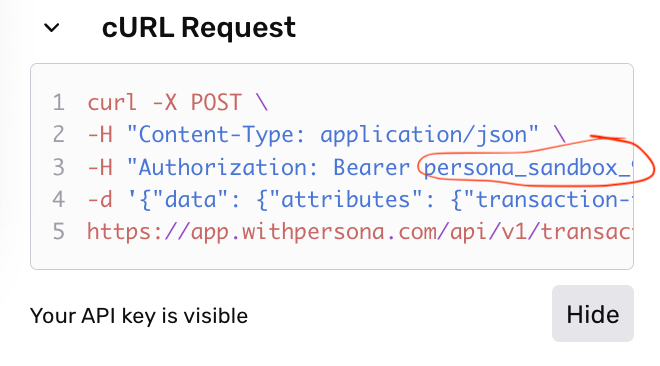
Additionally, debug_forced_status is now exposed in the advanced config for the Run Verification step. Builders can set it to a Transaction field and mock pass/fail by setting that field when creating the Transaction.