
What is the Merge files into PDF step?
Merge files into PDF is a Workflow Action step that combines files from an Inquiry, an Account, or specific documents into one PDF. The step saves the PDF to Platform Files and gives a download link. A later step, such as Make HTTPS Request, can send that link to your systems.
The step runs in the background. It is available in Workflows only.
The step shows only for organizations that have Platform Files turned on. A run fails if your organization has no active Platform Files storage location for its region.
What the step merges
- Sources: Each source is an Inquiry, an Account, a document, or a verification document. All sources must belong to the same Inquiry or Account. If they do not, the step fails.
- Order: The step merges sources in the order that you list them.
- An Inquiry or Account adds its collected documents, oldest first. It adds only documents that are submitted, pending, or processed, that are not redacted, and that are in the same environment.
- The files of each document stay in their order.
- The step adds a duplicate file only one time.
- The step skips redacted sources and redacted documents.
- File types: PDFs and images.
- The step adds JPEG and PNG files as they are.
- The step converts HEIC, HEIF, TIFF, GIF, BMP, and WebP files.
- Each image becomes one page, scaled to fit a US Letter page.
- The step turns phone photos upright.
Where the merged PDF is saved
The step saves the PDF in the Merged PDFs folder in the Platform Files of that Inquiry or Account. If a file with the same name is already in the folder, the new file gets a unique name. The file stays in the folder after the download link expires.
When you redact the Inquiry or Account, Persona also deletes the merged PDF.
Step settings
| Setting | What it does | Default |
|---|---|---|
| Sources | The Inquiries, Accounts, documents, or verification documents to merge, in order. Required. You can add one or more. | None |
| Filename | The name of the PDF, up to 200 characters. You can use variables. The step always adds .pdf and replaces unsafe characters. Optional. | The first source’s token, followed by -merged.pdf |
| Link expires in (hours) | How long the download link works, from 1 to 168 hours. | 6 |
| When a file cannot be merged | Skip the file and continue, or Fail the step. | Skip the file and continue |
Limits
| Limit | What happens |
|---|---|
| 100 files | The step skips the files after the 100th file. |
| 50 MB for each file, or 40 megapixels for each image | The step skips that file. It continues to try the files after it. |
| 250 MB in total, 500 pages, or approximately 4 minutes of processing | The step skips the file that gets to the limit and all the files after it. |
When a file cannot be merged
The step skips a file that is encrypted, unreadable, or an unsupported type, or that goes over a limit. The step reports the reason.
- With Skip the file and continue, the step completes with a partial PDF and shows the list of skipped files.
- With Fail the step, a skipped file causes the step to fail. This includes a file that the step skipped because of a limit. The error shows each file and its reason.
If the step cannot merge any of the files, it always fails.
What the step outputs
Later steps in the workflow can use these outputs.
| Output | What it contains |
|---|---|
url | The download link |
expires_at | The time when the download link expires |
filename | The name of the PDF |
byte_size | The size of the PDF |
page_count | The number of pages in the PDF |
sha256 | The SHA-256 hash of the PDF |
platform_file_id | The ID of the PDF in Platform Files |
included | The filename and number of pages of each file |
skipped | The filename and the reason for each skipped file |
How do you add a Merge files into PDF step?
-
Navigate to the Dashboard, and click on Automation > All Workflows.
-
Find and click on the workflow you want to edit, or Create a new workflow.
-
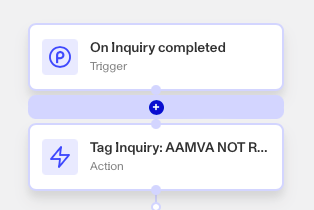
Click on + when hovering over a circle to add an Action.
-
Use the Find Action select box to click on Inquiry > Merge files into PDF.
-
Add one or more Sources, in the order that you want to merge them.
-
(Optional) Set the Filename.
-
(Optional) Set Link expires in (hours).
-
(Optional) Choose an option for When a file cannot be merged.
-
(Optional) Click the Continue on error box if you want the workflow to continue running even if this step raises an error.
-
Close the step. You’ll have to Save and Publish the workflow to begin using it.
See the result of a run
The workflow run panel shows the download link, its expiry, the page count, and the included and skipped files.
Plans Explained
Merge files into PDF step by plan
| Startup Program | Essential Plan | Growth Plan | Enterprise Plan | |
|---|---|---|---|---|
| Merge files into PDF step | Not Available | Limited | Available | Available |