
Importers support Workflow Run as a destination type, letting you bulk create workflow runs from a data source. When Workflow Run is selected, each row in the importer data source can be used to create a workflow run.
Key terms
- Importer: The process that reads rows from an external data source and triggers one workflow run per row. Each Importer has a configuration that specifies its data source, destination workflow, and field mapping.
- Importer run: The specific instance of an Importer reading from a data source and triggering the configured workflow runs.
- Workflow run: The execution of a workflow, including the triggering data and the steps taken.
- Trigger object token: The unique identifier for the object that originally triggered a workflow (e.g. an inquiry token, transaction token).
- Parameter schema: The set of input fields you define on an API-triggered workflow.
Why use importers to create Workflow runs?
Importer Created Workflow Runs are useful when you want to manually create workflow runs in bulk, especially when working with larger volumes of objects or when you need better visibility into the progress and outcome of each run.
Common examples include backfilling data or re-running workflows after a configuration change. You can use importers to create runs for event triggered, API and Case/Account action workflows.
- Event triggered workflows: used for backfilling or re-running workflows based on pre-existing events. The data source will need to include the trigger object token and tokens provided need to fulfill the trigger criteria.
- API triggered workflows: used to run workflows without relying on an existing trigger object or event, often for one-time migrations or backfilling. The data source provided will need to provide any required inputs defined in the parameter schema.
- Case / Account Actions: used to bulk trigger case or account actions. The data source should include case or account tokens, along with any required input fields.
Examples/ Use Cases
- Account backfill — use an API or event-triggered workflow to run reports and tag accounts with appropriate signals when doing a one-time migration of existing accounts.
- Add items to a list — build an API-triggered workflow with an “Add item to list” step, then import a CSV of 1,000 IP addresses to trigger one run per row.
- Bulk redaction — build a workflow that redacts inquiries, then import a list of inquiry tokens to run it for each one.
How to use Importers to Create Workflow Runs
Step 1: Set up the Importer
-
Navigate to Data > Imports in the Dashboard.
-
Click + Add importer in the top right corner.
-
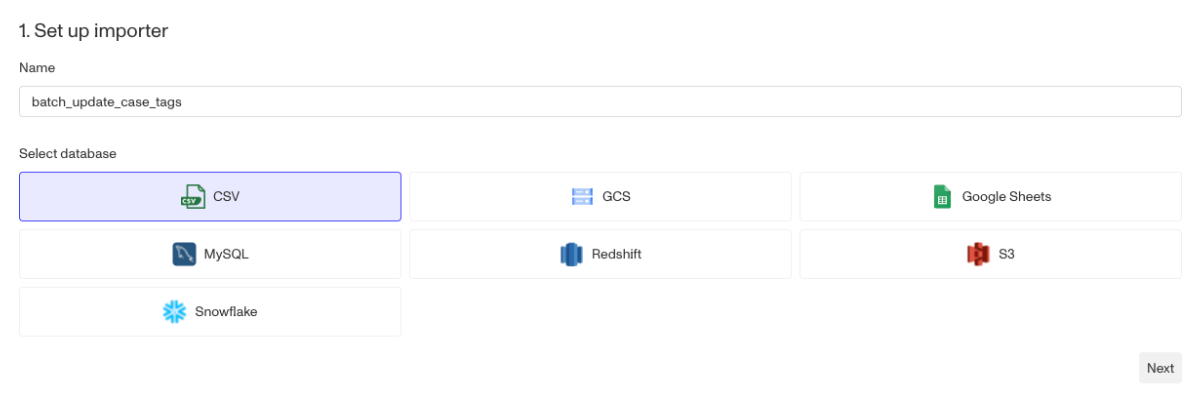
In the Name field, give the Importer a descriptive name.
-
Select your data source type. Both CSV and S3 are supported for all workflow run types.
Step 2: Configure your data source
- Under Select a data source, open the dropdown and choose an existing data source, or click New Data Source to upload a file directly.
You can also create a data source separately in the Data Sources tab and then reference it here.
Step 3: Set the destination
- Using the Destination dropdown, select Workflow Run.
- In the workflow dropdown that appears, select the workflow you want to run.
- Click Create.
Only active workflows appear in the dropdown. By default, the Importer uses the latest published version of the selected workflow.
Step 4: Complete field mapping
How you map your data depends on the workflow type:
-
Event-triggered: Map the column containing your trigger object tokens (e.g. inquiry tokens, transaction tokens) to the corresponding trigger field.
-
Case / Account action: Map the column containing your case or account tokens, and map any additional columns to the workflow’s Input Modal fields.
-
API-triggered: Map each column from your data source to the corresponding parameter in the workflow’s trigger parameter schema. All required parameters must be mapped and follow the input formatting table below.
Trigger parameter type Accepted source type Example String String Sample stringDate String (YYYY-MM-DD) 2001-01-01Boolean Boolean true/falseNumber Float 123.12Integer Integer 123Array of any type above JSON ["apple", "banana", "cherry"]Object One column per nested field — Object of Object One column per terminal nested field — Array of Objects JSON [{"name": "Alpha", "value": 1}] -
Optionally, use the Query box to filter or transform the data set before triggering runs. Click Save, then Activate & Run to kick off the Importer.
Step 5: Monitor
-
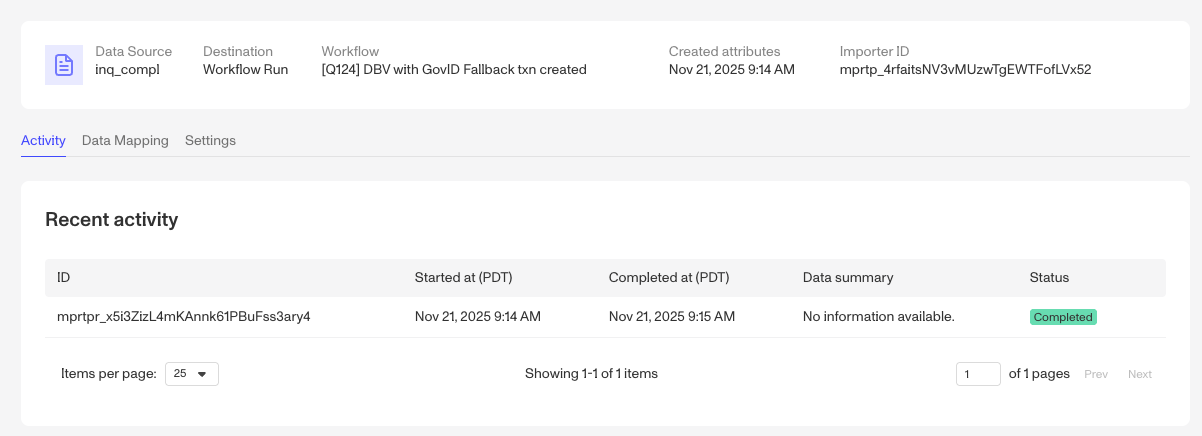
Once you’ve kicked off the importer, you can monitor progress of the import on the Activity tab. Please note the status here is of kicking off the importer, NOT completing all workflow runs.
-
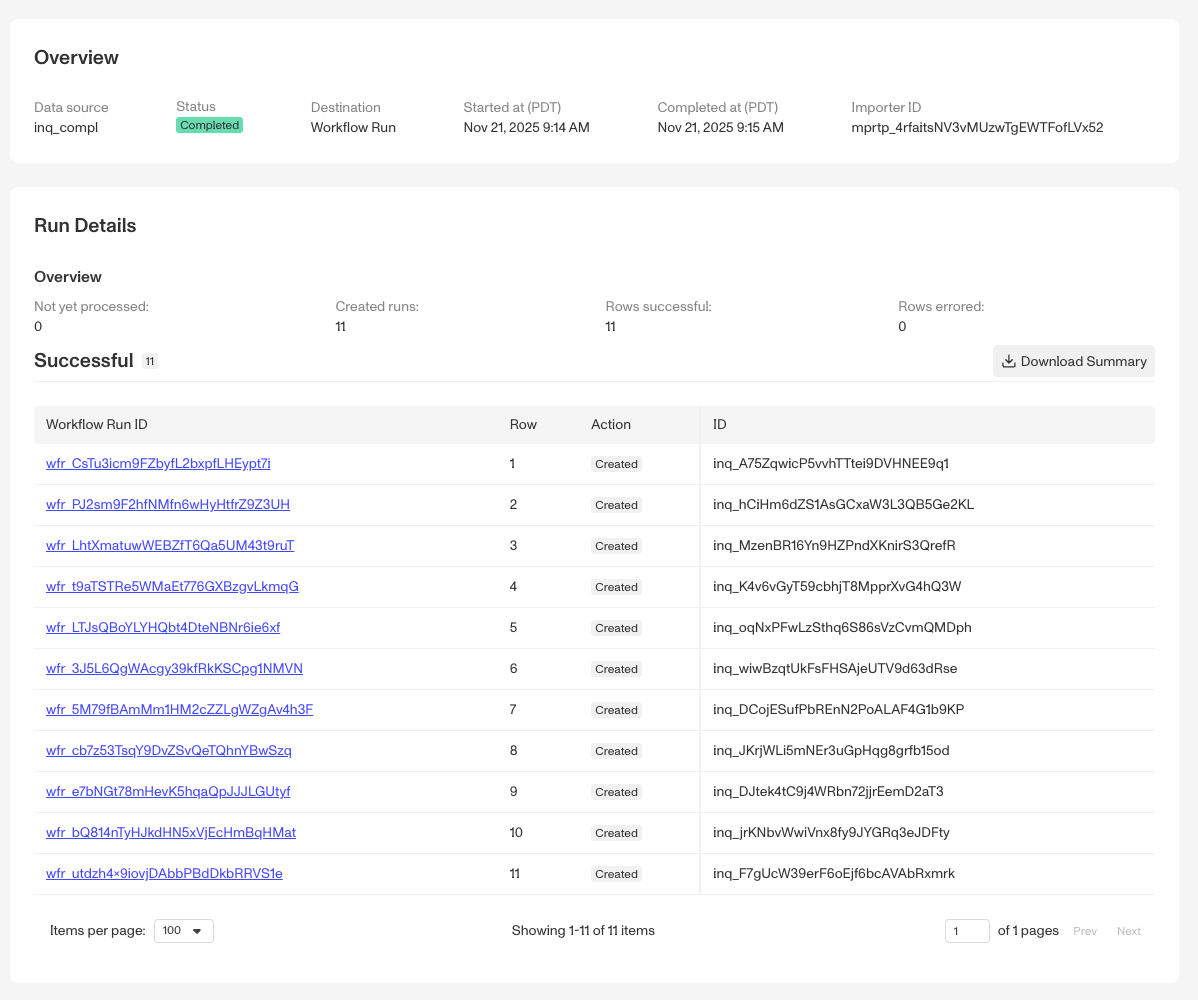
Clicking into the run details will provide additional details, like links to each workflow run, errors (if there are any) and ability to download summary of the import.
Performance and scale
- Batch processing: Importer-created workflow runs are processed in a separate batch queue and do not compete with or slow down your real-time workflow runs. This means while they are isolated from real-time workflow runs, they are also not well suited for time sensitive needs.
- Quota: Importer-created workflow runs do count against your workflow run creation quota. You can check your workflow run creation quota in Dashboard under API > Rate Limits to ensure your importer created workflow runs will not exceed your daily quota.
FAQs
What happens if I publish a new workflow version after creating the Importer?
- The Importer uses the latest published version at the time the run is triggered. If a newer version is published between when you create the Importer and when you run it, you will see an error on run. Re-save the Importer to pick up the latest version.
Can I use importers to create runs for any event triggered workflow?
- No. Events older than 3 months ago cannot be used for event triggered workflows. Instead of relying on events, it’s recommended to use API triggered workflows instead.
Will running a large Importer affect my live workflows?
- No. Importer runs are processed through a separate queue, isolated from real-time workflow processing.
How do I check if my importer job completed successfully?
- After triggering the Importer, navigate to the Activity tab to review run status. Errored rows are aggregated with details about why they failed. You can download the errored rows as a CSV to troubleshoot and re-import. Note that these errors are from the job kicking off workflow runs, not errors from workflow runs themselves. To check the status of workflow runs, click on the Workflow Run Id link or visit the runs page of the workflow.