
What is the Sync Graph step?
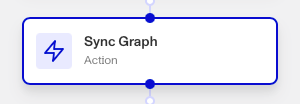
Sync Graph is a Workflow Action step that syncs an Account’s information with the Graph tool. This step is crucial for ensuring any new or updated information is reflected in the Graph for accurate analysis and decision-making.
Graph is a link analysis tool that lets you visualize, explore, and uncover patterns in your customer network. You can use Graph to find patterns in your network that may indicate fraud.
For example, you can identify clusters of customers that share the same IP address, device fingerprint, or browser fingerprint.
You can then leverage other Persona objects, such as Cases, to take action based on Graph-identified patterns.
Persona recommends you sync the Graph regularly to ensure its data is up to date. The specific frequency depends on your organization’s specific needs and the nature of the data being synced: this could mean syncing daily, weekly, or in real-time, depending on how critical up-to-date information is for your decision-making processes.
How do you add a Sync Graph step?
-
Navigate to the Dashboard, and click on Workflows > All Workflows.
-
Find and click on the workflow you want to edit, or Create a new workflow.
-
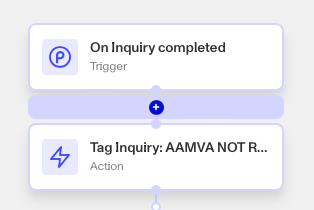
Click on + when hovering over a circle to add an Action.
-
Use the Find Action select box to click on Graph > Sync Graph.
-
Choose which Account to sync to the Graph.
-
Choose a sync mode to control which data is synced into Graph. Most Workflows use the recommended default; the other modes let you optimize for specific needs.
- Non-embedding similarity nodes (recommended): The default. Syncs the Account’s data for standard querying.
- All nodes (including similarity nodes): Syncs all the data used to find similar images across accounts. Choose this when your query needs to match on similar images.
- Selective sync (choose nodes to sync): Syncs only the data defined in the Graph Query Template you select. Choose this to limit the sync to what a specific Workflow needs. You must select at least one Graph Query Template.
-
(Optional) In ‘Advanced Configuration’, click the Continue on error box if you want the workflow to continue running even if this step raises an error.
-
Close the step. You’ll have to Save and Publish the workflow to begin using it.
Plans Explained
Sync Graph step by plan
| Startup Program | Essential Plan | Growth Plan | Enterprise Plan | |
|---|---|---|---|---|
| Sync Graph step | Not Available | Not Available | Available | Available |