
Apps are in early access for Persona’s Growth and Enterprise customers. Features, usage limits, and pricing can change during early access.
Overview
Apps add another layer of customization to the Persona platform. You can create custom apps that run in the Persona Dashboard using App Builder to specify your requirements. Every app is built on what your organization already has in Persona: your data, your workflows, your permissions. The best place to start is anything that takes too many clicks, too many tabs, or too much manual work.
To build an app, you chat with App Builder’s AI agent and iterate through changes in a live preview. When the app is ready, you deploy it and share it with your team. An app uses the same Dashboard sign-in and permissions as the rest of your team’s work in Persona.
App Builder includes prebuilt apps that you can use out of the box and customize to your own use case.
- Dashboard Starter: The pages that most dashboard apps start with: a list page with search and filters, a detail page with click-to-edit fields and tags, and a case page with tags and an event timeline. The pages show sample data, so you can add your own data and build from there.
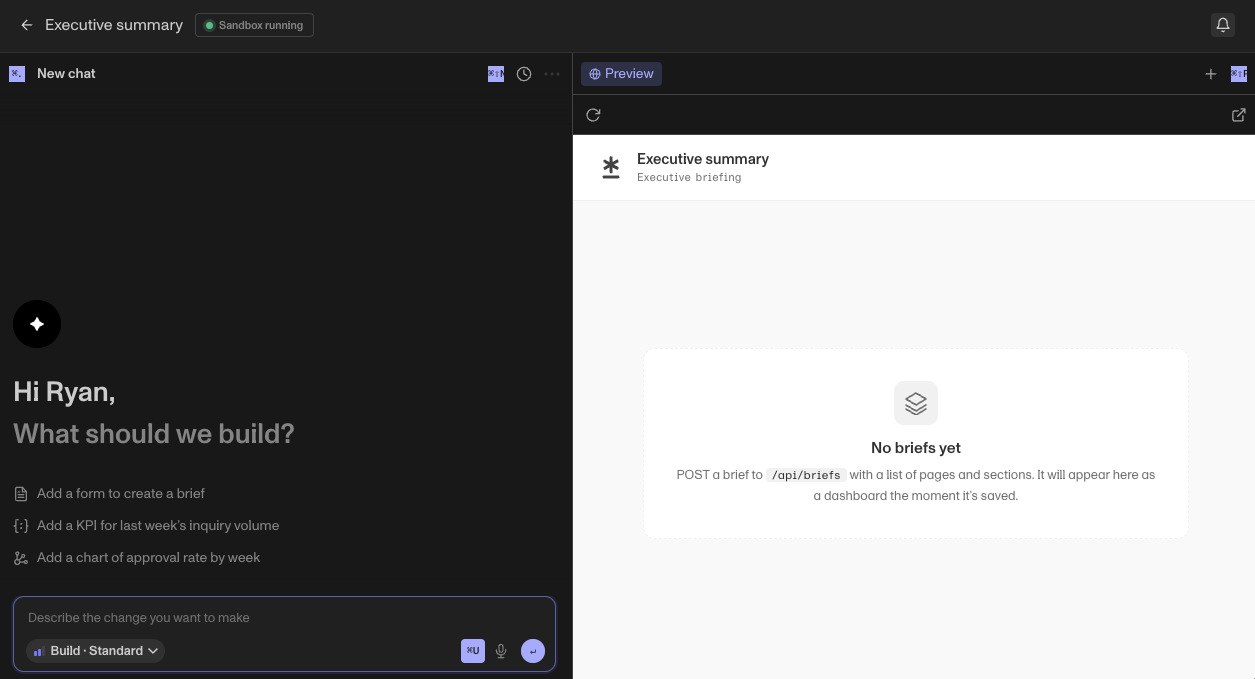
- Executive Summary: A briefing dashboard for your leadership team that shows your latest metrics as KPIs, charts, tables and callouts. It starts empty and shows your newest brief each time you add one.
Some use cases include custom review queues, investigation views, bulk action, reconciliation reports, configuration overviews, and even team trackers. Or if you cannot surface data on Persona in the way you want, you can design your own fixed views, missing metrics, or one-size-fits-all layouts.
Features
-
Templates: Start from one of the prebuilt templates in the template gallery, or start with a blank app.
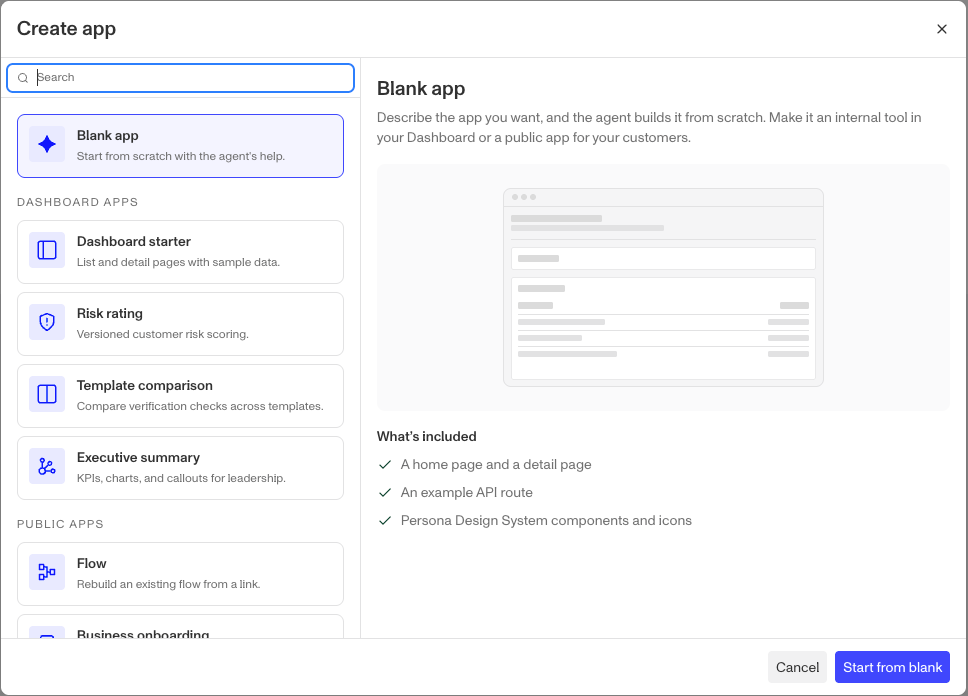
The templates that you see can depend on the settings of your organization.
Tags on a template give you more information about it:
- Dashboard: The template builds an app that runs in the Persona Dashboard. People sign in to it with their Persona sign-in.
- Unavailable: Your organization cannot create an app from this template during the early access program. If you’re interested in using an Unavailable template, contact the Persona team.
The template name and preview show the Dashboard tag. In the gallery list, a template card shows only the Unavailable tag. Blank app has no tag.
-
Chat modes: Select a mode for each chat. Ask answers questions about the app. Plan writes up an approach. Secure reports security problems and suggests a fix for each. These three modes do not change the app. Build makes the changes and updates the app. If you can only view an app, you cannot use Build.
-
Live preview: Examine the app as the agent builds it, before anyone else can use it.
-
Staging and production: Deploy to a staging environment to test the app, then deploy to production. The deploy history shows each deployment.
-
App data: Each app has its own data storage. On the app’s page, you manage it in three sections: Database, Buckets and Secrets. Staging and production each get their own database and bucket, so test data and files never get into production.
- Database: Keeps the app’s data as records. You can create a database, run queries on it, and delete it. Each change to the database schema is recorded in a history. A change to the production database needs an extra confirmation.
- Buckets: Keep files, for example uploads, images and exports. You can create a bucket, browse its files, and delete it.
- Secrets: Keep credentials, for example an API key for another service. A secret can apply to all versions of the app, or only to staging or production. After you save a secret, you cannot see its value again. You can only replace the value with Rotate value, or delete the secret. The agent cannot enter the value of a secret, so you must add it yourself.
-
Connectors: Connect the app to other services through connectors.
-
Persona API access: Apps can call the Persona public API.
-
Permissions: Control who can edit an app, who can view its configuration, and who can use it. To build an app, you must have Admin permissions.
To find your Persona API keys, click API in the left navigation of the Persona Dashboard, then open the Keys tab.
Building an app
- Sign in to the Persona Dashboard. In the left navigation, click Apps.
- Start a new app from a template or from a blank app:
- In the top-right corner of the Apps page, click Create app. The Create app window opens and shows the template gallery.
- Select a template. Blank app is at the top, and the prebuilt templates are below it. When you select a template, a preview shows what the template includes and what it needs.
- Click Use this template. For Blank app, click Start from blank.
- Enter a name for the app, then click Create app.
- In the chat, describe the app that you want. Tell the agent what the app must do, who uses it, and what data it shows.
- Examine the live preview. The preview updates as the agent builds the app.
- Continue the chat to make changes. Ask for one change at a time, then examine the preview again.
- When the app is ready, click Deploy.
Opening an existing app
- Sign in to the Persona Dashboard. In the left navigation, click Apps.
- In the list of apps, click the app. The Overview tab of the app opens.
- In the Environments section, find the deployed environment that you want to use: Staging or Production.
- In the URL column, click the URL for that environment. The app opens in a new browser tab.
If the URL column shows Not deployed yet, the app is not deployed to that environment. Deploy the app to that environment first. If you can only view an app, the app opens directly when you click it in the list.
Submitting feedback
We want to know what works well and what does not. You can send feedback to the Persona team from an App Builder chat. The chat must have at least one message before you can send feedback.
- Send feedback: In a chat that you started, open the chat actions menu at the top of the chat, then click Send feedback. Enter your feedback, then click Send. To include the chat with your feedback, keep Include this chat so the team can see what happened selected.
- The
/feedbackcommand: In the chat box, type/feedbackfollowed by your feedback, then send it. To open the feedback form instead, type only/feedback. - Feedback reports from the agent: If you tell the agent that it did something wrong, the agent can write a feedback report in its reply. The report is not sent until you examine it and click Send. To delete the report, click Discard.
Your app data and secrets are not sent with your feedback.
To send feedback about Apps and App Builder outside a chat, contact Persona Support.
Pricing
During the early access period participating customers will be given a $100 per month spend limit. If you reach that limit, contact the Persona team.
Plans Explained
Apps by plan
| Startup Program | Essential Plan | Growth Plan | Enterprise Plan | |
|---|---|---|---|---|
| Apps | Not Available | Not Available | Available | Available |