
What is the Case Key Value module?
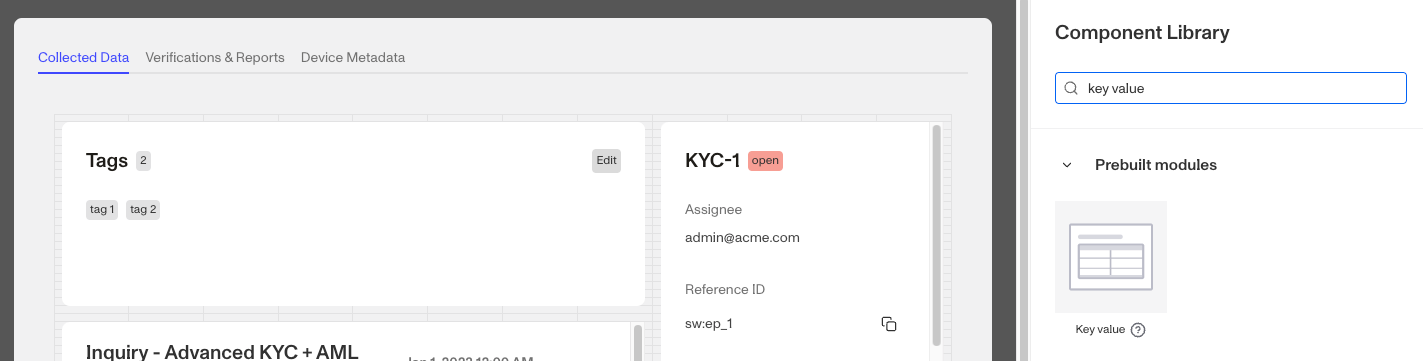
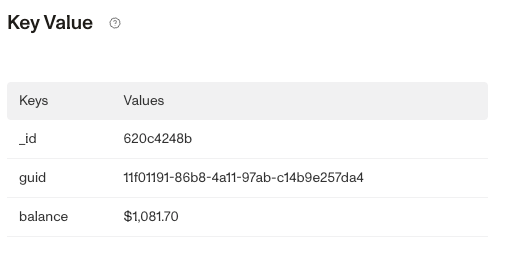
The Case Key Value module is a prebuilt component that can be added to a Case Template. It displays JSON data, in grid or table format. You can define logic that governs when it appears.
How do you edit a Case Key Value Module?
-
Navigate to the Dashboard, and click on Cases > Templates.
-
Find and click on the Case template you want to edit.
-
Click on the Key Value module
-
Drag and drop the Key Value module on the right toolbar you can customize the module.
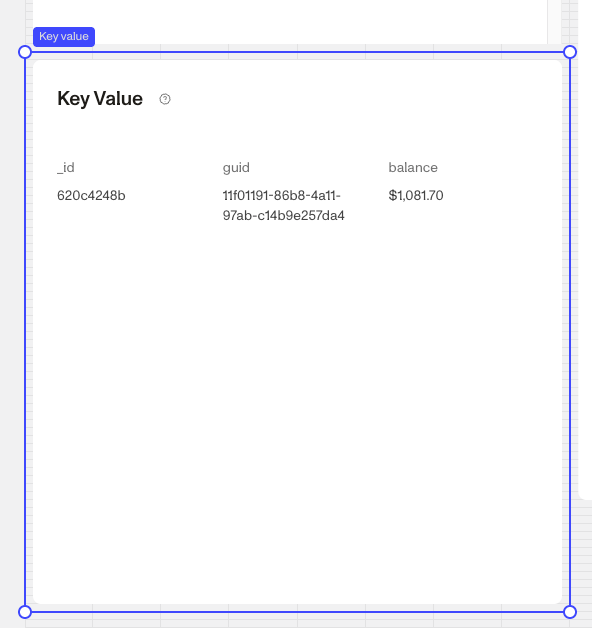
- Under Settings, you can edit the Title text to change the text displayed on the top of the module.
- Under Data Configuration, you can add the Fields you want to display on the module. Learn more about Data Configuration below.
- Under Display Configuration, you can change how the Key Values are displayed. Learn more about Display Configuration below.
- Under Module Layout, you can change:
- Dynamic height: Module will grow or shrink to fit its contents.
- Visibility: Dynamically control whether the module is hidden. This is a toggle button that lets you set conditions for when the button should be displayed or hidden from view based on your case requirements. You can read more about Cases: Visibility configuration here.
-
Click the “Delete” button if you want to remove the component from the Case UI.
Data Configuration
Begin typing the Field you want to add into the text box below Field Key.
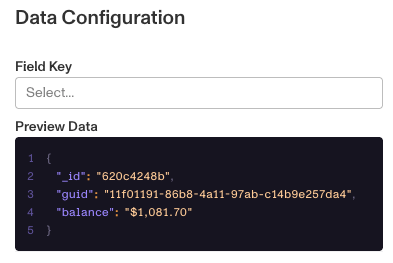
You can directly edit the code by clicking on the Preview Data code sample. To use this module, you’ll need a Case field with a hash data type, which you can select in the Field Key configuration. The module will display this data in either table or grid format.
The Preview Data Editor displays the hash structure. Here’s an example using field key = Person_basic_info:
    {
      "name_full": "Jonathan Miller",
      "name_last": "Miller",
      "name_first": "Jonathan",
      "birthdate": undefined,
      "identification_number": null,
      "identification_number_type": null,
      "email_address": "jonathan@gmail.com",
      "phone_number": null,
      "address_country_code": null,
      "address_city": null,
      "address_subdivision": null,
      "address_postal_code": null,
      "address_street_1": null,
      "address_street_2": null
    }
Data Configuration
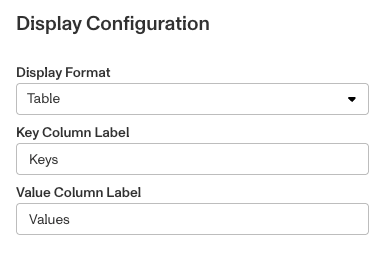
There are two options for display:
- Grid: This is the default display configuration.
- Table: The table format gives you the option to further customize the module. You can edit the Key and Value Column Labels.
Plans Explained
Case Key Value module by plan
| Startup Program | Essential Plan | Growth Plan | Enterprise Plan | |
|---|---|---|---|---|
| Case Key Value module | Not Available | Available | Available | Available |