
Overview
Some layout modules might contain sensitive information for which you want to limit visibility to your own team members by their role. To assist with that, layout modules now include a Visibility configuration allowing you to set which roles in your organization that can see any particular module in that layout.
If you toggle this on you will have two options to customize visibility.
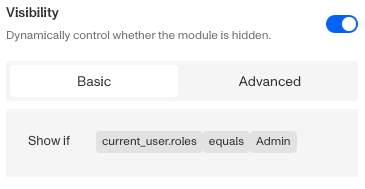
- Basic visibility allows you to set rules on the module to determine when it will be visible. You can read more about Basic Visibility Configuration below.
- Advanced visibility allows you to set logic to control when the module is enabled or disabled based on custom conditions. Advanced options are typically configured for specific customers by a Persona team member.
Visibility Configuration
Visibility configuration consist of three main components:
-
Field: The object that will have a condition linked to it.
-
Condition: How the field is compared to the value (e.g., equals, does not equal).
-
Value: The value to test against.
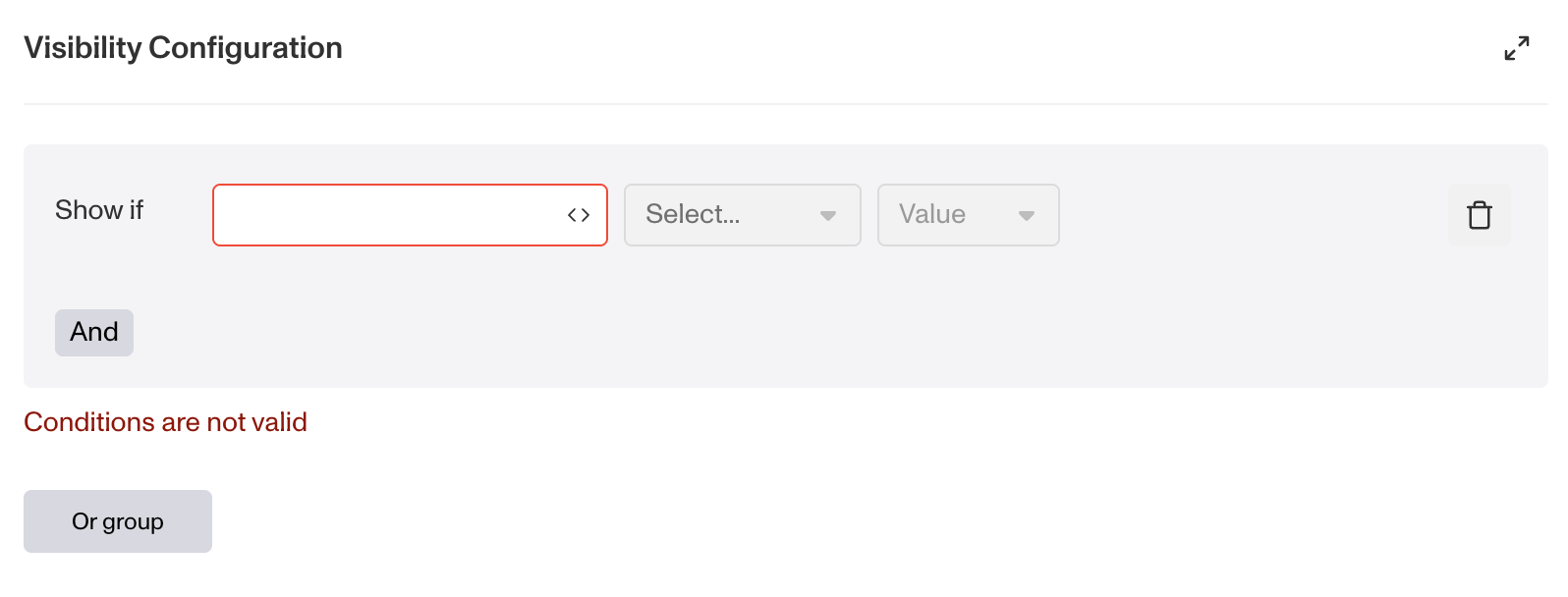
Creating Visibility Configuration
- AND Statements: Combine multiple conditions that must all be true for the rule to pass. Add these using the “Add” button.
- OR Groups: Combine conditions where only one needs to be true for the rule to pass. Create these by clicking “Add OR Group”.
How to Use Visibility Configuration
- Click on the module, and go to Module Layout and toggle the button next to Visibility in the right toolbar.
- Click on “Empty rule” to see Visibility Configuration.
- Create a logical rule by filling in the three boxes following Show if, which correspond to an object, its condition, and its value being assessed, respectively. When that logical rule passes, the module is shown.
- (Optional) Add additional logical rules by clicking either ”Add” (if you want to add ‘AND’ rules, where all must be passed to continue) or ”Or group” (if you can also nest a group of OR statements within an AND statement).
Plans Explained
Cases Layout Module Visibility configuration by plan
| Startup Program | Essential Plan | Growth Plan | Enterprise Plan | |
|---|---|---|---|---|
| Cases Layout Module Visibility configuration | Limited | Limited | Available | Available |