
A queue is a named list of Cases. Cases join a queue only when a Workflow, a reviewer, or the API adds them. Each Case can be in one queue at a time. For what queues are and how assignment policies use them, see Case Assignment Policies and Queues.
Create a queue
Go to Cases > Queues to see your queues. The list shows each queue with its Name, ID, Status, Unresolved cases, Resolved cases, and Last updated at.
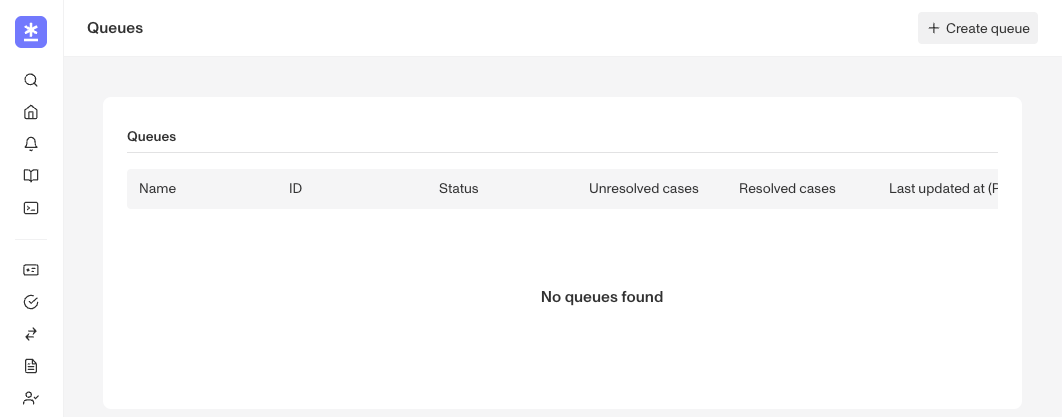
- Go to Cases > Queues.
- Click Create queue.
- In Queue name, type a name. The name must have at least 2 letters.
- Click Create.
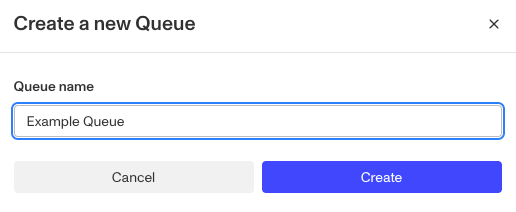
Your plan sets how many active queues you can have. If you have the maximum number, the Create queue button is not available. Hold the pointer over the button to see the limit.
To rename a queue, open it and click its name at the top of the page. Type the new name. A queue has no other settings.
Add, move, or remove Cases
You can add a Case to a queue in these ways:
- Workflow: Add an Add Case to Queue step. For example, a Workflow can add Cases with the tag “Fraud” to an escalation queue.
- One Case: On the Case, click Update queue. Select the Queue and the Assignment behavior, and click Update Queue.
- Many Cases: In a Cases table, select the Cases and click Update Queue. For more about bulk actions, see Bulk actions and batch operations in Cases.
- API: Set
case-queue-idwhen you create or update a Case.
Assignment behavior controls what happens to the Case’s assignee when the Case moves to a queue:
- Unassigned: The Case loses its assignee. This is the default. An assignment policy can then assign the Case again.
- Keep assignee: The Case keeps its assignee.
If you move a Case that is already in a queue, it leaves the old queue. To remove a Case from its queue, select None in Queue. With the API, set case-queue-id to null. There is no Workflow step that removes a Case from a queue.
When Cases leave a queue
A Case leaves its queue when:
- It moves to a final status, for example when a reviewer approves or declines it.
- Someone moves it to a different queue, or selects None.
- Someone deletes the queue.
When you assign a Case to a reviewer, the Case stays in its queue.
Work a queue
Click a queue in the list to open its page. The page shows the Cases in the queue with their Case ID, Assignee, Status, SLA, Created At, Updated At, and Tags.
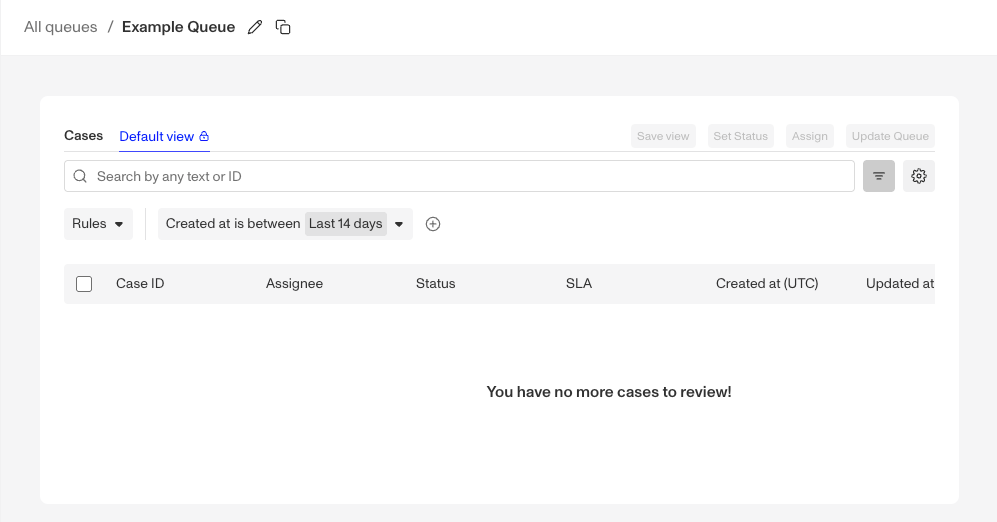
- Search: Search by Case ID, reference ID, account ID, or Inquiry ID.
- Filters: The page shows the Assigned to filter. You can also filter by Case template, Status, Not assigned to, Created at, and Resolved at.
- Date range: By default, the page shows Cases from the last 14 days.
- Views: Save your filters and columns as a view. Each saved view shows as a tab at the top of the table.
Queues and assignment policies
A queue does not assign Cases. To assign the Cases in a queue, add the queue to an assignment policy under Cases in queues. For the steps, see Case Assignment Policies and Queues.
- In each environment, only one deployed assignment policy can use a queue.
- Cases outside queues in a policy never picks up a Case that is in a queue.
- A policy assigns only Cases in the queue that are unassigned and unresolved.
Who can see queues
Roles control access to queues. A role can have permission to view queues, and permission to edit them. An admin can give a role access to all queues or only to specific queues. Admins can see all queues. Teams do not control access to queues.
Delete a queue
- Go to Cases > Queues.
- Click the … menu on the row of the queue, and click Delete.
- In Delete this case queue?, click Delete to confirm.
You cannot undo this action. The queue shows as Archived, and you cannot add Cases to it. Persona removes all Cases from the queue.
Plans Explained
Case Queues by plan
| Startup Program | Essential Plan | Growth Plan | Enterprise Plan | |
|---|---|---|---|---|
| Case Queues | Limited | Limited | Available | Available |