
Overview
To ensure that your organization has all the relevant data you need for Cases, add or edit fields via Cases Field Editor.
This unlocks a more seamless experience that enables you to:
-
Create, edit, deactivate, or delete fields
-
Set default field values and display them in the table view
-
Search by name and keywords and filter by a field’s data type
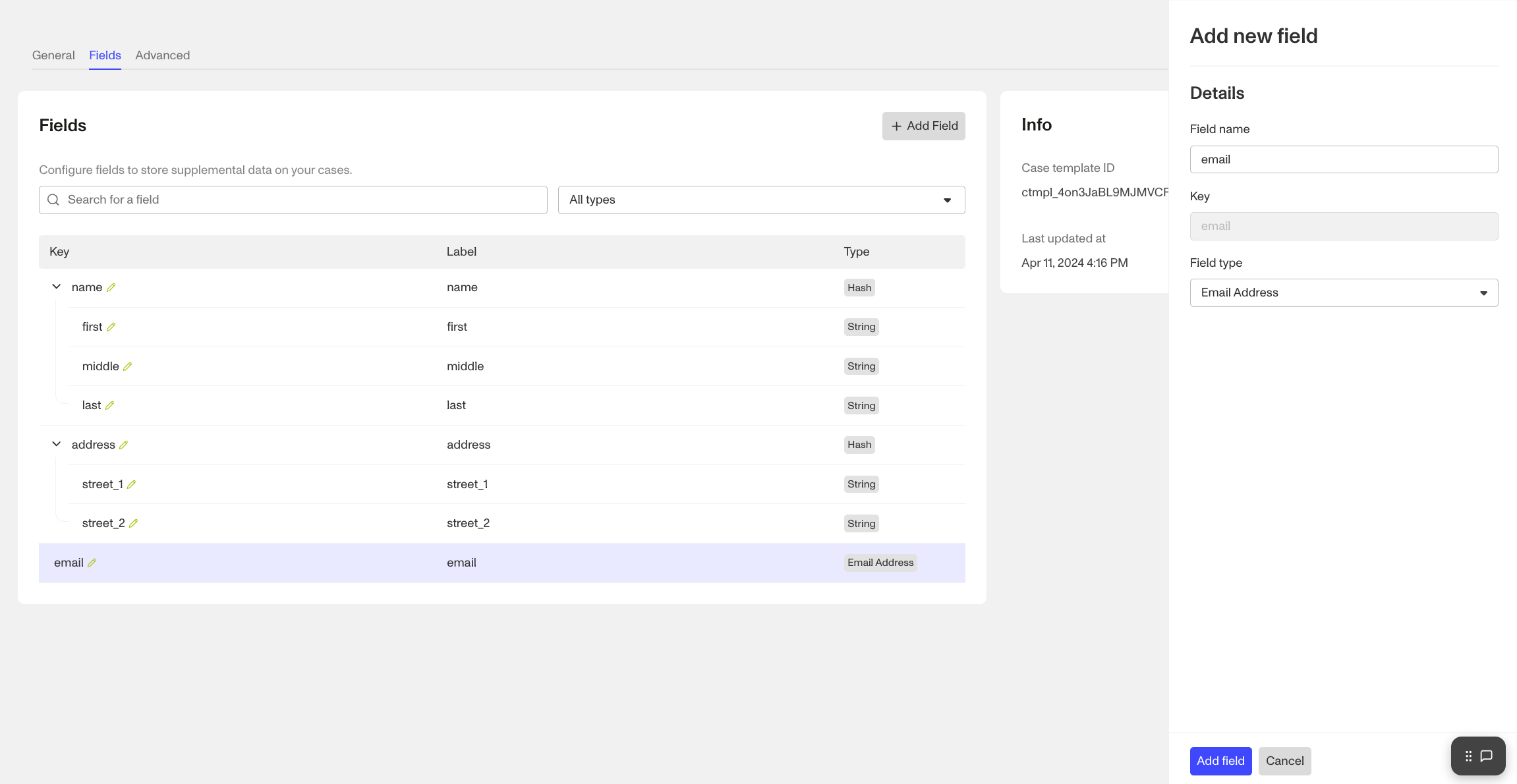
Where can you find the Cases Field Editor?
- In the Dashboard, click Cases > Templates in the navigation bar.
- After adding a Case template or selecting an existing one, click Settings then Fields to open the Field Editor.
How to add or edit Case fields?
- Navigate to the Cases Field Editor.
- Click into an existing field or click Add Field
- Update Field Details:
- Field label: the name of the custom field (displayed within the dashboard)
- Field key: a unique identifier for the field (also used when retrieving or updating the object via API)
- Field type: describes the type of field value allowed, such as an array, date, integer, string, etc.
Plans Explained
Cases Field Editor by plan
| Startup Program | Essential Plan | Growth Plan | Enterprise Plan | |
|---|---|---|---|---|
| Cases Field Editor | Available | Available | Available | Available |
| Adding fields | Available | Available | Available | Available |