
What these configurations cover
Getting a Case Action in front of a reviewer takes two configurations, in two places. A Workflow Action is built and published once, for the whole organization. Then any action, built by you or shipped by Persona, is added to the Actions configuration of each Case template that should offer it. A published action nobody has added to a template does not appear on a single Case.
Where to find it in the Dashboard
-
Cases > Actions is where a Workflow Action is created and edited. The Create Action button is in the upper right of that page.
-
Cases > Templates is where an action becomes available. Open the template you want, then its Actions configuration under Settings. Actions added here show up in the overflow menu at the top of every Case built from that template.
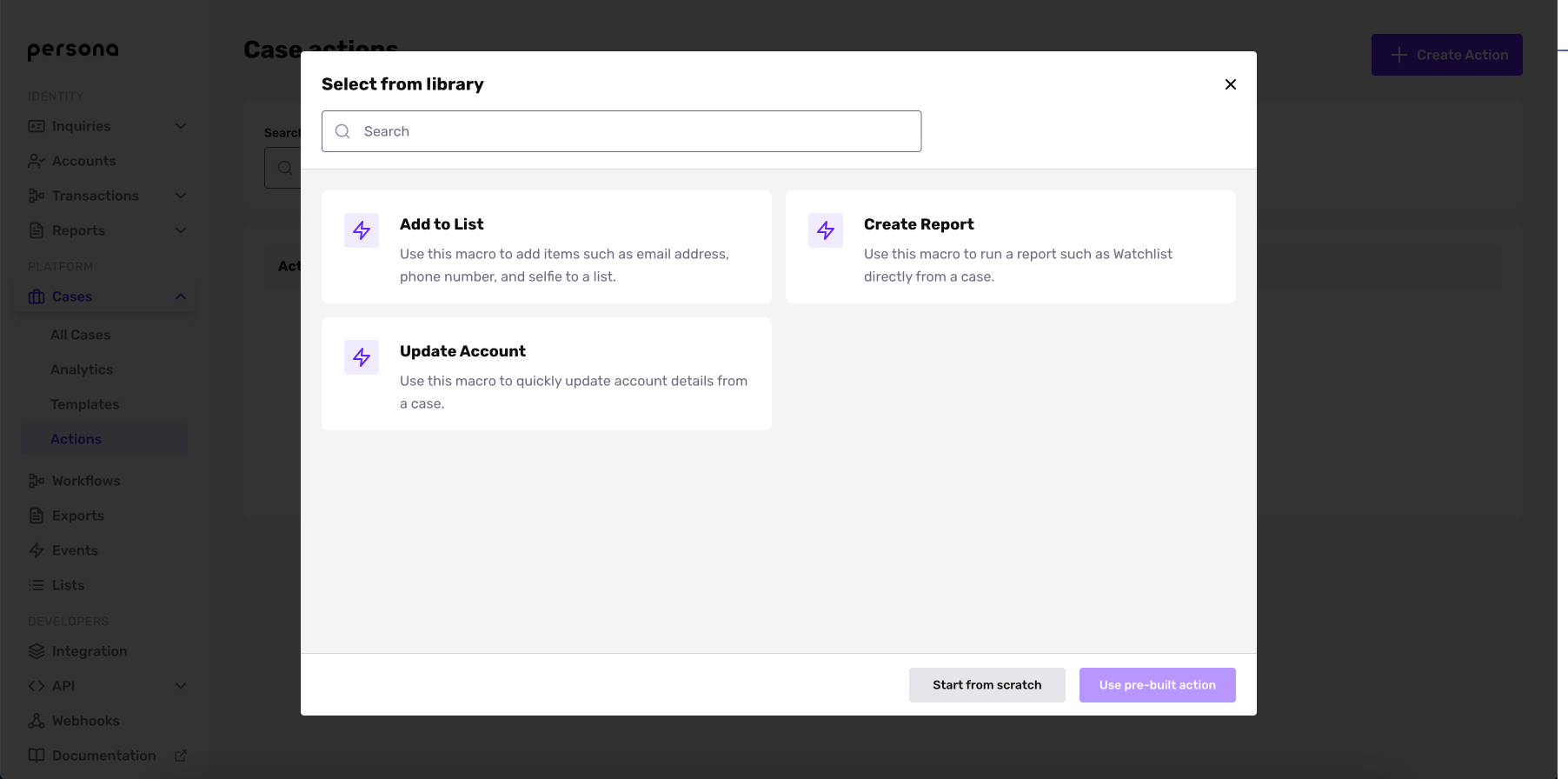
What you choose when you create a Workflow Action
- From scratch, or from a macro. The four macros, Add to List, Create Report, Update Account, and Send SMS or Email Inquiry Link, each scaffold a Workflow for a common pattern. Selecting one opens that Workflow in the editor rather than running it, so a macro saves you the assembly and none of the configuration. Anything a Workflow supports can be built from scratch instead.
- What the reviewer is asked for. The On Click trigger step at the top of the Workflow carries a Parameter Scheme: the fields shown in the action’s modal, with their labels, types, and whether each is optional. Fields can be prefilled from the Case, the attached Inquiry, or the Account, which is worth doing for anything the Case already knows. See How to Prefill Case Actions? for the object paths.
- When it is finished. The action is a Workflow, so it has to be saved and published before a template can use it.
What you choose when you add an action to a Case template
- Which actions the template offers. The dropdown lists your published Case Actions, plus a separate System Actions group holding Update fields, Update tags, Update queue, Update SLA, and Redact. System Actions need no build step, so adding one here is the only configuration they take.
- Whether an action is always offered. Visibility and enablement can be set per action, so an action can be shown or disabled conditionally rather than sitting in the menu for every Case and every reviewer.
- Where it appears. The default is the overflow menu at the top of the Case. An action can also be given a Case Button in the layout, or configured on rows of a Data Table or Resource module so a reviewer runs it against one row: see Cases: Module Actions.
Save the Case template to publish the change.
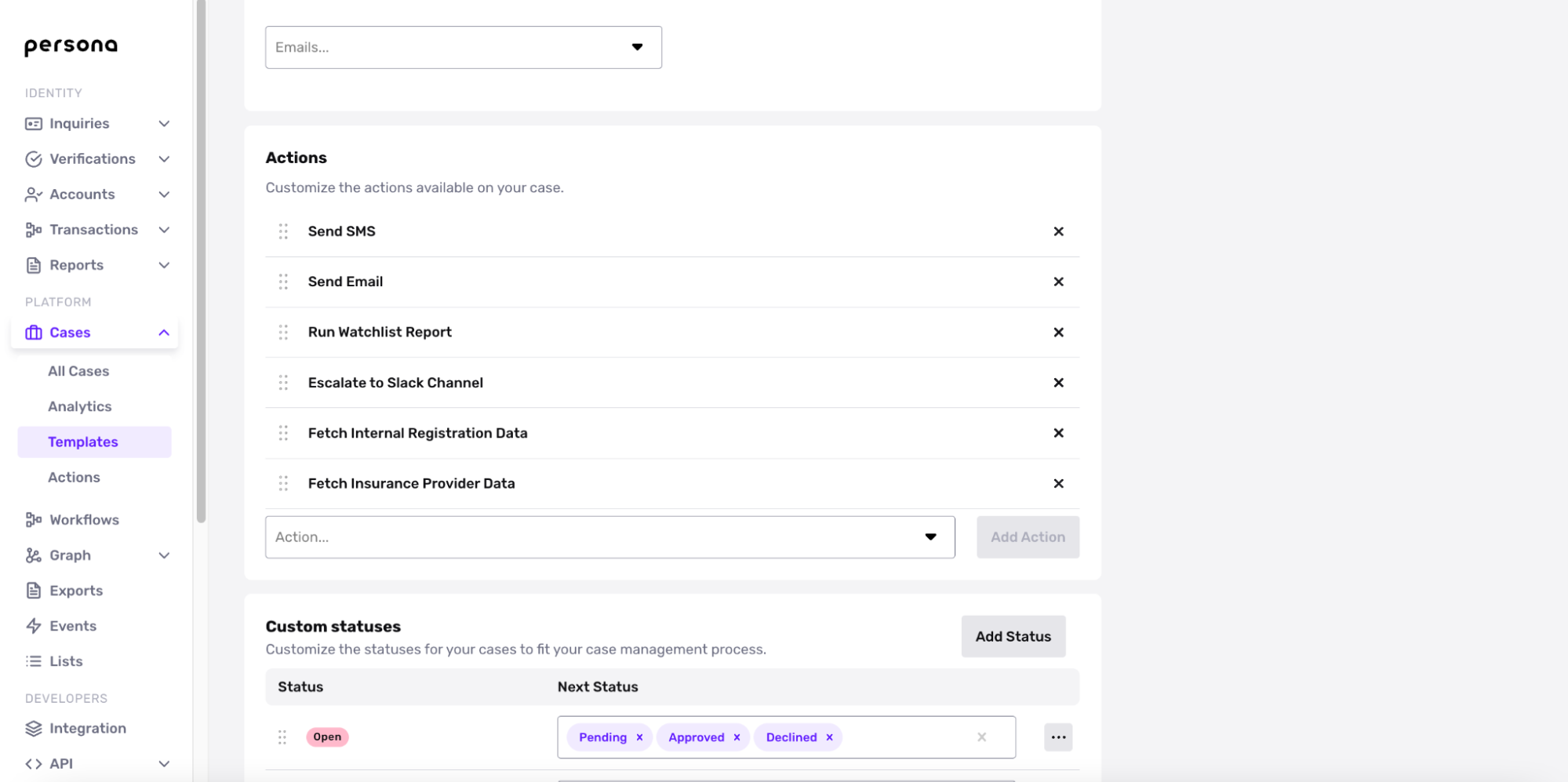
When to reach for it
Configure a Case Action when reviewers keep repeating a step that Persona or your own systems could take in one click, and the decision to take it has to stay with the reviewer. If no judgment is involved, the same work belongs in a Workflow that runs without anyone clicking.
Plans Explained
Case Action configurations by plan
| Startup Program | Essential Plan | Growth Plan | Enterprise Plan | |
|---|---|---|---|---|
| Case Action configurations | Available | Available | Available | Available |