
Overview
Data Explorer is a SQL interface within the Persona Dashboard that empowers teams to query, explore, and extract insights from their Persona data, without ever leaving the platform. Built on Snowflake SQL, Data Explorer enables flexible, scalable access to your organization’s data for analytics, compliance, monitoring, and more.
With Data Explorer, you can:
- Write, save, and load custom queries
- Preview data, filter results, and summarize columns
- Export data pulls via CSV and dashboard exports
- Generate charts with queried data and create sharable dashboards
- Use templated queries with variables for repeatable analysis
Why Data Explorer?
Organizations increasingly need deeper access to their data, from ad hoc questions about product performance to scheduled extractions for compliance reviews and internal reporting. Previously, this often meant requesting dashboard exports or building brittle, one-off solutions.
Data Explorer helps solve these challenges by making it easier to self-serve data at scale, while keeping analysis within Persona’s secure environment.
Where can you find Data Explorer?
You can navigate to Data Explorer under Dashboard > Data.
The Data Explorer Editor is divided into 3 columns:
-
Navigate between Saved queries, Schemas, Variables, and Dashboards
-
Displays Saved queries, Schemas, or Variables
-
Query builder, results, and charts
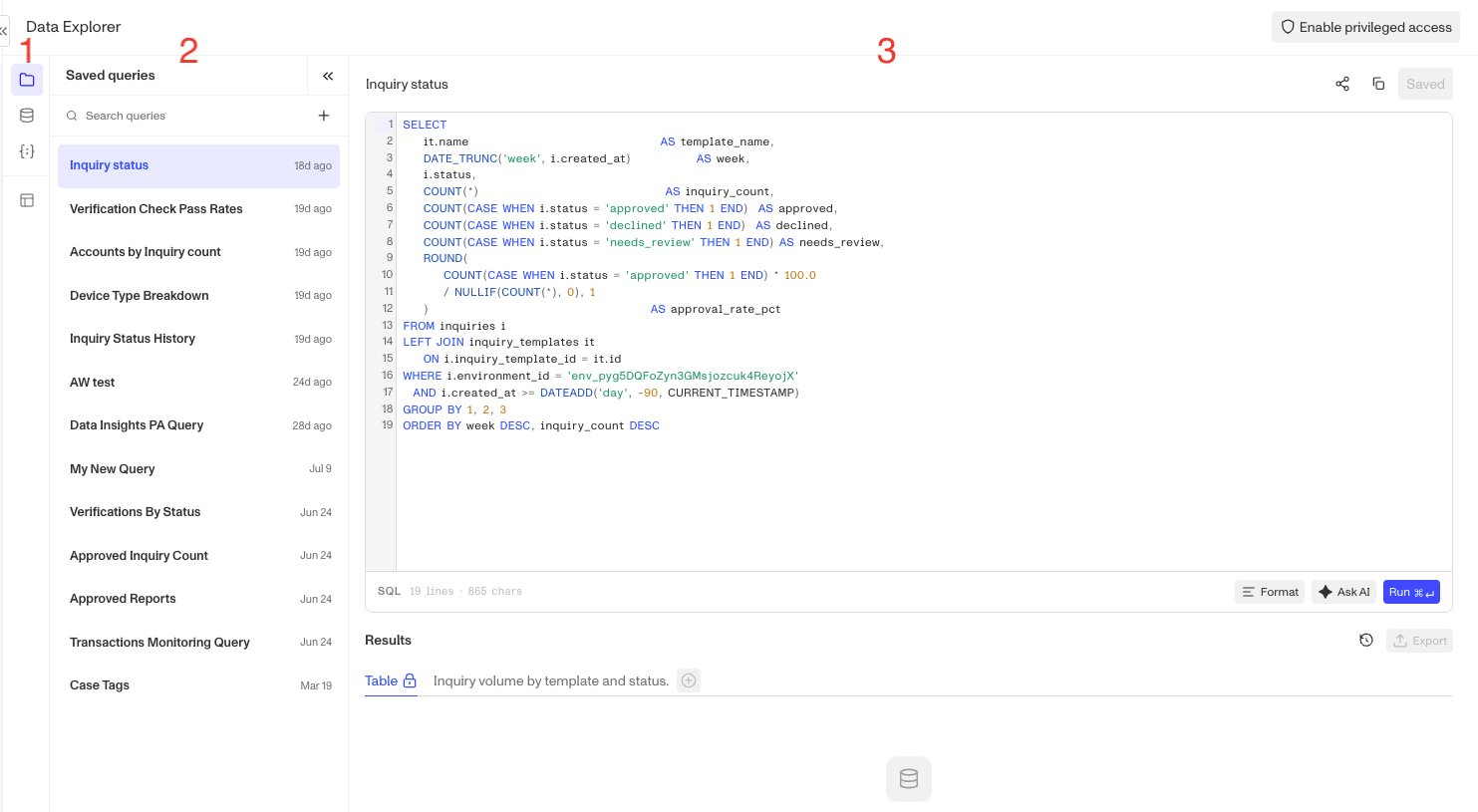
Data Explorer is environment agnostic, meaning it can query data across all organizational Environments. The list remains the same, regardless of which Environment you are currently in.
How do you use Data Explorer?
Data Explorer can be used manually through the SQL interface or through natural language via Persona Assistant.
Persona Assistant
Persona Assistant can generate and execute SQL queries using plain English prompts. It has access to all tables, schemas, and Data Explorer functionality, including:
- Writing and running queries
- Creating charts and visualizations
- Building templated queries with variables
- Generating dashboards
Any task available in the Data Explorer interface can be performed through Persona Assistant. See Introduction to Persona Assistant for more.
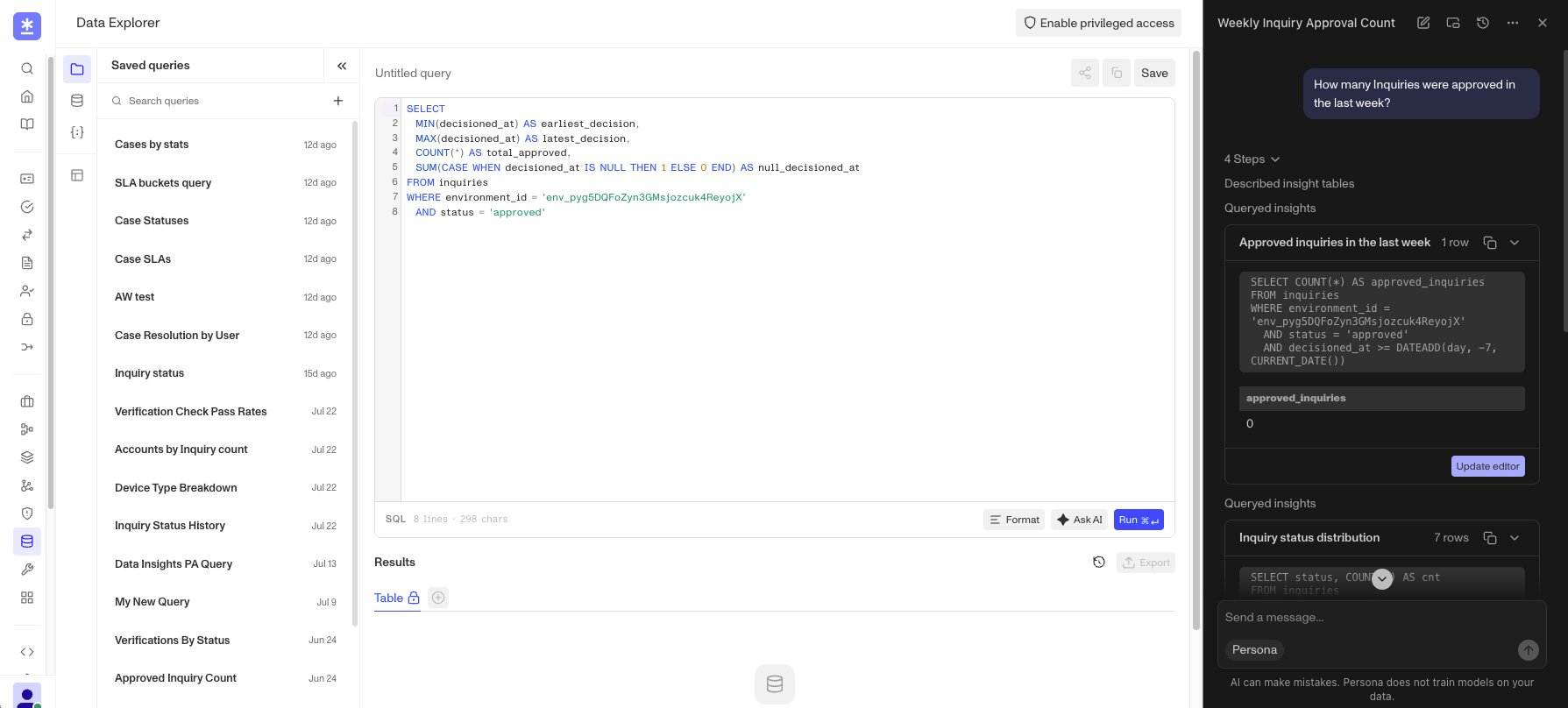
Creating a Query
To start a new query, click on the + in the top of the Saved queries column.
You can type in your own SQL query or ask Persona Assistant to make one for you. When you’re ready to run the query, press the Run button to see the results in the section below.
When you’re happy with the results, press the Save button in the top right corner to save your query.
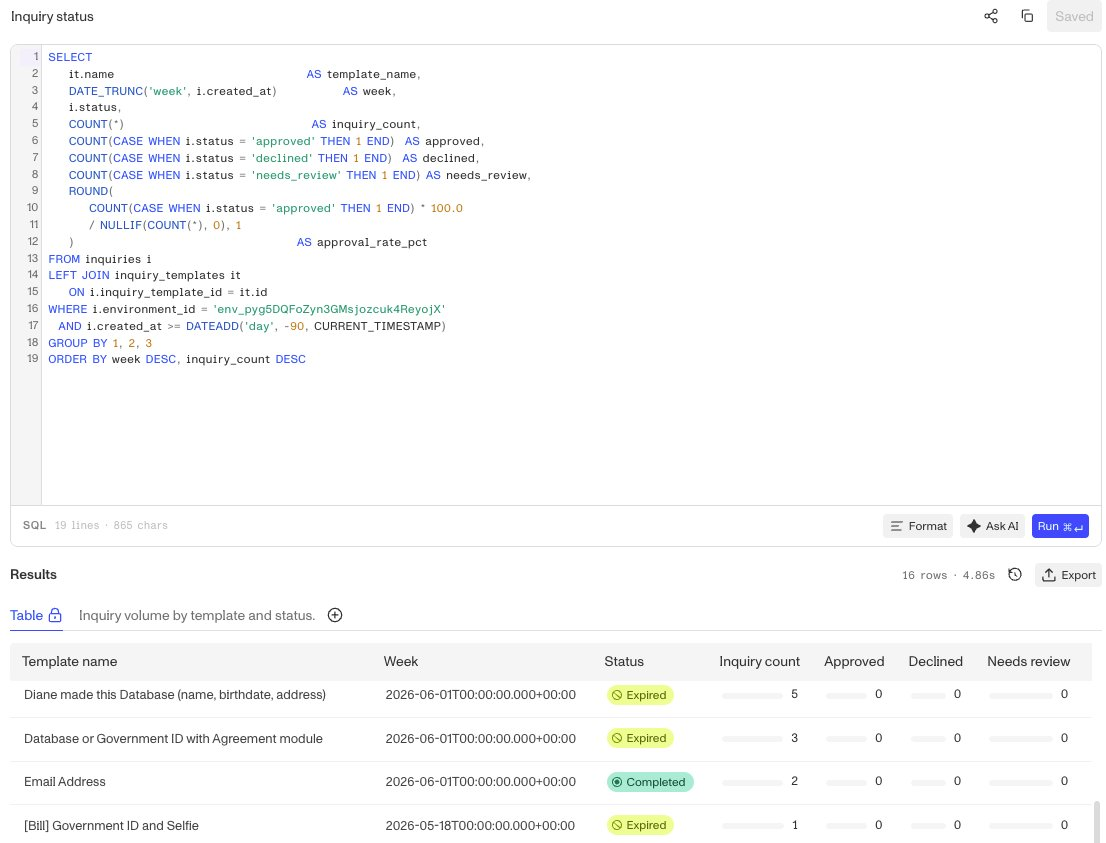
Privileged access mode is a mode that enables access to sensitive PII data.
- Takes a few seconds to prep for privileged access mode
- Allows users to see Fields under Inquiry and their values
- Only available for specific roles
Creating a Chart
Once you have a query with results, add a tab in the results section to start a chart.
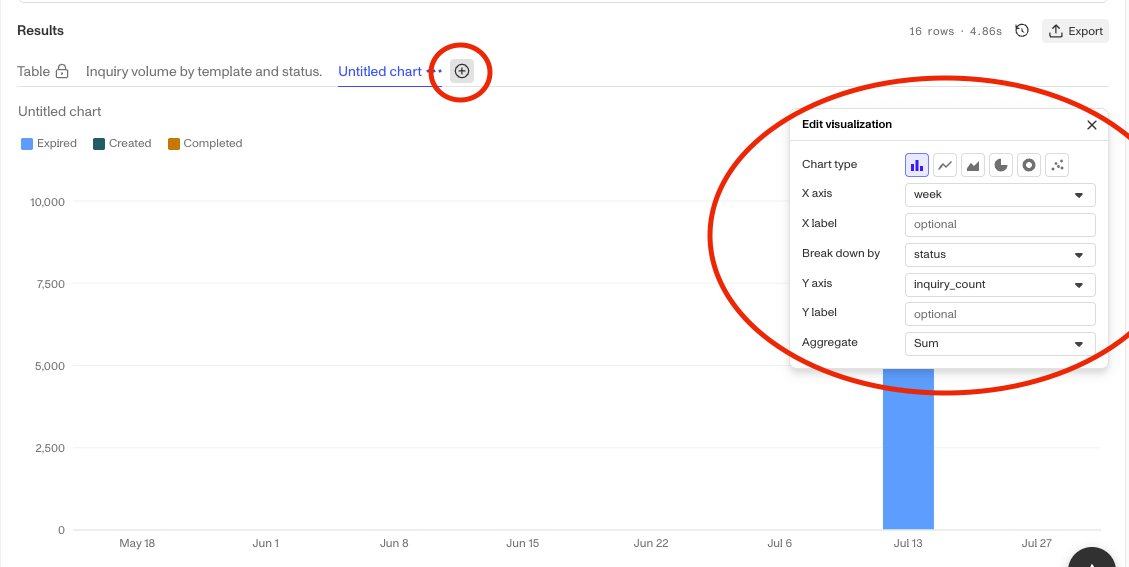
You can change the chart type, axis variables, and many other dimensions of the chart.
Templated Data Explorer Queries (Variables)
Templated queries use variables, placeholders you fill in at run time, so you can re-run the same query with different inputs without editing the SQL. Great for saved, frequently-run pulls (a specific inquiry ID, a date range, a list of reference IDs).
Writing a variable
Wrap a name in double curly braces wherever a value goes:
SELECT * FROM inquiries
WHERE inquiry_id = {{inquiry_id}}
  AND created_at >= {{start_date}}
Typing a {{...}} token highlights it in the query and adds a row to the Variables panel below the editor. For each variable, pick a type and enter a value before running.
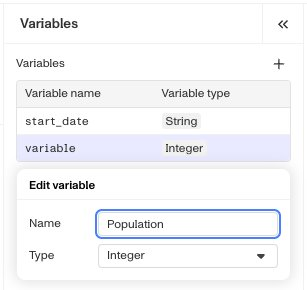
| Type | Use for | Notes |
|---|---|---|
| String (default) | Text, tokens, IDs | Quoted for you, don’t add quotes |
| Integer | Whole numbers | Base-10 only |
| Number | Decimals | e.g. 0.85 |
| List | IN (...) clauses | Comma-separated, no quotes, no parentheses. Max 1,000 items |
List example: set the type to List and enter abc, def, ghi:
SELECT * FROM inquiries WHERE reference_id IN {{reference_ids}}Rules for variables
- Naming: start with a letter; letters, numbers, and underscores only; 30 characters or fewer.
- Values only: a variable replaces a value (in
WHERE,IN,LIMIT, and so on), not a table or column name. - Don’t add quotes: write
name = {{name}}, notname = '{{name}}'. Values are quoted and escaped for you. - For lists, don’t add parentheses or quotes: fill in the input with
id_1, id_2, id_3, not('id_1', 'id_2', 'id_3'). - No variables inside strings, identifiers, or comments:
'{{v}}',"{{v}}",- {{v}},/* {{v}} */. - Fill in every variable: a blank value blocks the run. A reused variable shares one value everywhere it appears.
- Same limits as all Data Explorer queries: read-only
SELECT, one statement at a time.
Saving a query saves its variables too. Anyone who opens it gets the same Variables panel and runs it by entering their own values, no SQL changes needed.
Dashboards
Create dashboards using the charts generated from your queries. Once you’re on the Dashboards tab, use the editor to lay out the charts. See Creating a dashboard in Data Explorer for the full walkthrough.
Query Syntax in Data Explorer
Queries executed in Data Explorer should use the Snowflake SQL dialect described in Snowflake’s SQL Command Reference documentation.
Example query:
SELECT id, status, created_at
FROM inquiries
WHERE created_at >= '2025-01-01'
AND status = 'completed'
ORDER BY created_at DESC
LIMIT 100Use autocomplete to discover table names and fields while typing.
FAQ
Is there a lag in the data available in Data Explorer vs real-time?
Data lag is currently set at 24 hours, but can be reduced. Reach out to your account team.
My templated query won’t run even though I filled everything in
Make sure no variable sits inside quotes or a comment, and that each name starts with a letter and is 30 characters or fewer.
Can I use a variable for a table or column name?
No. Variables fill in values only. To change a table or column, edit the query text directly.
To learn more or request access, let us know. We're happy to help.