
Risk Scoring is currently in beta. For more information and to request access, please reach out to your Persona account team.
Overview
Risk Scoring is Persona’s solution for rating the risk of your customers. You configure a risk score template — the weighted factors and rules that reflect your compliance program — and Risk Scoring calculates a score and risk level for each customer, keeping a complete record of every calculation and the exact template version that produced it.
Use Risk Scoring to rate customers during onboarding (KYC/KYB), re-rate them on a schedule for periodic reviews, and route customers down different paths based on their risk level.
Where can you find Risk Scoring?
Risk Scoring lives in the Persona Dashboard under Apps → Risk Rating → Risk Score Templates. Because Risk Scoring is in beta, you won’t see it until it has been enabled for your organization — reach out to your Persona account team to request access.
Key concepts
Building a template
- Risk score template — the scoring rulebook: the inputs you collect, the factors you evaluate, the rules within each factor, and how factor results combine into an overall score and risk level.
- Input — a piece of customer data the template evaluates, such as country of residence, industry, or expected transaction volume. Each input has a type (for example, a number, a country, or a yes/no value) and a missing-data policy that decides what happens when no value is supplied.
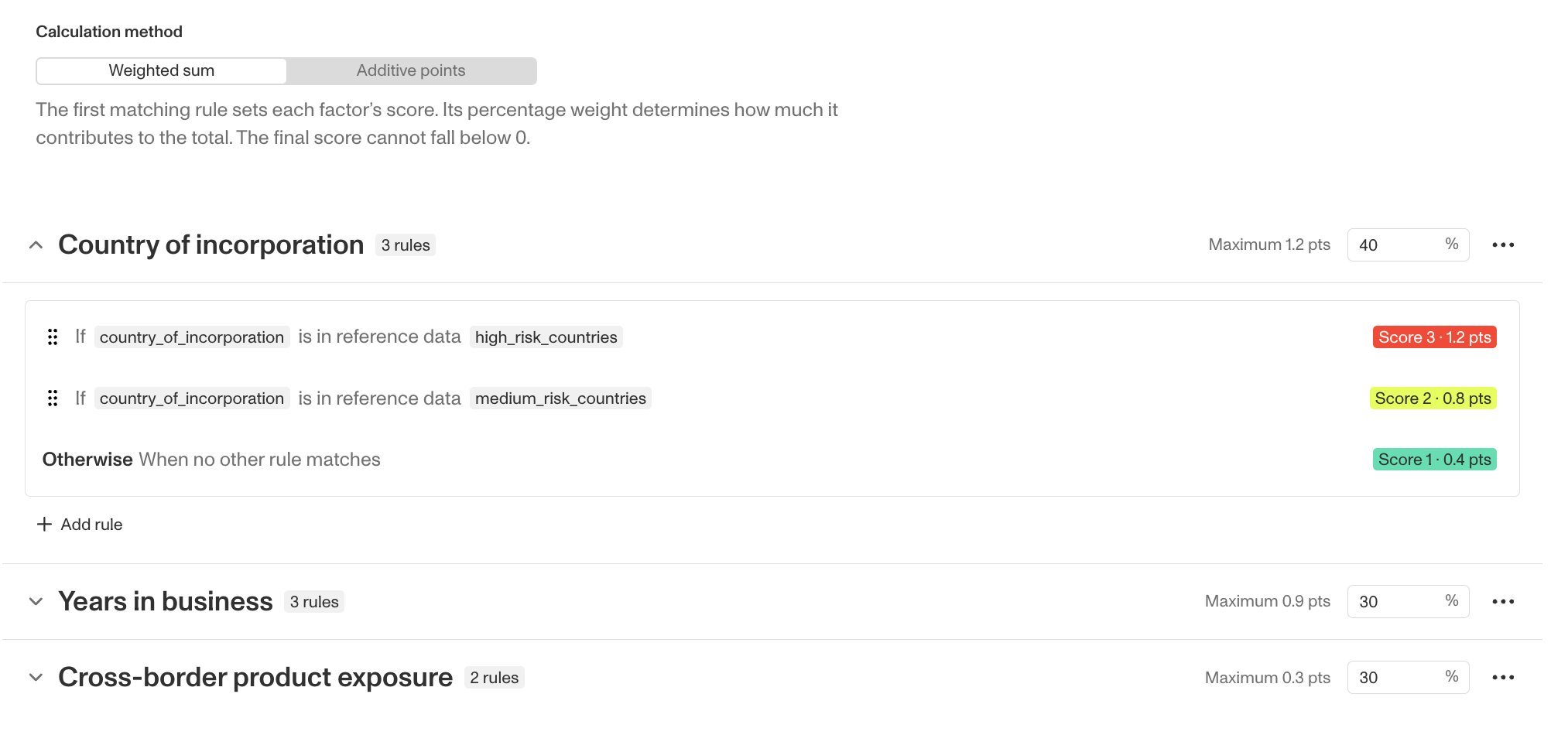
- Factor — one dimension of risk, evaluated from one or more inputs. Each factor has a weight that determines how much it contributes to the overall score. Factors can be organized into categories (for example, Geography or Business Profile).
- Rule — a condition within a factor. Rules are evaluated in order, and the matching rule sets the factor’s risk level. A rule can also be marked auto-high, which raises the customer’s overall rating to high regardless of the weighted score.
- Risk level — the final rating (for example, low, medium, or high). The overall score falls into threshold bands you define, and each band maps to a risk level your Workflows can branch on.
- Reference set — a reusable list the template looks values up in, such as a country risk classification. Reference sets are frozen into each published version, so a later list change never silently changes historical scoring.
Results and history
- Version — a published snapshot of a risk score template. Published versions never change. Every score records the version that produced it.
- Calculation run — one scoring event: the inputs that were evaluated, the resulting score and risk level, and when the calculation happened.
- Override — a reviewer’s manual adjustment to a score, recorded as a new result that points back to the calculated one. The original calculation is never modified.
- Simulation — a dry run that previews what a customer would score under a draft or published version. Simulations are never saved to history.
How Risk Scoring works
- Build a risk score template. Define your factors, the rules within each factor, their weights, and what should happen when a piece of customer data is missing.
- Publish a version. Publishing locks the template into an immutable version. To change how scoring works, publish a new version — existing scores keep pointing at the version that produced them.
- Score customers. Add the Run customer risk rating step to a Workflow, choose your published template, and map customer data to the template’s fields. The step returns the score and risk level as Workflow variables.
- Branch on risk level. Route customers based on their rating — for example, approve low-risk customers automatically and open a Case for high-risk ones.
- Review and override. Reviewers inspect the full calculation history and, when justified, record an override that becomes the customer’s current rating.
Who uses Risk Scoring?
Builders design and maintain risk score templates: they define factors and rules, test drafts with simulations before publishing, and publish new versions as your risk policy evolves.
Reviewers work with results: they see each calculation’s inputs, score, and the version that produced it, and can record an override with a documented justification when a rating needs manual judgment.
What gets recorded
Risk Scoring is built for auditability:
- Every calculation run stores its inputs, its result, and the exact template version — including an integrity hash that proves the version hasn’t changed since it was published.
- Overrides never replace calculated results. An override is a new result linked to the calculation it adjusts, so the machine-calculated score is always preserved.
- There is always exactly one current result, so your Workflows and reviewers never see an ambiguous rating. Older results remain in history.
- An audit log records template publishes and overrides.
FAQ
Can I edit a published version?
No. Published versions are immutable. To change scoring, edit the draft and publish a new version. Scores calculated under earlier versions are unaffected and keep their reference to the version that produced them.
What happens when customer data is missing?
Each factor has a missing-value policy that you choose when building the template — for example, treat the factor as highest-risk, use a default rule, or fail the calculation so it can be retried with complete data.
Do simulations affect a customer’s rating or history?
No. Simulations are previews only. They can run against drafts and published versions alike, and nothing is saved.
Does an override erase the calculated score?
No. The override becomes the current rating, but the calculated result it adjusts stays intact in history, linked to the override.