
Overview
Some layout modules might contain information that you only want to show in certain situations. Every module on an Account layout has a Visibility setting that lets you set rules for when the module is shown. A rule can check the Account being viewed, such as its fields, status, or tags, or the person viewing it, such as their roles.
When you toggle on Visibility, you have two options:
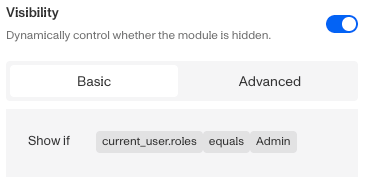
- Basic visibility lets you build rules from a field, a condition, and a value. You can read more about Visibility Configuration below.
- Advanced visibility lets you write a JavaScript expression in a code editor. The module is shown when the expression is true.
The Button and Tags modules also have an Enablement setting. It works the same way, with Enable if rules that control when the module can be used.
Visibility Configuration
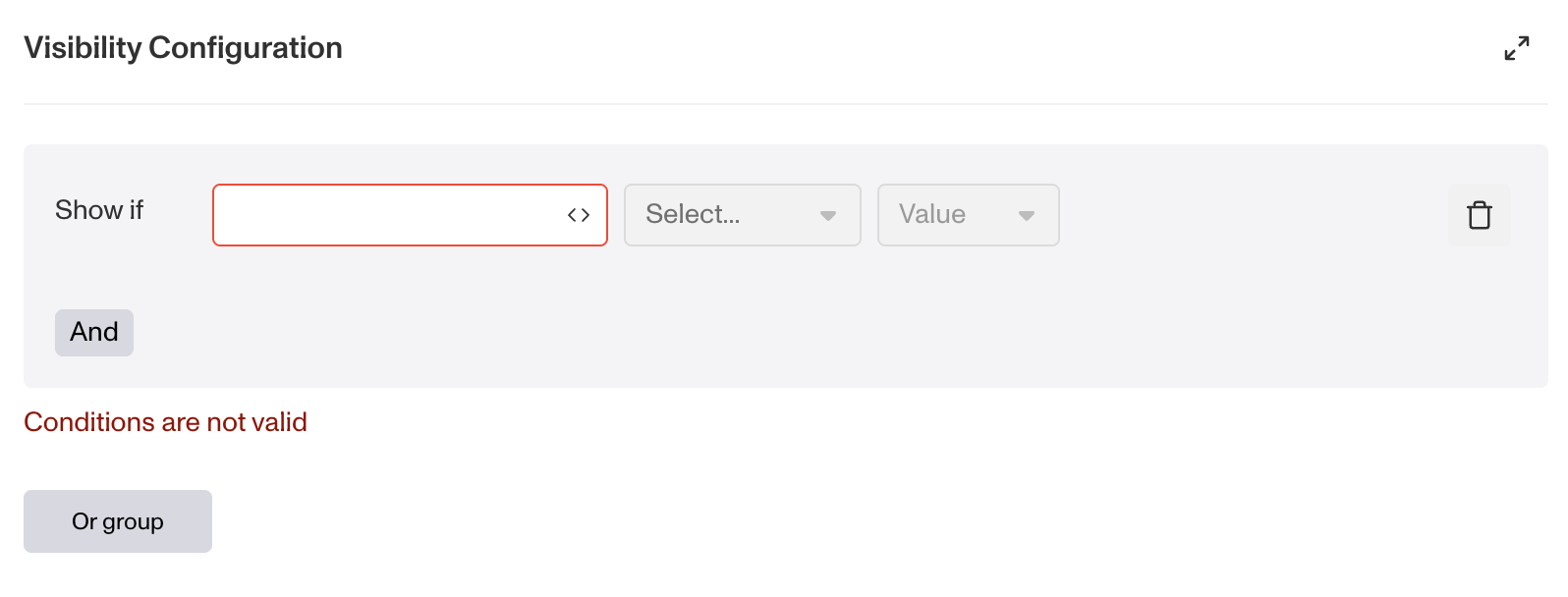
Each Basic rule has three parts:
-
Field: The data the rule checks, such as a field on the Account or the viewer’s roles.
-
Condition: How the field is compared to the value (e.g., equals, does not equal, is in, is blank). The conditions available depend on the type of field.
-
Value: The value to test against.
Combining rules
- And: Combine multiple rules that must all be true for the module to be shown. Add these using the And button.
- Or group: Add a group of rules where only one group needs to be true for the module to be shown. Create these by clicking Or group.
How to Use Visibility Configuration
- Click on the module, and under Module Layout in the right panel, toggle on Visibility.
- Click on Empty rule to open the rule editor.
- Create a rule by filling in the three boxes following Show if, which correspond to a field, its condition, and the value being assessed, respectively. When the rule passes, the module is shown.
- (Optional) Add more rules by clicking And (all rules must pass) or Or group (any one group must pass).
- Click Save at the top right of the Layout Editor.
Tab visibility
Tabs on an Account layout can have visibility rules too. When a tab’s rules don’t pass, the tab is removed from the tab bar on the Account page. Tab visibility uses the same Basic rules and Advanced expressions as module visibility.
Tab visibility is only available when it is enabled for your organization. If you don’t see Visibility when you edit a tab, please reach out to your Persona account team.
-
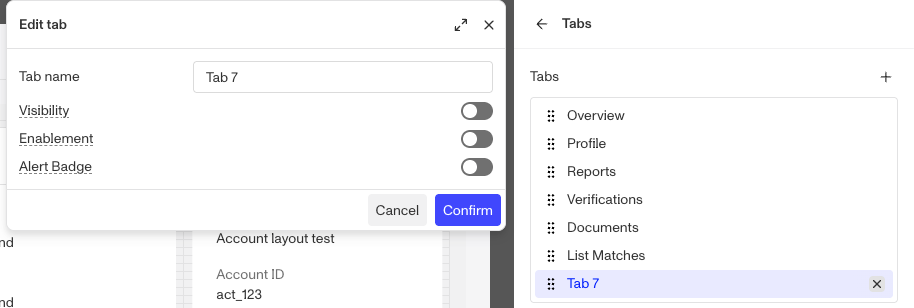
In the Layout Editor, click the tab bar at the top of the layout. The tabs are listed in the right panel.
-
Click the tab you want to edit. The Edit tab panel opens.
-
Toggle on Visibility, and create your rules the same way as for a module.
-
Click Confirm, then click Save at the top right of the Layout Editor.
The Layout Editor always shows every tab, including hidden ones, so you can keep editing them.
Plans Explained
Accounts Layout Module Visibility options by plan
| Startup Program | Essential Plan | Growth Plan | Enterprise Plan | |
|---|---|---|---|---|
| Accounts Layout Module Visibility options | Limited | Limited | Available | Available |