
Overview
The Layout Editor lets you change how and where information is displayed on the Accounts of an Account Type. Each Account Type has its own layout, and every Account of that type is shown with it.
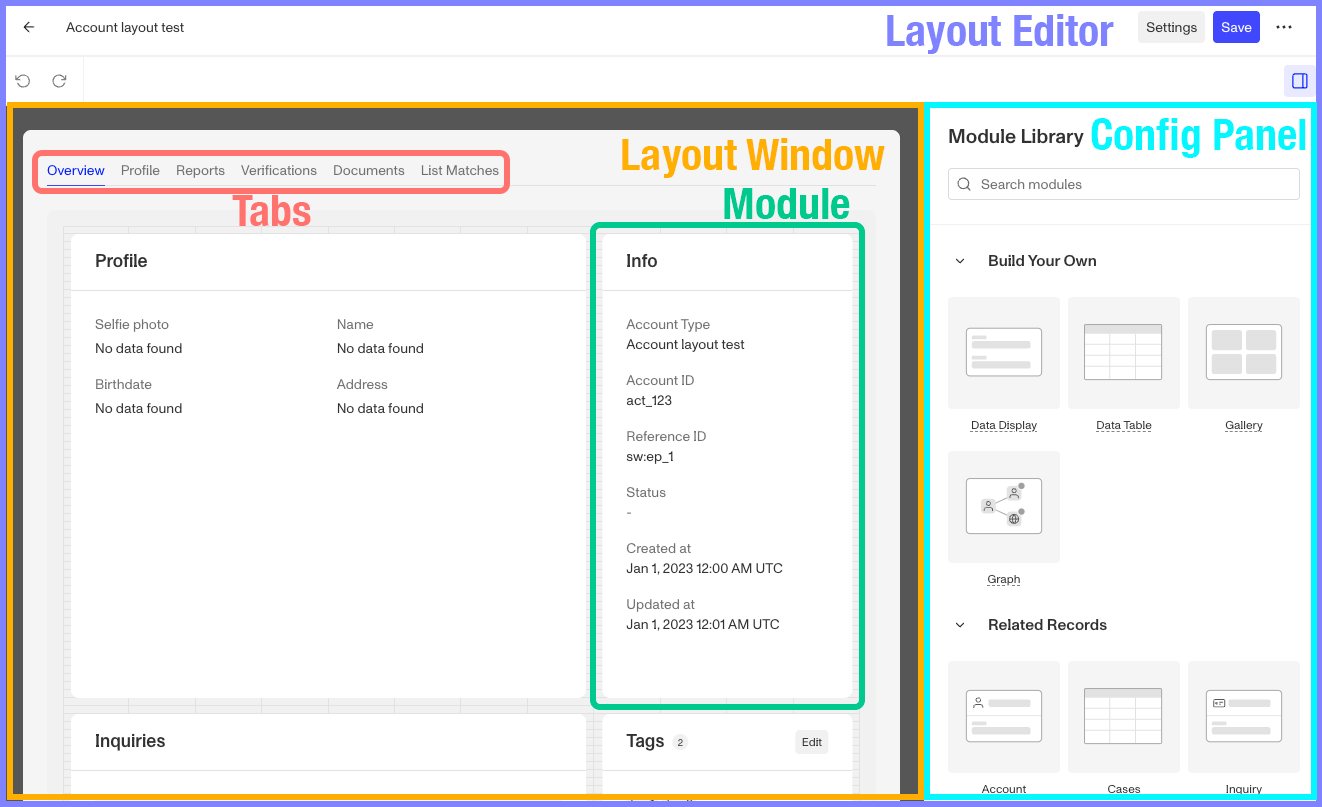
To open the Layout Editor, navigate to Accounts > Types in the Dashboard and click on an Account Type. The Layout Editor has three parts:
- The layout, in the center, shows how modules are arranged on the Account page. Modules show sample placeholder data while you edit.
- The right panel shows the Module Library when nothing is selected, or the settings of the module or tabs you have selected.
- The buttons at the top right: Settings opens the Account Type’s Fields, Actions, and Statuses tabs, and Save saves the layout.
If clicking an Account Type doesn’t open the Layout Editor, please reach out to your Persona account team.
Module Library
Click an empty space in the layout to see the Module Library in the right panel. You can search for a module by name, or browse these categories:
- Build Your Own: Modules you configure to show the data you choose, such as Data Table and Data Display.
- Related Records: Modules that show records linked to the Account, such as Inquiries, Verifications, Reports, Transactions, Cases, and Relations.
- Account Management: Modules for working with the Account itself, such as Info, Comments, Tags, and Event timeline.
- Components: Markdown and Button.
For a list of every module, see Accounts: Layout Modules.
Placing and arranging modules
Drag a module from the Module Library into the layout. To move a module, drag it to a new position. To resize it, click on the module and drag one of its corners. Modules automatically move up to fill any empty space above them.
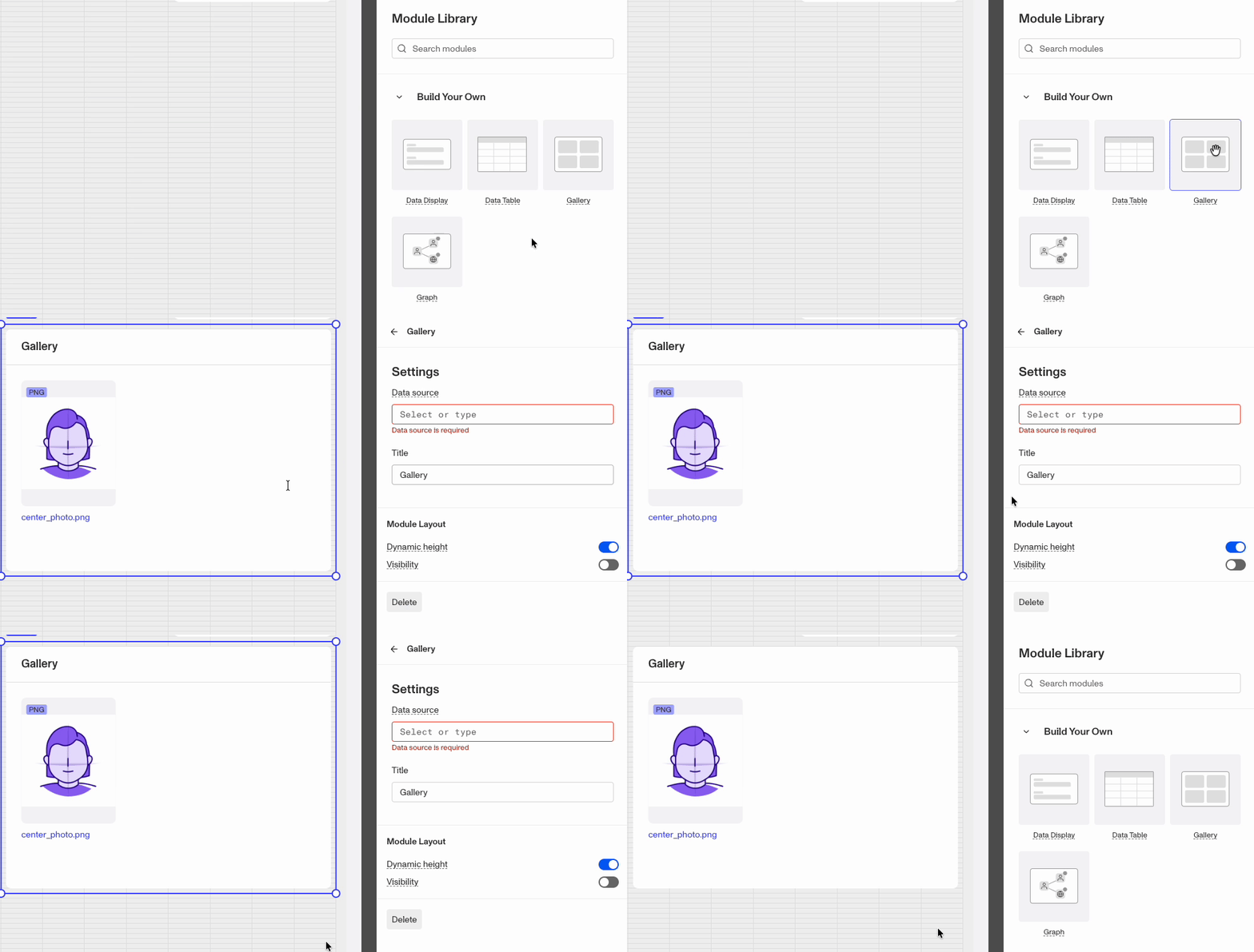
To remove a module, click on it and click Delete at the bottom of the right panel.
Tabs
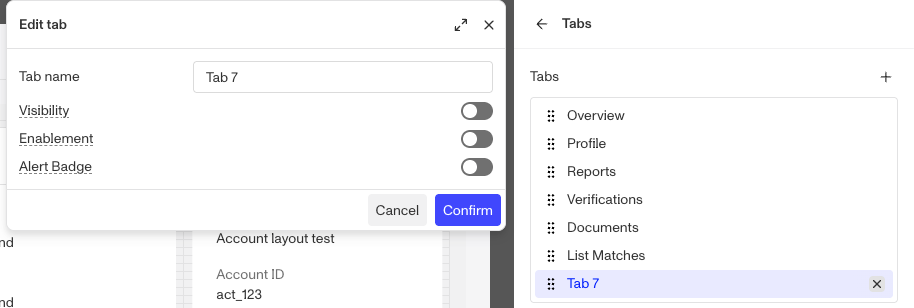
Tabs let you split the layout into groups of modules, so the Account page doesn’t become cluttered. Click the tab bar at the top of the layout to manage tabs in the right panel:
- Click Add tab to add a tab.
- Click a tab to rename it in the Edit tab panel, then click Confirm.
- Drag a tab to reorder it.
- Click Delete next to a tab to delete it and every module on it. A layout always keeps at least one tab.
Tabs can also have their own visibility rules, so a whole tab is only shown when its rules pass. See Accounts: Layout Module Visibility options.
Module settings
Click on a module to see its settings in the right panel. Most modules have their own settings, which are described in each module’s article. Under Module Layout, modules can also have:
- Dynamic height: The module will grow or shrink to fit its contents.
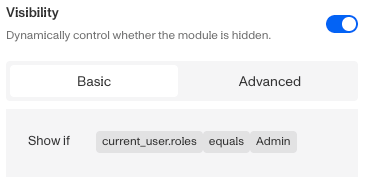
- Visibility: Set conditions for when the module should be displayed or hidden. See Accounts: Layout Module Visibility options.
- Enablement: Set conditions for when the module is enabled. Only the Button and Tags modules have this option.
- Expand by default: Whether the module’s sections are expanded when the page loads. Only the Resource modules (Inquiry, Verification, Report, Transactions, Account, and Cases) have this option.
Resource modules and the Data Table module can also run actions on their rows. See Accounts: Module Actions.
Save your changes
When you’re done, click Save at the top right of the Layout Editor. Saved changes apply right away to every Account of that Account Type. There is no draft or publish step, and the layout is the same in every environment of your organization.