
What is the Comments module?
The Comments module is a prebuilt module that can be added to an Account layout. It gives your team a shared place to view and add comments on an Account. You can define logic that governs when it appears.
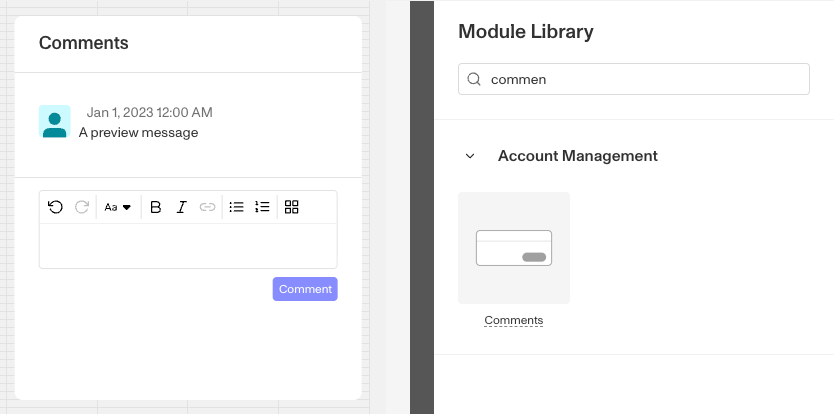
Comments are listed oldest first, and the module scrolls to the newest comment. Each comment shows who wrote it and when. A comment can come from a teammate, from the API, from a Workflow run, from an Account action run, or from an agent. Comments from a Workflow or an Account action link to the run that wrote them.
How do you add a Comments module?
This module is added and arranged on the Layout page. For a general overview of how the Layout page works, see Accounts: Layout Editor.
- Navigate to the Dashboard, and click on Accounts > Types.
- Find and click on the Account type you want to edit, or Create type to create a new one.
- In the Layout Editor, navigate to the Tab you want to add the module to. Click an empty space to view the Module Library.
- In the right toolbar, search for ‘Comments.’ The module is listed under Account Management.
- Drag and drop the Comments module into your layout and reposition it by dragging it around.
- Click on the Comments module. The Comments module has no settings of its own, so its title and contents cannot be changed. Under Module Layout, you can change:
- Dynamic height: Module will grow or shrink to fit its contents.
- Visibility: Dynamically control whether the module is hidden. This lets you set conditions for when the module should be displayed or hidden from view based on your requirements. You can read more about Visibility Configuration here.
- Click the Delete button if you want to remove the module from the layout.
How do you use the Comments module on an Account?
- Add a comment. Type in the text box at the bottom of the module and click Comment. The text box supports basic formatting, and you can mention a teammate by typing @ followed by their name. On a Mac, Command + Enter also posts the comment.
- Edit a comment. Hover over a comment you wrote, open its menu, and click Edit. You can only edit your own comments. An edited comment shows (edited), and hovering over it shows when it was edited.
- Delete a comment. Hover over the comment, open its menu, and click Delete, then confirm. You can delete your own comments and comments written by an agent.
Adding, editing, and deleting comments requires permission to write to Accounts. Without it, the module still shows existing comments but has no text box or comment menu.
The module is read-only while an Account is being merged, and on an Account that has been consolidated and redacted. Existing comments are shown, but you cannot add, edit, or delete them.
Preset comments are not available on Account layouts. They are a Cases feature, configured on a Case template. See Cases: Comments prebuilt modules for the Case version of this module.
Plans Explained
Comments module component by plan
| Startup Program | Essential Plan | Growth Plan | Enterprise Plan | |
|---|---|---|---|---|
| Comments module component | Available | Available | Available | Available |