
Creating an Inquiry from an Account
Overview
From an Account, you can create an Inquiry to verify or re-verify the individual or business associated with that Account. Creating the Inquiry generates a hosted flow link that you can send to the person, and the resulting Inquiry is attached to the Account.
How to create an Inquiry from an Account
-
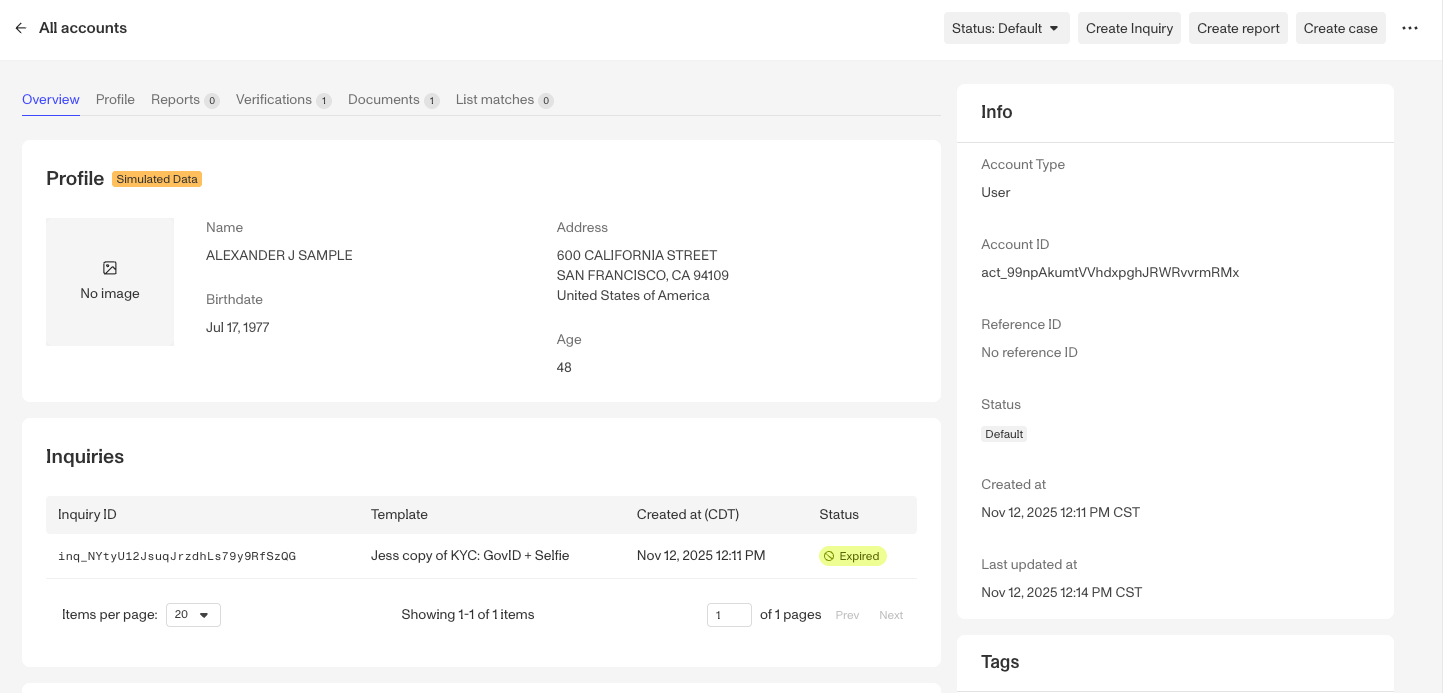
Navigate to the Dashboard, and click on All Accounts. Open the Account you want to create an Inquiry for.
-
In the top right of the Account, click Create Inquiry.
-
In the Create an Inquiry window, on the General tab:
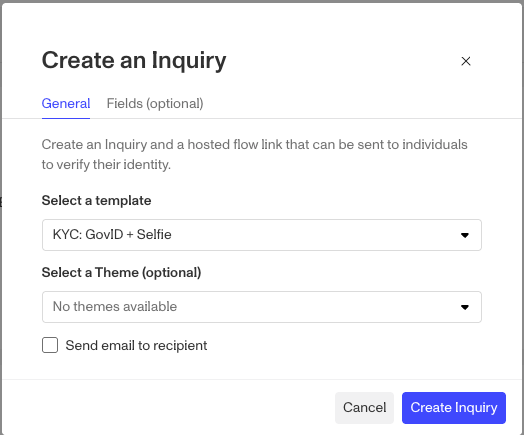
- Under Select a template, choose the Inquiry template to use (for example, KYC: GovID + Selfie).
- (Optional) Under Select a Theme, choose a theme. If none are configured, this shows “No themes available.”
- (Optional) Check Send email to recipient to email the hosted flow link directly to the individual.
-
(Optional) Click the Fields (optional) tab to prefill known field values on the Inquiry before creating it.
-
Click Create Inquiry.
-
In the View new Inquiry window, click Copy to copy the hosted flow link and send it to the individual, or click View Inquiry to open the Inquiry directly. Click Close when finished.
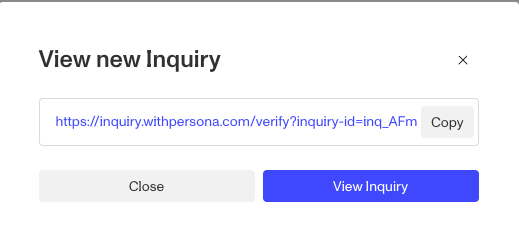
The new Inquiry is associated with the Account and appears in the Account’s Inquiries list.