Overview
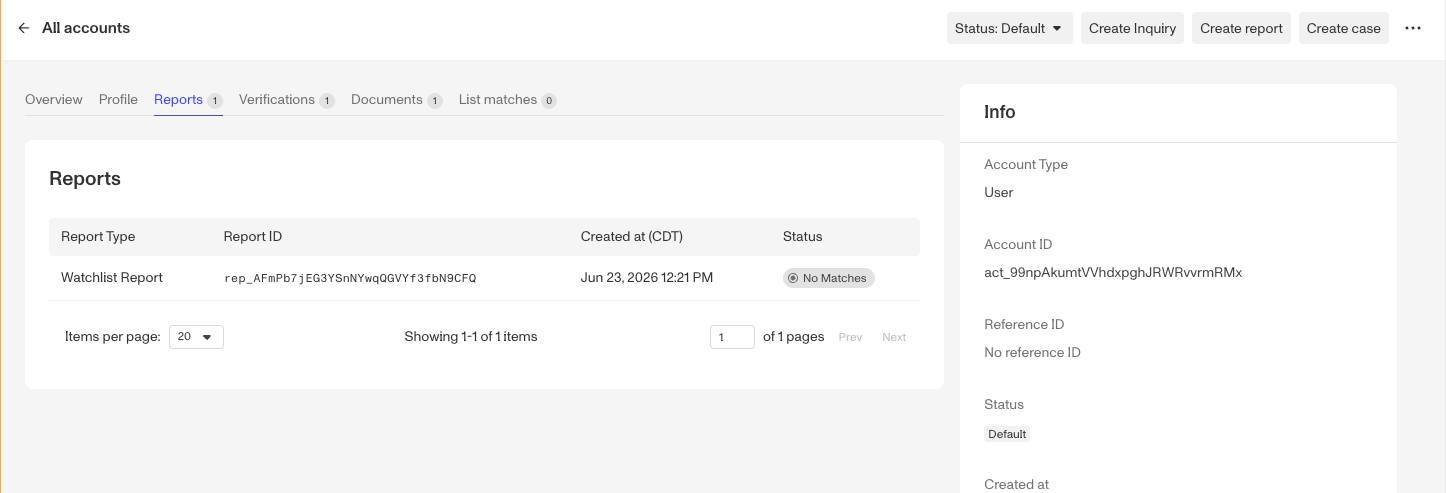
From an Account, you can run a Report against the individual or business associated with that Account. The Report is attached to the Account and appears in its Reports tab.
How to create a Report from an Account
-
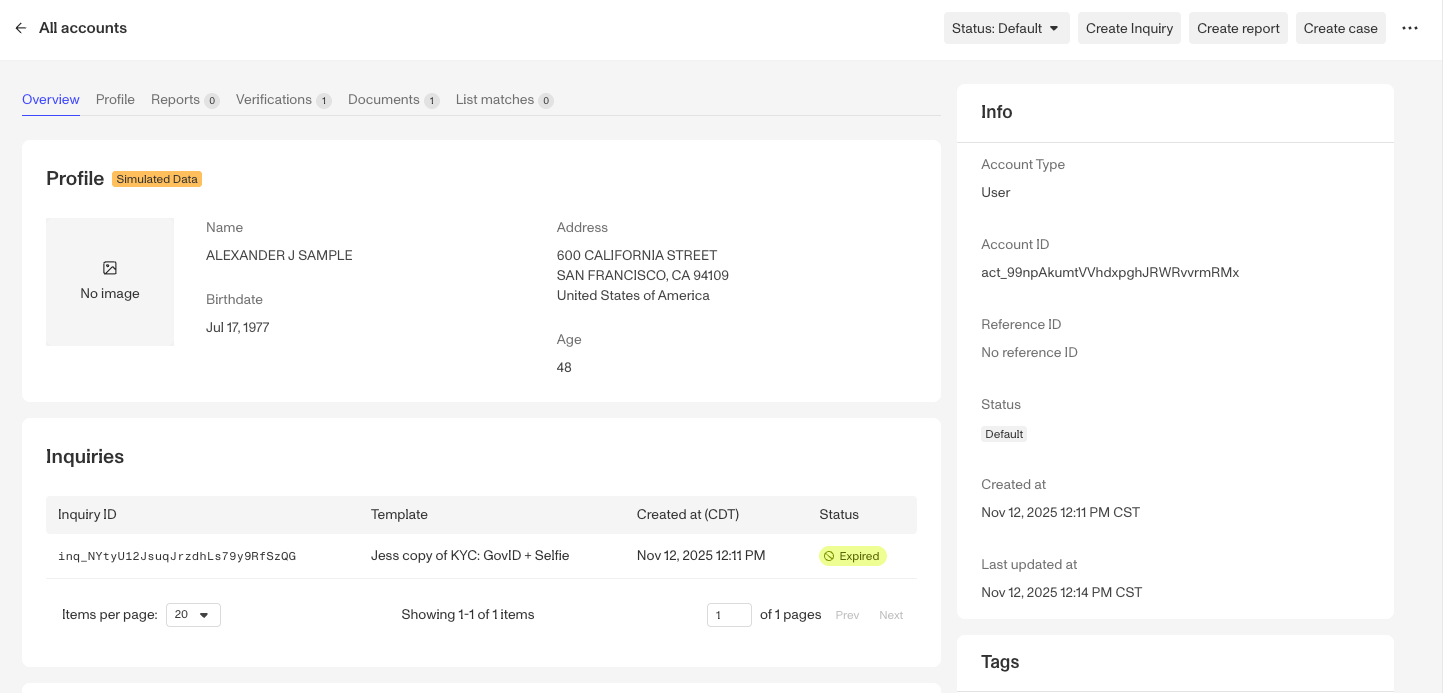
Navigate to the Dashboard, and click on All Accounts. Open the Account you want to create a Report for.
-
In the top right of the Account, click Create report.
-
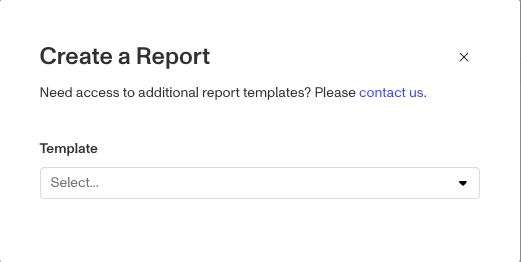
In the Create a Report window, under Template, select the report template you want to run. If the template you need is not listed, use the contact us link to request access to additional report templates.
-
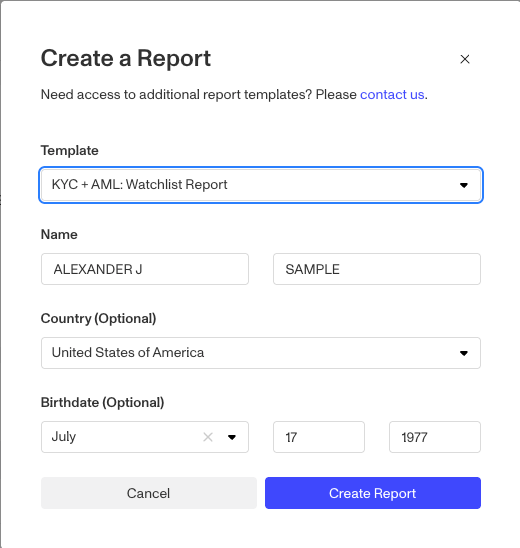
Fill in the inputs that appear for the selected template. These vary by template. For example, the KYC + AML: Watchlist Report requires a Name and offers optional Country and Birthdate fields.
-
Click Create Report.
-
The Report is created and appears in the Account’s Reports tab, where you can see its Report Type, Report ID, creation time, and Status.