
Document AI Enhanced offers Persona’s most advanced document fraud detection capabilities for non-GovID documents.
Configure Enhanced Fraud Detection
Document AI Enhanced adds fraud analysis to the core product’s classifications, extractions, and checks. Enhanced Fraud Detection analyzes hundreds of visual, non-visual, and contextual fraud signals, including digital edits and tampering, screenshot use, synthetic and generative AI documents, and content inconsistencies. It returns its own risk level and fraud indicators. The check runs asynchronously by default.
Wait for the final verification result before an automation uses Enhanced Fraud Detection outcomes to make a decision.
Enhanced Fraud Detection appears in the Document Group’s Checks table when Enhanced Verifications and Enhanced Documents are enabled for your organization. If you don’t see it, contact your Persona account team to discuss access.
To enable Enhanced Fraud Detection and set its risk outcomes:
-
Navigate to the Dashboard, and click on Inquiries > Templates (or Verifications > Templates).
-
Find and select an Inquiry template with Document AI, or Create a new template.
-
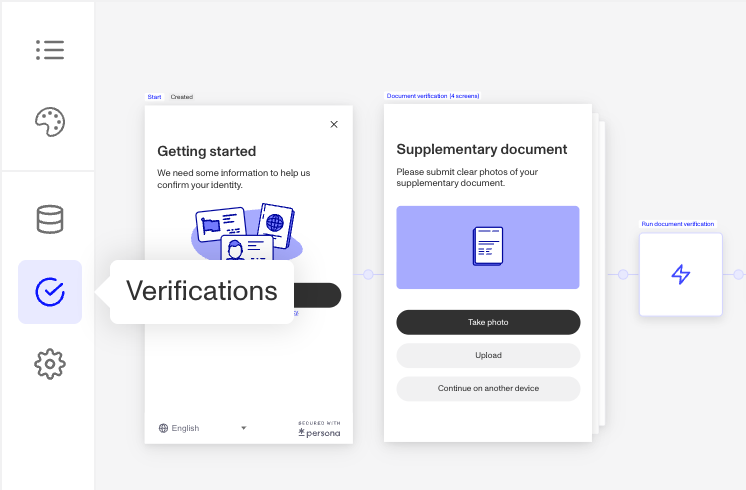
In the left panel, click Verifications.
-
In the left navigation, click Document Groups, and select the document group you wish to configure. (Learn more about document groups in this article.)
-
In the document group configuration panel, click on Checks.
-
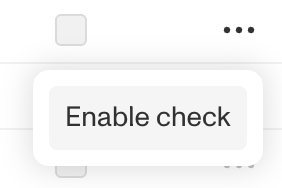
In the Checks configuration table, use the … overflow menu to enable Enhanced Fraud Detection.
-
Contact your Persona account team to adjust Enhanced Fraud Detection for your organization. A typical policy sends High risk to manual review or rejection and Medium risk to manual review; choose what fits your organization’s policy.
-
If a High-risk result should fail the verification, set Enhanced Fraud Detection to Required.
The document viewer
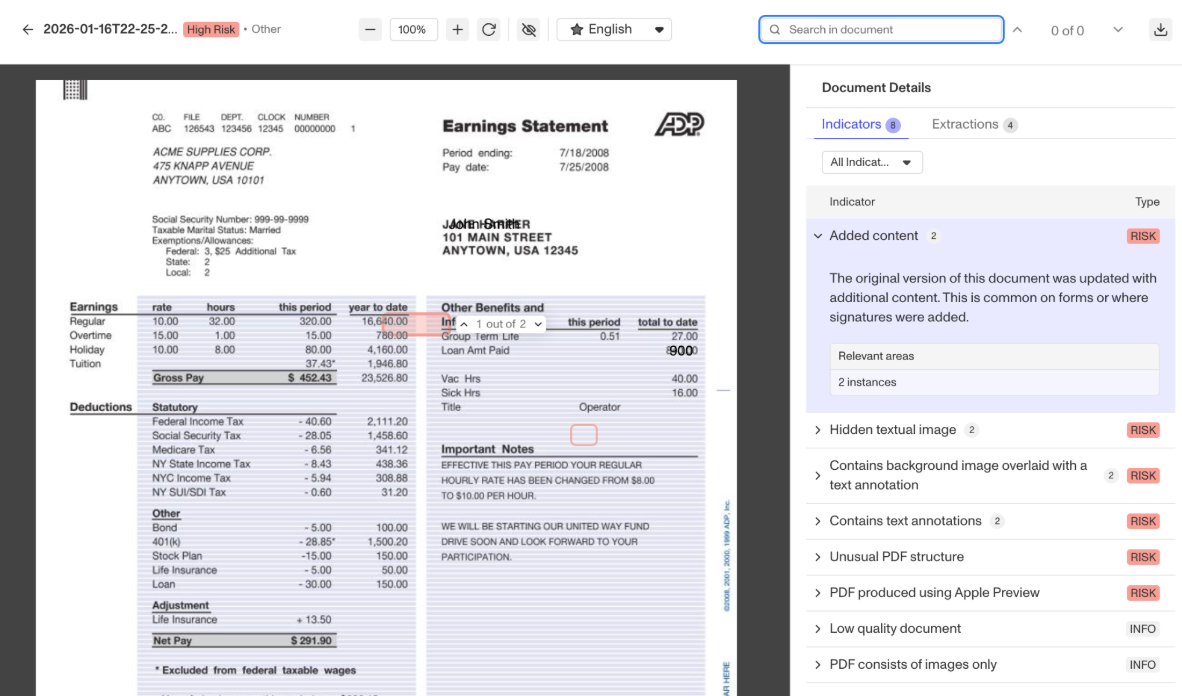
Reviewers can inspect Enhanced Fraud Detection results in the document viewer from an Inquiry or Case by clicking the document thumbnail. The document viewer highlights both risk and trust indicators with visual overlays to help reviewers quickly assess fraud risk and make a decision.
Plans Explained
We’re here to chat through your specific needs. Feel free to reach out to your Customer Success Manager or contact the Persona support team.
Document AI Enhanced by plan
| Startup Program | Essential Plan | Growth Plan | Enterprise Plan | |
|---|---|---|---|---|
| Document AI Enhanced | Not Available | Not Available | Available | Available |