
What is the Related Cases module?
The Related Cases module is a prebuilt module that can be added to an Account layout. It lists the Cases linked to the Account in the current environment, so reviewers can see at a glance which investigations involve this Account.
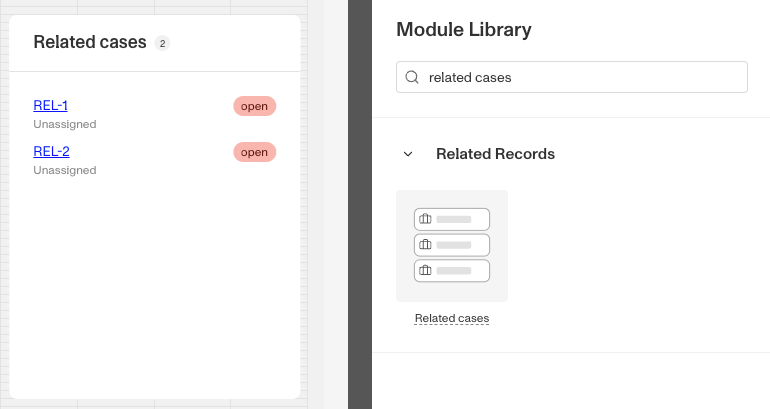
The Related Cases module is different from the Cases module, a Resource module that shows an Account’s Cases in a configurable table. Related Cases is a compact list with no settings of its own.
The module has the heading Related cases, with a count of the Account’s Cases next to it. Each Case is listed as one row:
- The Case name, which links to the Case.
- The Case’s status, shown on the right of the name.
- The assignee, shown under the name. A Case with no assignee shows Unassigned.
When the Account has more than 200 Cases, the list is split into pages and a page selector appears under the list. If the Account has no Cases, the module shows There are no related cases.
How do you add a Related Cases module?
This module is added and arranged on the Layout page. For a general overview of how the Layout page works, see Accounts: Layout Editor.
-
Navigate to the Dashboard, and click on Accounts > Types.
-
Find and click on the Account Type you want to edit, or click Create type to create a new one.
-
In the Layout Editor, navigate to the Tab you want to add the module to. Click an empty space to view the Module Library.
-
In the right toolbar, search for ‘Related.’ The Related cases module is listed under Related Records.
-
Drag and drop the Related cases module into your layout and reposition it by dragging it around.
-
Click on the Related cases module. The module has no settings of its own. Its title cannot be changed, and it always lists every Case linked to the Account. Under Module Layout, you can change:
-
Dynamic height: Module will grow or shrink to fit its contents. This is on by default.
-
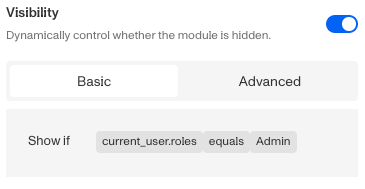
Visibility: Dynamically control whether the module is hidden. This lets you set conditions for when the module should be displayed or hidden from view based on your requirements. You can read more about Visibility Configuration here.
-
-
Click the Delete button if you want to remove the module from the layout.
Plans Explained
Related Cases module by plan
| Startup Program | Essential Plan | Growth Plan | Enterprise Plan | |
|---|---|---|---|---|
| Related Cases module | Available | Available | Available | Available |