
Overview
The Data Table module enables you to configure a data table over a list of items, with each column showing an attribute, field, or piece of metadata from each item.
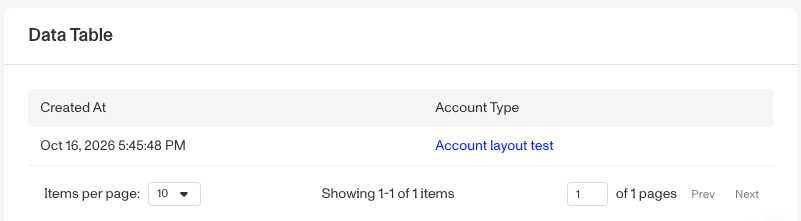
Data tables are ideal when:
- You have information that is best displayed in a table
- You need to scan or compare many records at once rather than drilling into one
- The list is potentially large and requires pagination
- The data is homogeneous — every row has roughly the same shape (same attributes/fields)
- You want consistent, typed column formatting across rows
- You want reviewers to run actions on selected rows
How do you add a Data Table module?
- Navigate to the Dashboard, and click on Accounts > Types.
- Find and click on the Account type you want to edit, or click Create type to make a new one.
- In the Layout Editor, navigate to the Tab you want to add the module to. Click an empty space to view the Module Library.
- In the right toolbar, search for ‘table.’
- Drag and drop the Data Table module into your layout and reposition it by dragging it around.
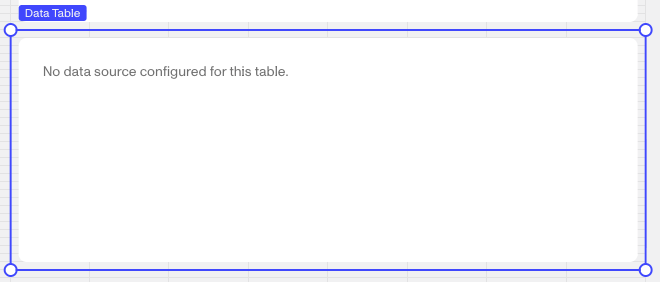
-
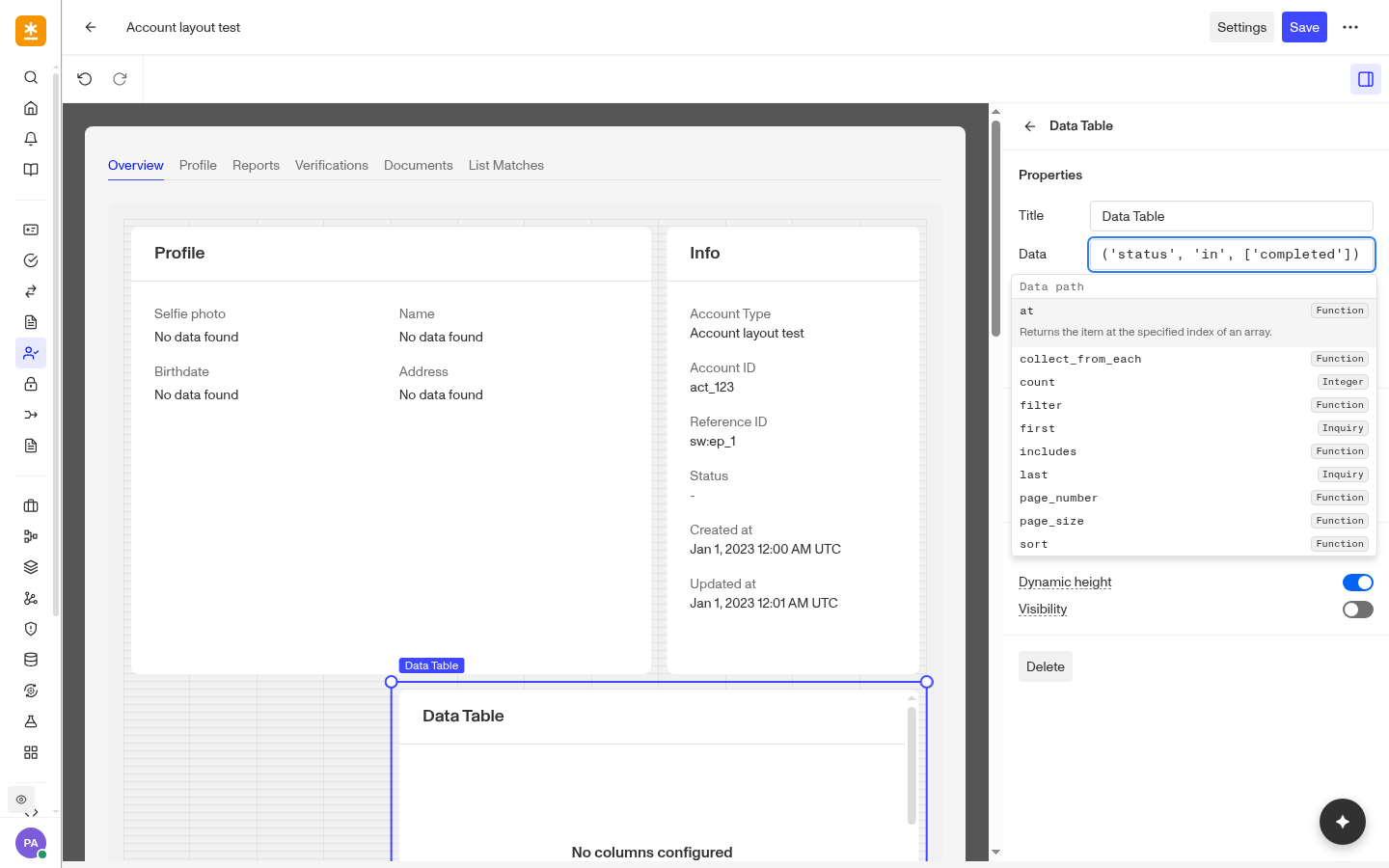
Click on the Data Table module on the right toolbar you can customize how information is displayed on the module.
-
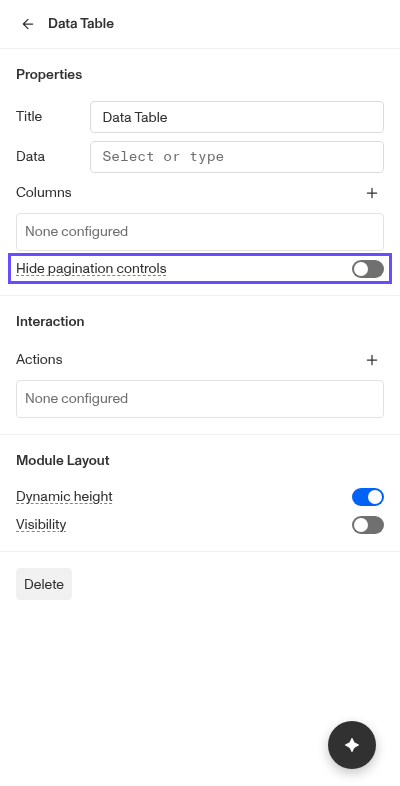
Under Properties, you can set the Title, choose the Data the table pulls its rows from, and add, edit, and remove Columns (more detail below). Turn on Hide pagination controls to hide the page controls when all rows fit on one page. This is off by default.
-
Under Interaction, you can choose the Actions for the module. Actions are one-click macros that run a pre-set Workflow automatically (for example, Update fields, Update tags, or Redact). Click the ”+” to add an Action. For more, see Accounts: Module Actions.
-
Under Module Layout, you can change:
- Dynamic height: Module will grow or shrink to fit its contents.
- Visibility: Dynamically control whether the module is hidden. This lets you set conditions for when the module should be displayed or hidden from view based on your requirements. You can read more about Visibility Configuration here.
-
-
Click the “Delete” button if you want to remove the component from the layout.
Column configurations
The Data Table module allows you to configure specific columns to display from available data. The module is often used to enrich a user’s understanding of a specific Account.
Column Values vs Format
Columns include four standard fields:
- Label is the editable name for the column.
- Value is the data the column is being pulled from.
- Format is the structure of the data.
- Obscurable is a toggle that hides the data content by default.
Data content that has been hidden via Obscurable can be revealed with a single click, and then hidden again with another click.
Each column’s Format controls how its value is shown. Once a format is selected, additional related fields may be added or removed.
Column formats
The Format determines how the values are displayed and rendered. Some column values support more than one Format. For example, a reference ID can be formatted as a String, URL, or Persona Token. You can learn more about column formats here.
The 9 supported column formats are:
- String
- Number
- Date
- Datetime
- Url
- Persona Token
- File
- Sticker
- Boolean
Module Actions
Module Actions let you configure existing account actions or a pre-built action onto the Data Table module. Once configured, a reviewer can run that action on a selected row within the Data Table.
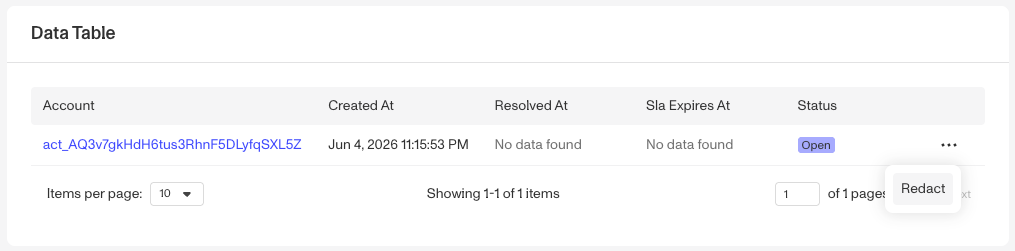
For example above, adding the pre-built Redact action lets you click the 3 dot button at the right of a row and then select redact.
Mapping Actions to the Data Table
Some actions you configure have a “Params” section listing the fields the action requires. For every required param, the editor gives you a Smart Input whose available options are drawn directly from the data table’s own data source — i.e., the columns/fields of the rows shown in the table. You point each required action field at the corresponding data-table field, and at runtime when a reviewer selects a row and fires the action, the values from that row populate the action’s inputs.
Data tied to the current Account
The current account has many other personal objects attached to it and you can use those connections to have the data table pull from those attached objects. For example, a Data Path from the Account to its Inquiries, filtered to only those with a status of completed.
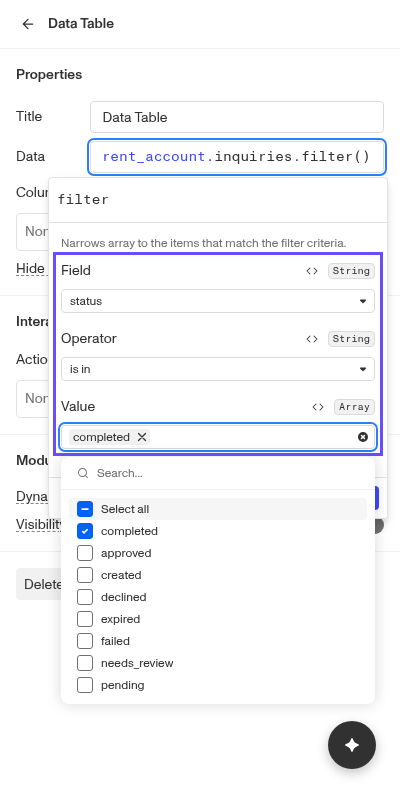
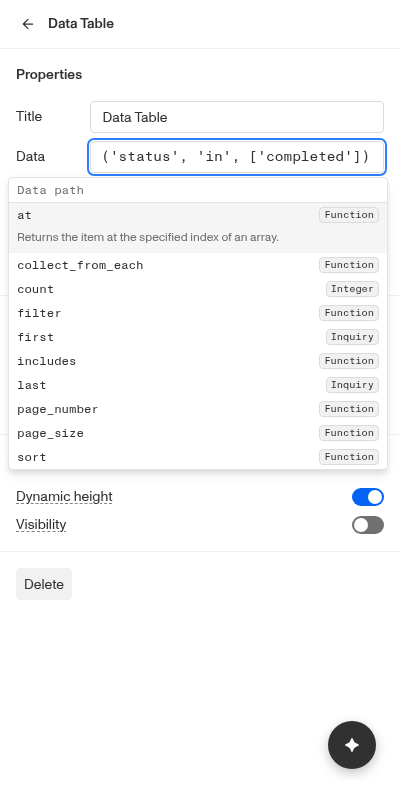
You can learn more about using Persona’s Smart Input tool to build Data Paths here.
Plans Explained
Data Table module by plan
| Startup Program | Essential Plan | Growth Plan | Enterprise Plan | |
|---|---|---|---|---|
| Data Table module | Available | Available | Available | Available |