
Overview
The Layout Editor allows you to modify how and where information is displayed in a Layout. Currently, we support Layout for Case Templates and Account Types. For Accounts, you can use it to arrange how information is set up for an account per type. For Cases, you can use it to customize how a case is displayed per template. In both products, the elements are sorted into two categories: Visual elements and Settings.
Visual Elements and the Layout Window
While using the Layout Editor, the Layout Window section will show how your visual elements will be arranged, each populated with fake sample placeholder data. These visual elements are made up of Modules and Components, both of which can be organized into different Tabs.
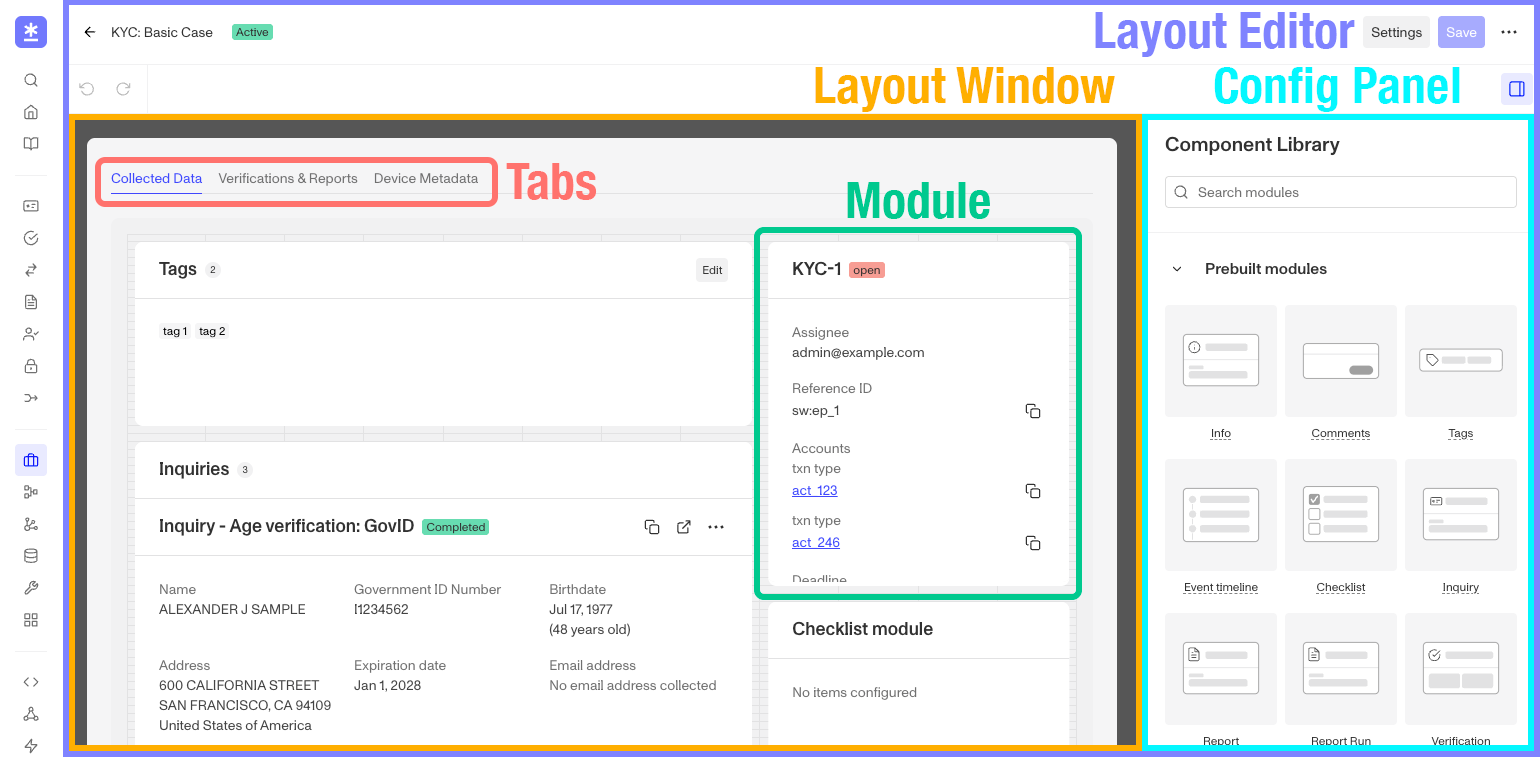
The non-visual elements like fields, statuses, actions, and product-specific configurations are collected in the Settings, which can be accessed at the top right of the Layout Editor.
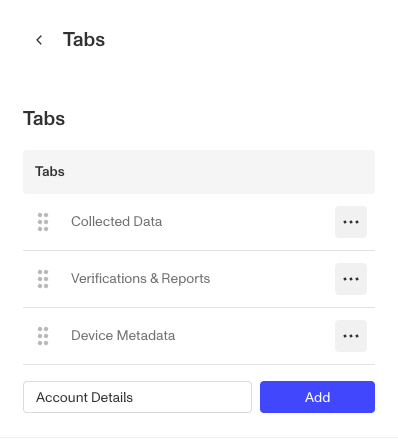
Tabs in the Layout Window

To help you avoid a layout that’s overly cluttered and difficult to navigate, the Tabs feature within the Layout Window allows you to divide up your desired visual elements into the groupings that make sense for your use case. You can rename, remove, reorder, or add tabs as you see fit.
Layout Modules
Layout Modules are prebuilt components that you can drag and drop into a Layout. Each layout module contains a specific kind of information that may be useful to a user reviewing either the Case or Account.
Most layout modules are applicable for all Layouts, and can be placed in either. Some layout modules are limited to either Case or Account Layouts.
Module Visibility
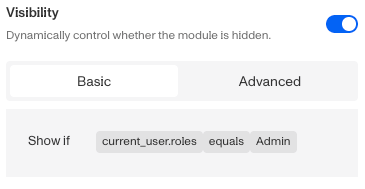
Some modules might contain sensitive information for which you want to limit visibility to your own team members by their role. To assist with that, modules now include a Visibility configuration allowing you to set which roles in your organization that can see any particular module in that layout. You can learn more about Module Visibility options here.
Module Actions
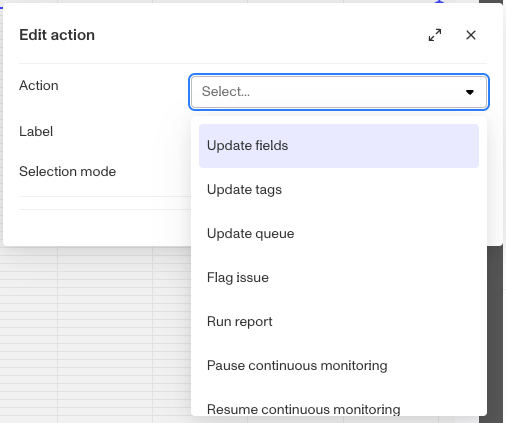
Just like Case templates support customizable Case Actions, ie workflows limited to a specific Case template, certain modules now support pre-built Actions. These System Actions are common processes Persona has noted and and now provided to be used with some of the layout modules. You can learn more about Module Actions here.
Placing visual elements
Within the Layout Window, you can drag the modules and components into the layout and arrange and resize them as best suits your team. These elements will automatically rise to the top of their current column to fill any vertical space.
Save your changes
Once you’re satisfied with the changes you’ve made to your Layouts, be sure to save your changes via the Save button at the top right of the Layout Editor. You can read more on managing changes to your Account Types and Case Templates.