
What is the Gallery module?
Gallery can be used to display multiple images and files in a gallery view. This is especially useful for compiling images and files, such as Gov ID photos, selfie photos, and uploaded documents, into a single view for review.
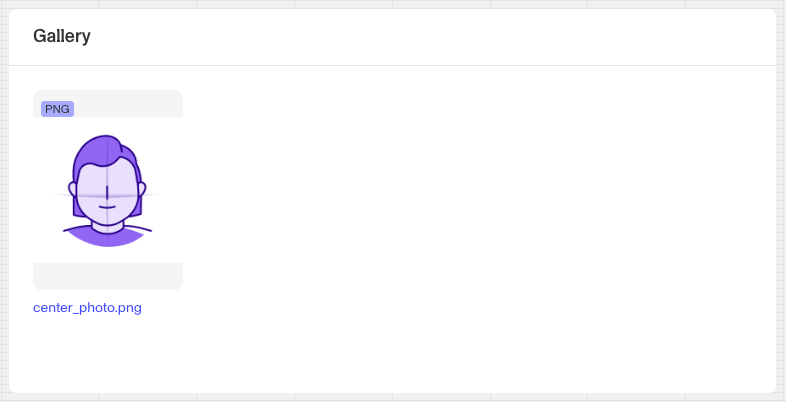
How do you add a Gallery module?
- Navigate to the Dashboard, and click on Accounts > Types.
- Find and click on the Account type you want to edit, or click Create type to make a new one.
- In the Layout Editor, navigate to the Tab you want to add the module to. Click an empty space to view the Module Library.
- In the right panel search for ‘Gallery**.**’
- Drag and drop the Gallery module into your Account layout and reposition it by dragging it around.
- On the right toolbar, you can change the settings:
- Under Settings > Data Sources, you can define a field containing images or files that will be displayed in the gallery view. View the Available Data section below to learn more about what fields are supported.
- Under Settings > Title, you can modify the title displayed on top of the module.
- Under Module Layout, you can change:
- Dynamic height: Module will grow or shrink to fit its contents.
- Visibility: Dynamically control whether the module is hidden. This lets you set conditions for when the module should be displayed or hidden from view based on your requirements. You can read more about Visibility Configuration here.
- Click the “Delete” button if you want to remove the module from the Account layout**.**
Selecting Data
The Gallery module can be used to display a single file or an array of files types determined by the Data Sources field. You can work down from the data root to the specific file or files your want to display.
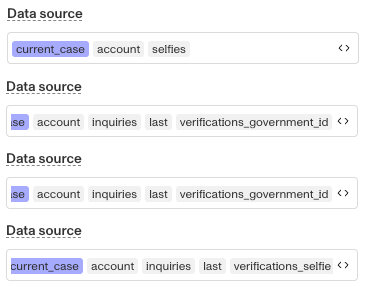
The Data Sources field will accept any field that is a file or a list of files. In addition the field also support the following verification objects, pulling the related photos.
- Government ID Verifications - Government ID front photo of each verification is extracted
- Document Verifications - First file of each verification is extracted
- Selfie Verifications - Center photo of each verification is extracted
- Selfies - A list of Selfie center photos are extracted
Plans Explained
Accounts Gallery module by plan
| Startup Program | Essential Plan | Growth Plan | Enterprise Plan | |
|---|---|---|---|---|
| Accounts Gallery module | Available | Available | Available | Available |