
What is the Event timeline module?
The Event timeline module is a prebuilt component that can be added to a Case Layout. It displays all events associated with the Case. You can also customize when fields are displayed on the module and define logic that governs when it appears.
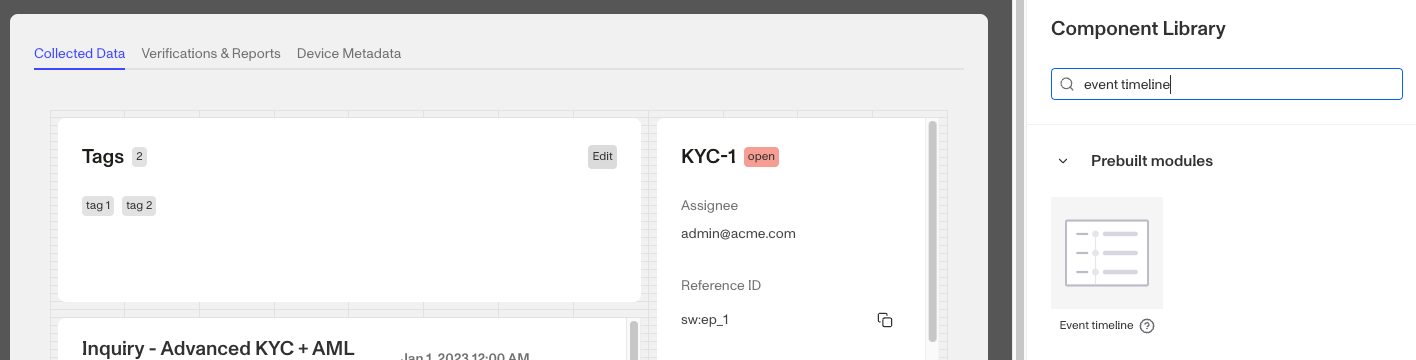
The Event Timeline module is useful for reviewing the order of events that occurred for the Case you are viewing as well as any attached objects to the Case. It is especially valuable for debugging issues like missing field values, errored workflows, & missing attached objects, race conditions between different processes, and potential operational improvements such as team SLAs or when cases are assigned.
How do you add an Event timeline module?
- Navigate to the Dashboard, and click on Cases > Templates.
- Find and click on the Case you want to edit, or click Create template to make a new one.
- Navigate to the Tab you want to add the module to. Click an empty space to view the Component Library.
- In the right toolbar, search for ‘Event timeline.’
- Drag and drop the Event timeline module into your layout and reposition it by dragging it around.
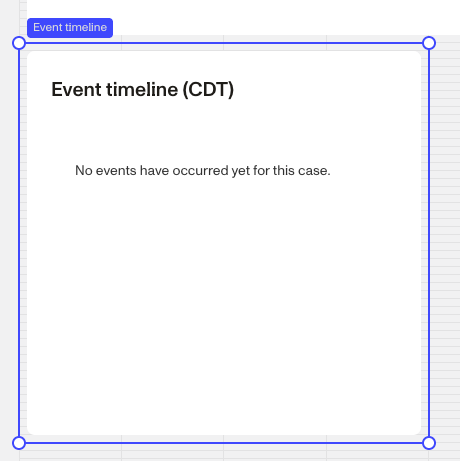
- Click on the Event timeline module on the right toolbar you can customize how information is displayed on the module.
- Under Module Layout, you can change:
- Dynamic height: Module will grow or shrink to fit its contents.
- Visibility: Dynamically control whether the module is hidden. This is a toggle button that lets you set conditions for when the button should be displayed or hidden from view based on your case requirements. You can read more about Visibility Configuration here.
- Under Module Layout, you can change:
- Click the “Delete” button if you want to remove the component from the layout.
Plans Explained
Case Event timeline module component by plan
| Startup Program | Essential Plan | Growth Plan | Enterprise Plan | |
|---|---|---|---|---|
| Case Event timeline module component | Available | Available | Available | Available |