
What is the Case Tags module?
The Case Tags module is a prebuilt component that can be added to a Case Template. It displays tags applied to the Case.
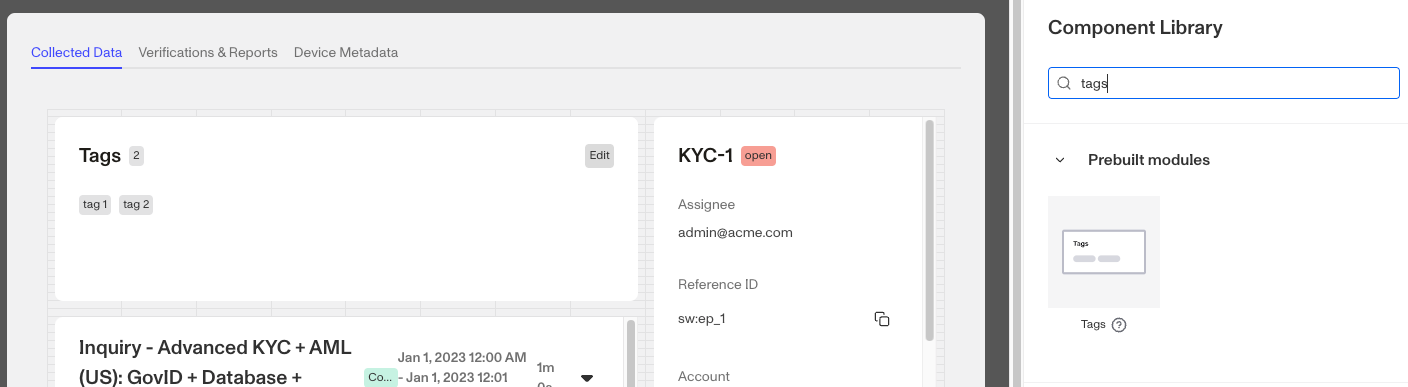
Tags can be applied by using this module when viewing an individual Case or dynamically through Workflows using the Tag Object step. It is common practice to use Workflow Conditional Steps and Tag Object step to properly tag cases with various observations that provide context during manual review and to guide automation.
How do you add a Case Tags module?
-
Navigate to the Dashboard, and click on Cases > Templates.
-
Find and click on the Case template you want to edit, or Create a new template.
-
Navigate to the Tab you want to add a Case module to. Click an empty space to view the Module Library.
-
In the Right Panel, search the Module Library for ‘Tags.’
-
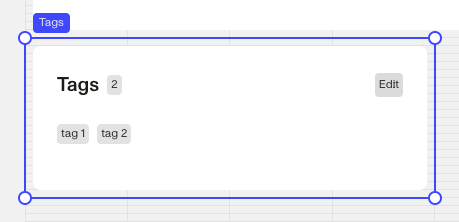
Drag and drop the Tags module into your Case layout and reposition it by dragging it around.
-
Click on the Tags module to open its settings in the Right Panel.
- Under Module Layout:
- Dynamic height: Module will grow or shrink to fit its contents.
- Visibility: Dynamically control whether the module is hidden. This is a toggle button that lets you set conditions for when the module should be displayed or hidden from view based on your case requirements. You can read more about Cases: Layout Module Visibility configuration here.
- Under Module Layout:
-
Click the “Delete” button if you want to remove the component from the Case layout.
Plans Explained
Case Tags module by plan
| Startup Program | Essential Plan | Growth Plan | Enterprise Plan | |
|---|---|---|---|---|
| Case Tags module | Limited | Limited | Available | Available |