
Overview
Use this guide to enable SAML-based Single Sign-On (including Just-In-Time (JIT) provisioning with SAML) for the Persona Dashboard through Okta.
By default, users can log in through SAML or with email and password. To configure SAML enforcement, a user with Admin permissions goes to Organization > Authentication.
Retrieve your Organization Slug
Log in to your Persona dashboard as a user with Admin permissions.
- Go to Organization > General.
- Next to Organization slug, copy your Organization Slug.
Write down your Organization Slug. You need it in the next steps. After you enable SSO, the slug also shows under Single sign-on on the Authentication tab.
Add Persona to Okta
-
Log in to your Okta organization as a user with administrative privileges. Make sure that you change to the Admin Console with Classic UI. At this time, the new UI does not support SAML based integrations.
-
Click Applications in the menu bar. Then click Add Application and then Create New App.
-
In the Create a New Application Integration dialog box, keep Web as the platform and select SAML 2.0 as the protocol. Click Create.
-
On (1) General Settings, enter Persona as the name of the new Application. Click Next.
-
On (2) Configure SAML, enter these values in the fields:
General
- Single sign on URL:
https://withpersona.com/saml/<ORGANIZATION-SLUG>/acs - Audience URI:
https://withpersona.com/saml/<ORGANIZATION-SLUG>/metadata - Name ID Format: Unspecified
- Application username: Email
ORGANIZATION-SLUGcomes from the first section (Retrieving your Organization Slug)Attribute Statements
Name Name format Value user_emailUnspecified user.emailname_firstUnspecified user.firstNamename_lastUnspecified user.lastName - Single sign on URL:
-
Click Next. Then give feedback if you want to.
-
Get your Identity Provider metadata URL. Persona uses it to integrate with Okta. To find it, go to the Sign On tab and click the Identity Provider metadata link in the SAML 2.0 callout. Copy the URL and keep it for the next steps. The format of the URL is
https://dev-12345.okta.com/app/abcdefg/sso/saml/metadata
Complete the Okta integration in Persona
- Log in to your Persona dashboard as a user with Admin permissions.
- Go to Organization > Authentication.
- Under Single sign-on, click Set up (or Manage if SSO is already configured).
- Enter the Metadata URL that you got in the last step of the Adding Persona to Okta section.
- Click Register provider (or Update provider if you are changing an existing configuration).
Set up SSO with the metadata URL, not with a static metadata XML file. Persona reads the URL again. When you activate a new SAML signing certificate in Okta, Persona gets it automatically. Your SSO continues to work, and you do not have to change Persona.
If the setup is successful, a notification tells you that your Okta integration is set up.
Logging in to Persona through Okta
- To log in to Persona through Okta, first make sure that the user is assigned to the Application in Okta.
- The user should then see Persona in their Okta dashboard. When they click Persona, they should automatically log in to their Persona dashboard.
Renewing an expiring SAML SSO certificate
SAML signing certificates expire. Persona monitors the expiration date of your certificate and reminds you before it expires. But you must generate and activate the replacement certificate in Okta and make it available to Persona.
If Persona already has your live Identity Provider metadata URL, we automatically get the renewed certificate after you activate it in Okta. You do not have to do more on the Persona side. If you set up your integration with a static metadata XML file, you must upload the updated metadata again each time the certificate rotates. To prevent this, change it to the metadata URL.
You do not have to create a new Okta application. Use the existing application that you set up for Persona login. A new application is the most frequent cause of broken SSO.
Generate a new certificate in Okta
-
Log in to your Okta organization as a user with administrative privileges. Switch to the Admin Console with Classic UI.
-
Go to Applications and open the existing application you use for Persona login.
-
Click the Sign On tab.
-
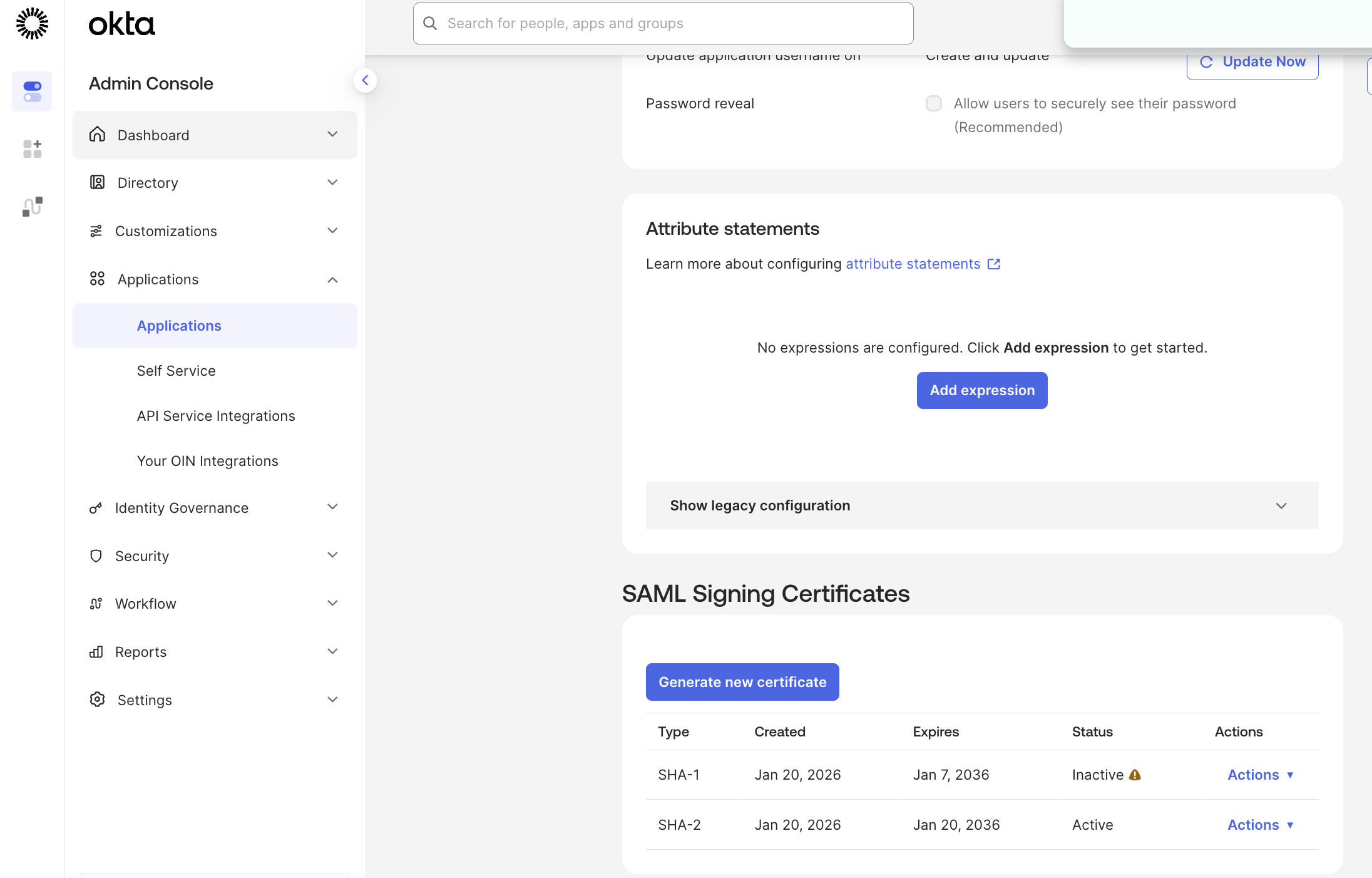
Scroll to the SAML Signing Certificates section and click Edit.
-
Click Generate New Certificate. A new certificate row appears with a status of Inactive.
Activate the new certificate
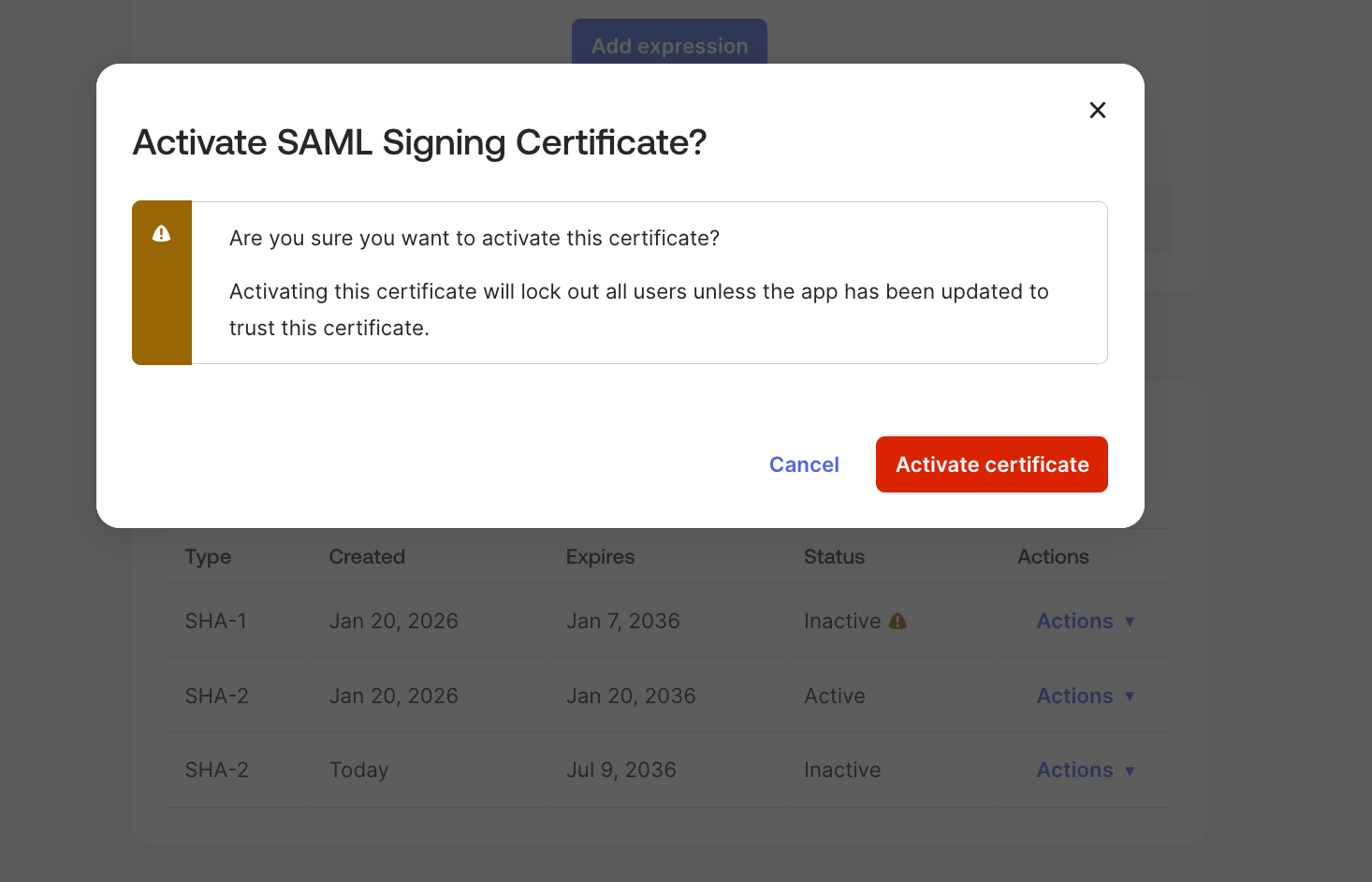
Keep your current certificate Active until the new one is activated and works. Keep a copy of your existing metadata XML, so that you can go back to it if logins stop working.
-
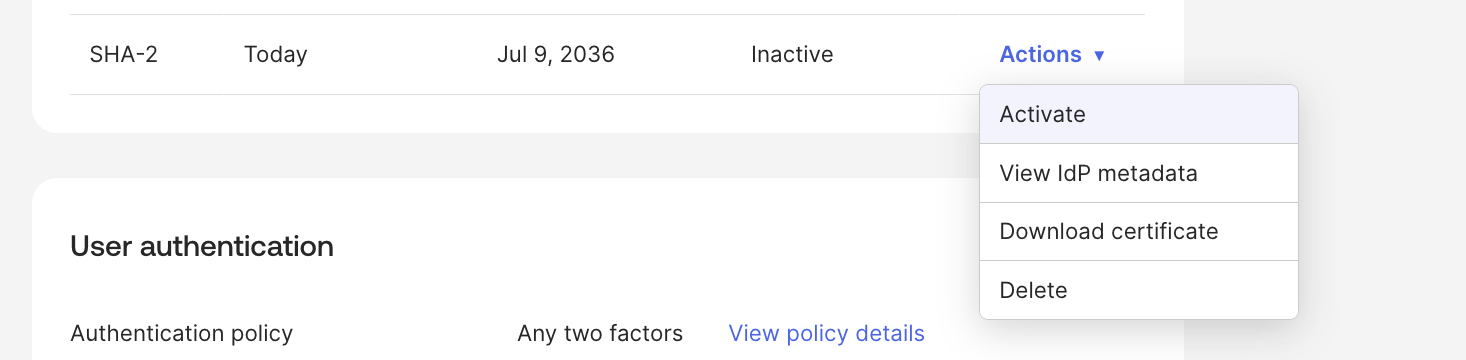
In the SAML Signing Certificates table, find the row of the new (Inactive) certificate.
-
In the Actions column, click Activate. Its status changes to Active and the previous certificate becomes Inactive.
Refresh the metadata in Persona
If Persona already has your live Identity Provider metadata URL, Persona gets the renewed certificate automatically. You can then skip these steps. If your integration still uses a static metadata file, change it to the URL now. Then you do not have to do anything for future rotations:
- In Okta, copy your Identity Provider metadata URL from the Sign On tab (format:
https://dev-12345.okta.com/app/abcdefg/sso/saml/metadata). - Log in to your Persona dashboard as a user with Admin permissions.
- Go to Organization > Authentication.
- Under Single sign-on, click Manage (or Set up).
- Enter the metadata URL and click Update provider (or Register provider).
FAQs
Does Persona support JIT provisioning via SAML?
Yes. We support JIT provisioning for users.
Is there an API for creating and disabling users?
At this time, we do not have an API to create or disable users.
Is it possible to send over the user’s role in Persona as an attribute in the SAML assertion?
At this time, all new users get the default role of the Organization. You configure this role in the dashboard. At this time, we do not support a user role as an attribute. If this is a high priority for your team, contact your Persona contact or Persona support to tell us about your need.
Plans Explained
SAML-based SSO with Okta by plan
| Startup Program | Essential Plan | Growth Plan | Enterprise Plan | |
|---|---|---|---|---|
| SAML-based SSO with Okta | Available | Available | Available | Available |
| SCIM with Okta | Not Available | Not Available | Not Available | Available |