
Overview
Notifications are system-generated alerts that inform users about important activities, tasks, or updates relevant to their role. To choose which alerts you receive, see Configure your notification preferences.
Where can you view Notifications?
In-App notifications
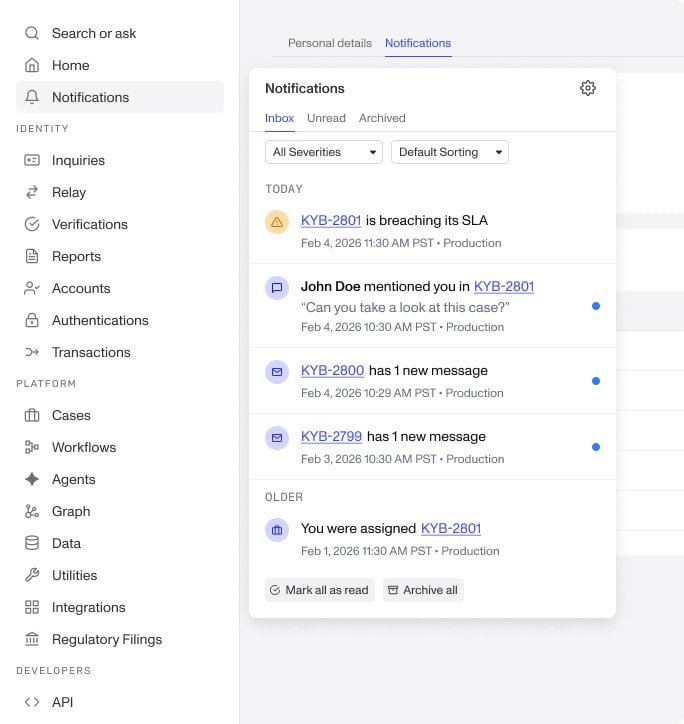
In the Persona Dashboard, a red badge appears on the Notifications menu item in the dashboard side navigation. The number displayed on the red badge indicates the number of unread notifications.
Clicking on the Notifications menu item allows you to:
- Select a view, which includes:
- The Inbox tab to view all new notifications.
- The Unread tab to view all unread notifications.
- The Archived tab to view all archived notifications.
- Filter views by notification severity levels
- Sort views by:
- Default (unread critical and urgent notifications are pushed to the top)
- Newest to oldest
- Oldest to newest
- Tag certain notifications as
archived/unarchivedorread/unreadby clicking the icons that appear when hovering over a notification. - Click Archive all to move all notifications in your Inbox or Unread view to Archived status.
- Click Mark all as read to mark all notifications as read, removing the blue badge.
Email notifications
Notifications can also be sent directly to your inbox.
To learn more or request access, let us know. We're happy to help.