
What is the Case Select component?
Case Select is a Case component that can be added to a Case Template. Cases that are created from that Case template allow a Case reviewer to use a dropdown component when viewing a Case. Case reviewers can select one option from a predefined list to update a field value on a Case. The component simplifies decision-making by presenting options in a compact, scrollable format.
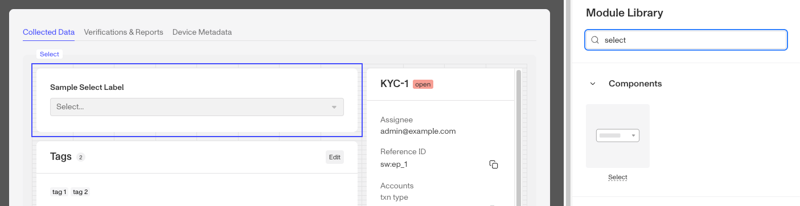
A Case Select component is ideal for scenarios where a Case reviewer should select from a predefined list to fill a specific Case field.
How do you add a Case Select component?
- Navigate to the Dashboard, and click on Cases > Templates.
- Find and click on the Case template you want to edit, or Create a new template.
- Navigate to the Tab you want to add a Case component to. Click an empty space to view the Module Library.
- In the Right Panel, search the Module Library for ‘Select.’
- Drag and drop the Select component into your Case layout and reposition it by dragging it around.
- Click on the Select component to open its settings in the Right Panel.
- Under Settings:
- Field key: Choose the fields accepted for selection.
- Label: Change the text displayed above the Select component.
- Under Module Layout:
- Dynamic height: Module will grow or shrink to fit its contents.
- Visibility: Dynamically control whether the module is hidden. This is a toggle button that lets you set conditions for when the module should be displayed or hidden from view based on your case requirements. You can read more about Cases: Visibility Configuration here.
- Under Settings:
- Click the “Delete” button if you want to remove the component from the Case layout.
Plans Explained
Case Select component by plan
| Startup Program | Essential Plan | Growth Plan | Enterprise Plan | |
|---|---|---|---|---|
| Case Select component | Limited | Limited | Available | Available |