
What is the Inquiry New Screen Step module?
The New Screen Step module adds a blank screen to your Inquiry flow with a continue button. You can add components to the screen to collect information or display content to the end user.
For more on screen steps and available components, see Screen Steps in Inquiries.
How do you add an Inquiry New Screen Step module?
-
Navigate to the Dashboard, and click on Inquiries > Templates.
-
Find and click on the Inquiry template you want to edit, or Create a new template.
-
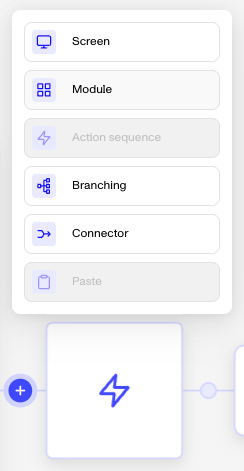
In the Flow Editor, click the ”+” sign in the flow where you want to add a module.
-
Select Module from the list of options.
-
Choose New Screen Step and then click Insert. The module adds a blank screen with a continue button to your flow.
Module placement
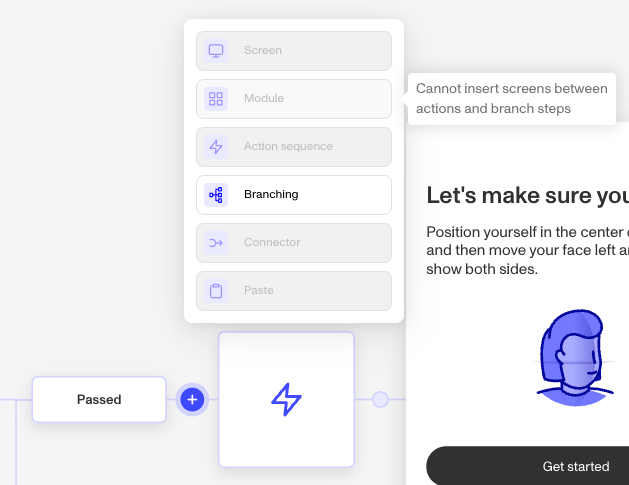
Not all locations in the flow support modules. If the Module option is grayed out when you click ”+”, hover over it to see why it can’t be inserted there.
Plans Explained
New Screen Step module by plan
| Startup Program | Essential Plan | Growth Plan | Enterprise Plan | |
|---|---|---|---|---|
| New Screen Step module | Not Available | Available | Available | Available |