
This article uses “Connector Steps” to name the step type, matching the terminology on the Flow Editor. See Connector Steps in Inquiries for what a Connector Step is and where to find it.
When you set up an Inquiry Template, the verifications you add run in the order you placed them in the Flow Editor: Gov ID, then Database, then Selfie. If a later verification should run first, you do not have to rebuild the flow. A pair of Connector Steps lets you change the sequence quickly, moving a verification to the front of the line and restoring the screens that follow it.
Example Template
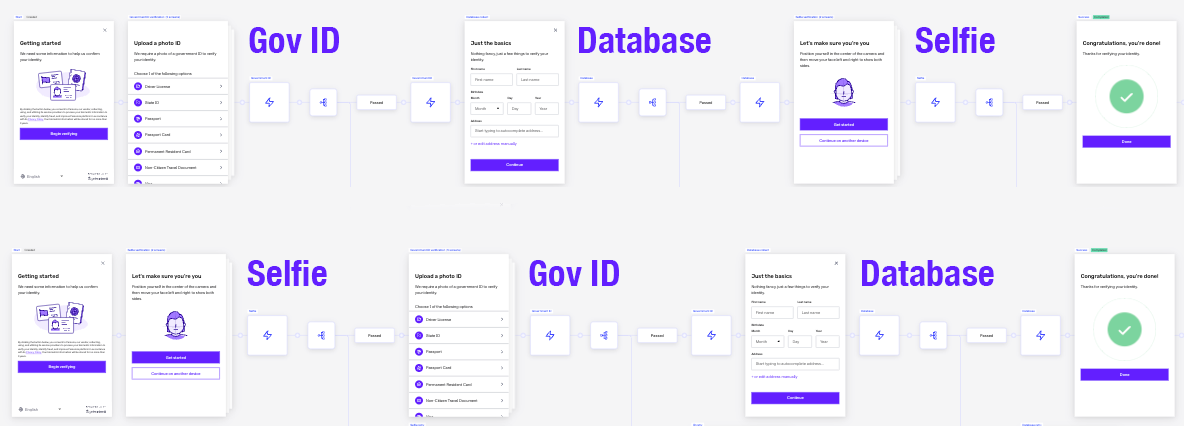
We’ll use the Gov ID + Database + Selfie Inquiry Template for our example. Within the template the three verifications follow that same sequence from left to right: Gov ID, Database, and then Selfie. We’re going to use two Connector Steps to move the Selfie verification to the beginning of the sequence, with Gov ID and Database following.
Steps
-
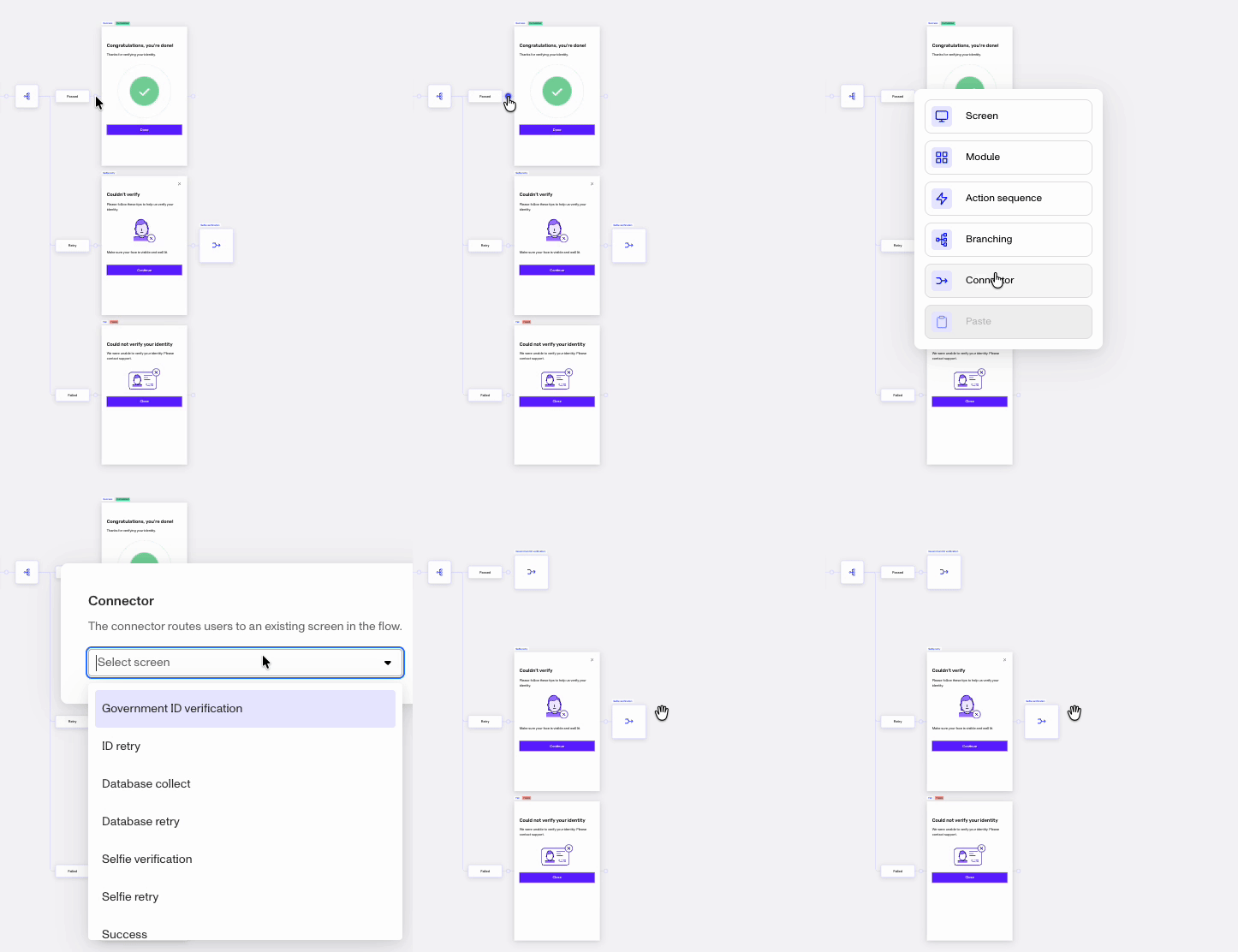
On the right of the template, select the node between the Success screen and the Passed path to its left. In that node, select Connector as the step type.
-
From the list of screens available in the Connector dropdown, select Government ID Verification. This causes the Success screen to disappear.
-
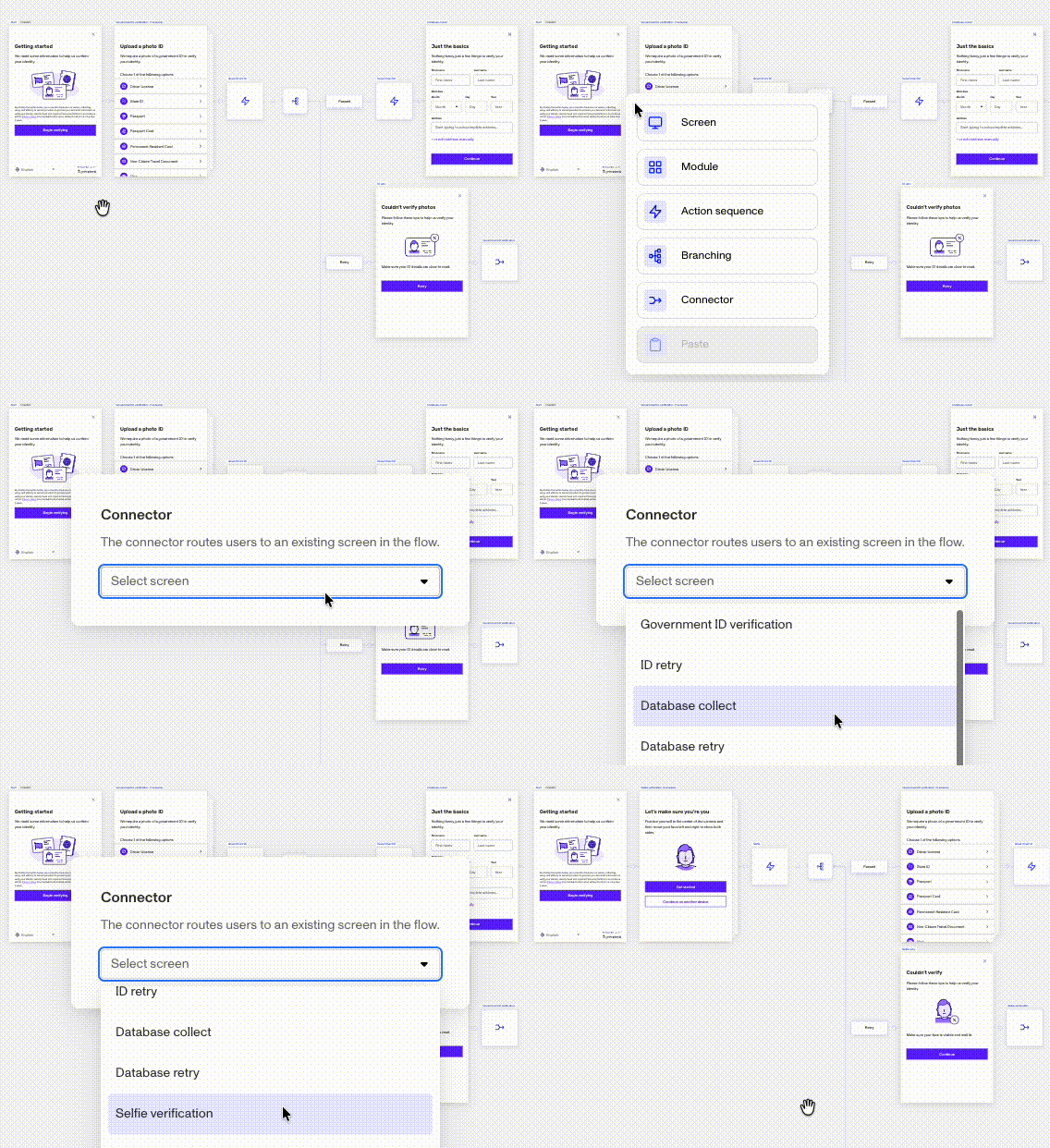
On the far left of the template, select the node between the Start screen and the Government ID screen. In that node, select Connector as the step type.
-
From the list of screens available in the Connector dropdown, select Selfie Verification.
-
Back on the right of the template, click the Connector that you set to Selfie. Change its connection to Success. The Success screen reappears at the end of the template.
What’s going on?
The Connector Step changes which step comes after it. The first one you place at the end temporarily disjoins the Success step from the template. The second one you place forces Selfie to now be the first verification, with Gov ID and Database shifting later in the sequence. You bring the Success screen back by setting that last connection back to Success.
You can use this process repeatedly to re-sequence your verifications into any order by moving them earlier in the sequence.
Limitations
This method of moving a verification moves not only the initial verification screen but the connected retry logic. That’s because each one is set up as a module, and the whole module moves, including its capture screens, its branching condition, and the retry paths attached to it.