
What is the Inquiry Document Home Collection module?
The Document Home Collection module adds a pre-built document submission experience to your Inquiry flow. Instead of routing users through document verification steps sequentially, it presents all required and optional documents on a single home screen and lets users submit them in any order.
It’s particularly well-suited for business verification, where collecting multiple document types is common, and ships with placeholder paths that you configure to match the specific documents you need, such as articles of incorporation, a voided check, or a government-issued ID.
How do you add an Inquiry Document Home Collection module?
-
Navigate to the Dashboard, and click on Inquiries > Templates.
-
Find and click on the Inquiry template you want to edit, or Create a new template.
-
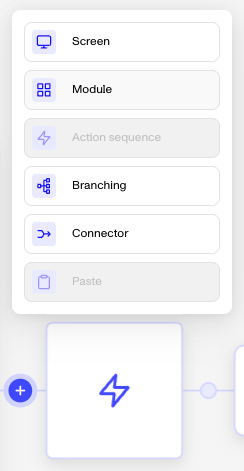
In the Flow Editor, click the ”+” sign in the flow where you want to add a module.
-
Select Module from the list of options.
-
Choose Document Home Collection and then click Insert.
-
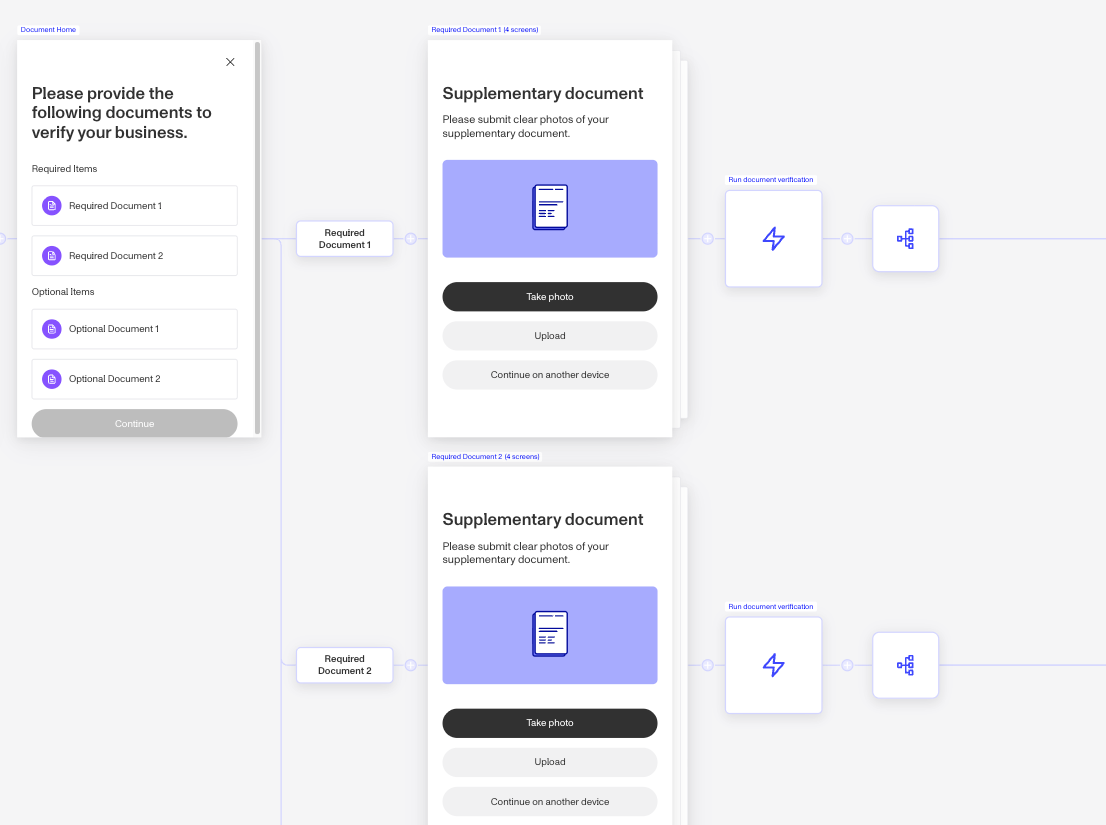
The module adds the following to your flow:
- A home screen listing all documents the user needs to submit
- A pre-built branching path for each document with pass/fail/retry logic
- A Submit documents button that activates once all required documents have been submitted.
After completing each document path, the user returns to the home screen. Completed documents appear greyed out.
-
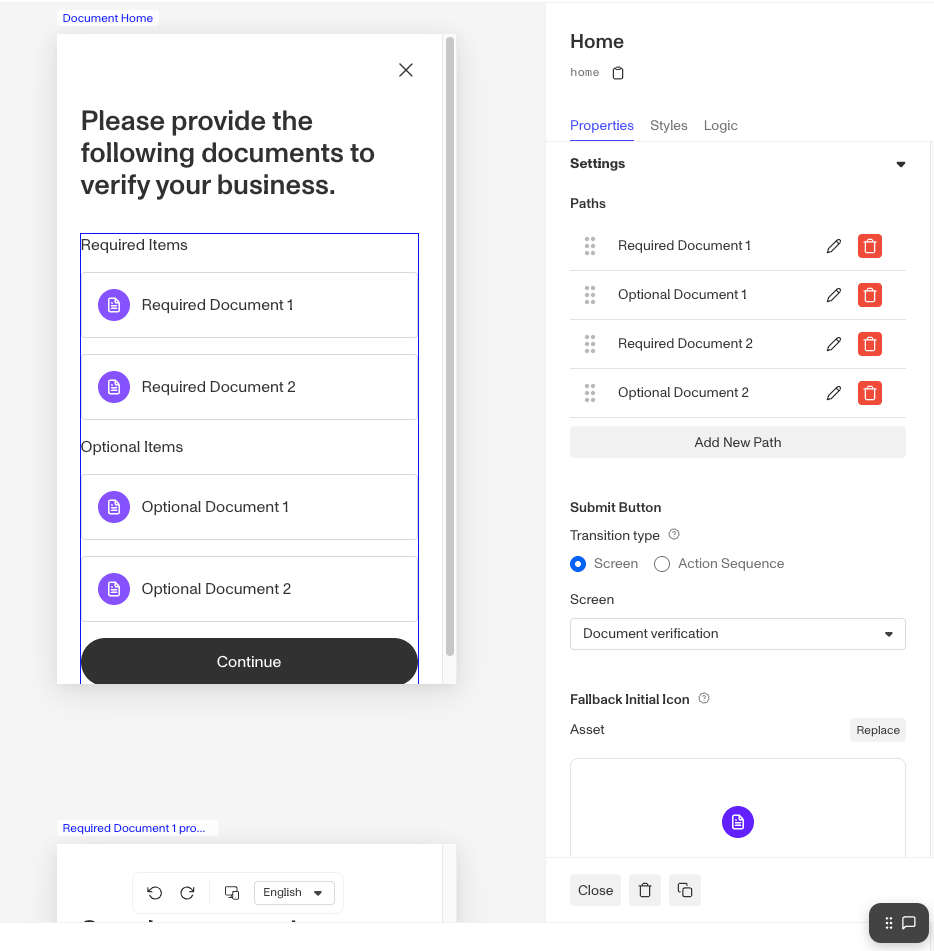
Click the pencil icon on the Document Home screen to open the screen editor.
-
Click the container displaying the required and optional items. Under Paths in the right panel:
- Click the pencil icon next to a path to edit its name and settings. You can read more about Configuring document paths below.
- Click the trash icon to remove a path
- Click Add New Path to add a new document.
The module inserts with default placeholder text written for Business Verification flows. Update the screen heading and document names to match your use case.
-
Click Save in the top right when done.
Configuring document paths
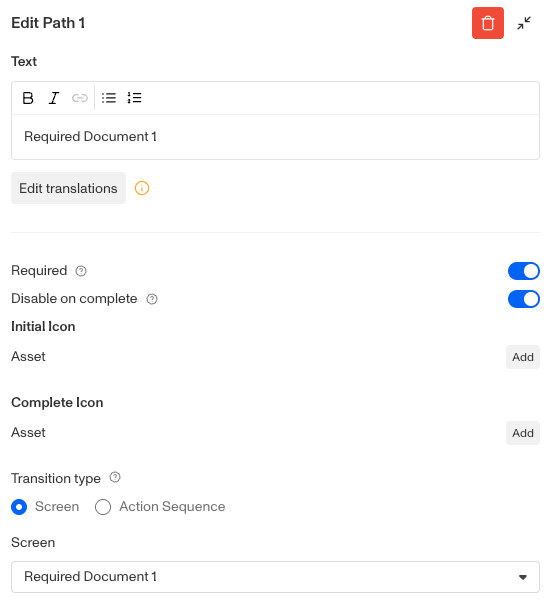
Each document on the home screen has its own path that controls how it appears and behaves during the Inquiry flow.
Text
Replace “Required Document 1” with the document name. Add translations for the text by clicking Edit translations. You can Translate All or Translate individual languages, manually or automatically.
Required
Indicates whether this path must be completed before submission. All required paths must be complete before the Submit button is enabled for the end user. To define dynamic logic, turn off this toggle and manually configure the component conditions under the Logic tab.
Disable on complete
Indicates whether this path should be disabled upon completion. To define dynamic logic, turn off this toggle and manually configure the component condition under the Logic tab.
Initial Icon
The icon displayed next to the document before the user submits it.
Complete Icon
The icon displayed next to the document after the user submits it.
Transition type
Sets the screen to transition to a different screen, or to use an action sequence that determines the next screen.
Screen
The screen this path transitions to after the item is selected.
Module placement
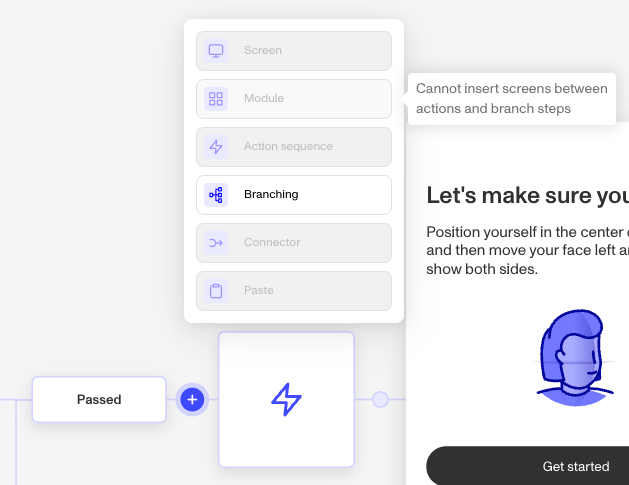
Not all locations in the flow support modules. If the Module option is grayed out when you click ”+”, hover over it to see why it can’t be inserted there.
Plans Explained
Document Home Collection module by plan
| Startup Program | Essential Plan | Growth Plan | Enterprise Plan | |
|---|---|---|---|---|
| Document Home Collection module | Not Available | Available | Available | Available |