
What is the Inquiry Selfie Verification module?
The Selfie Verification module adds pre-built selfie capture and verification screens to your Inquiry flow. It verifies the end user’s identity through liveness detection and face comparison.
How do you add an Inquiry Selfie Verification module?
-
Navigate to the Dashboard, and click on Inquiries > Templates.
-
Find and click on the Inquiry template you want to edit, or Create a new template.
-
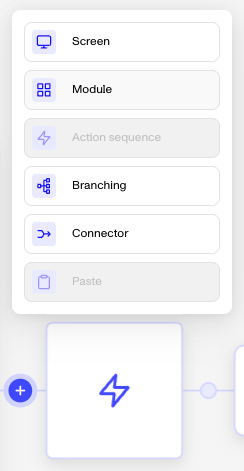
In the Flow Editor, click the ”+” sign in the flow where you want to add a module.
-
Select Module from the list of options.
-
Choose Selfie Verification and then click Insert.
The module adds the following to your flow:
- A biometric consent screen with required privacy consent language
- A selfie capture step: By default, uses a 3-point composite pose (center, left, right)
- A device handoff step that allows users on desktop to switch to mobile via SMS, email, or QR code
- A Selfie Verification step
- A pass/retry/fail branching step
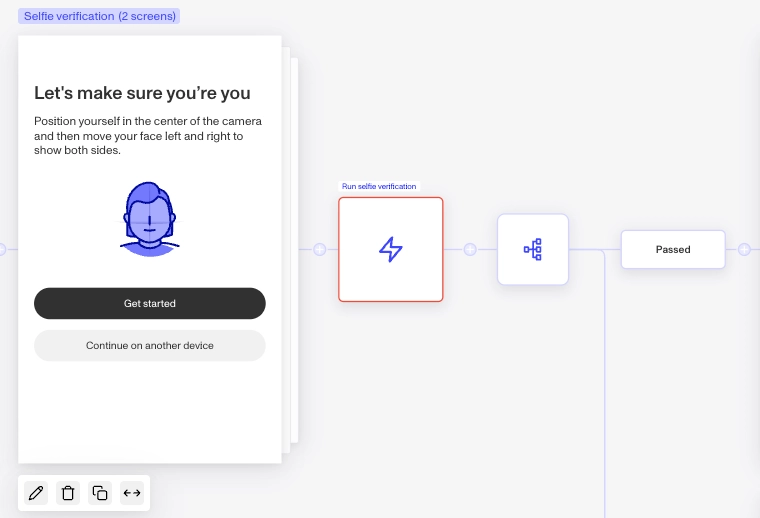
After inserting the module, you can configure the selfie pose mode, adjust the retry count in the branching condition, and customize screen copy. You can also disable the upload option on the capture screen to prevent fraud bypass. For guidance on configuring verification checks, see Configuring Selfie verification checks.
The biometric consent screen includes legally required privacy language. If you modify this text, have your legal team review the changes before publishing.
Module placement
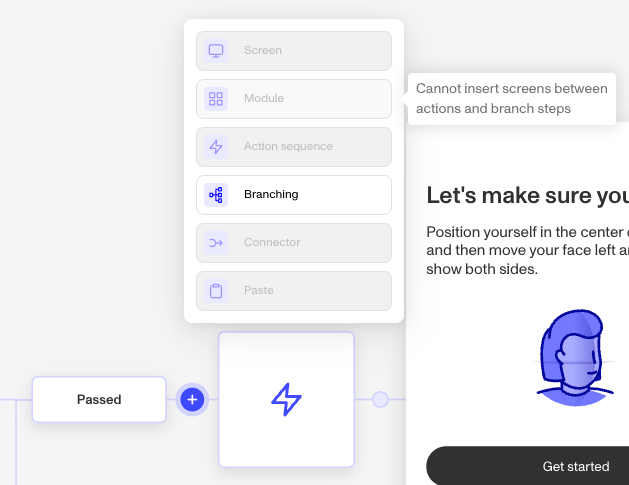
Not all locations in the flow support modules. If the Module option is grayed out when you click ”+”, hover over it to see why it can’t be inserted there.
Plans Explained
Selfie Verification module by plan
| Startup Program | Essential Plan | Growth Plan | Enterprise Plan | |
|---|---|---|---|---|
| Selfie Verification module | Not Available | Available | Available | Available |