
What is the Inquiry Government ID Type Select component?
Government ID Type Select is an Inquiry form component that allows a user to choose an identification type form a predefined list.
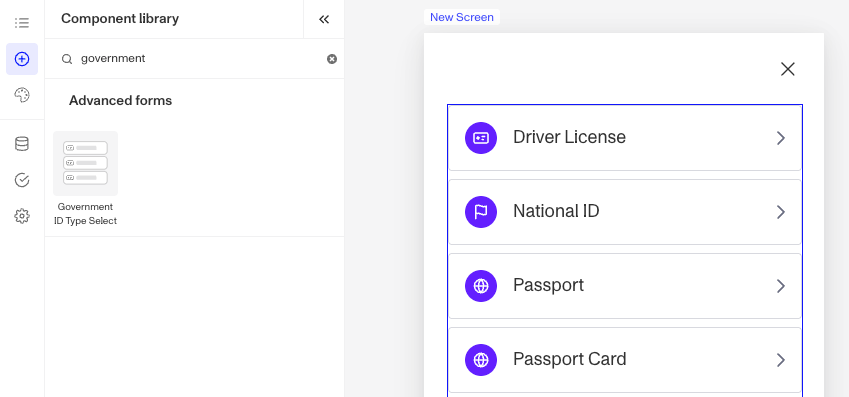
A Government ID Type Select form component is ideal for scenarios where users need to provide an official identification type, such as a passport, driver’s license, or national ID. This component is often used in conjunction with a Government ID Verification within an Inquiry and the component comes pre-built alongside the verification when using the Government ID module.
How do you add an Inquiry Government ID Type Select form component?
-
Navigate to the Dashboard, and click on Inquiries > Templates.
-
Find and click on the Inquiry template you want to edit, or Create a new template.
-
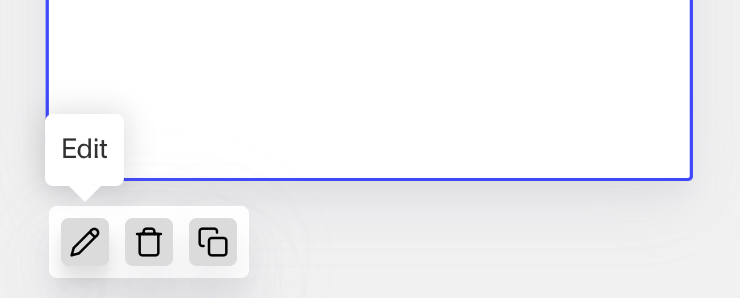
Hover over a screen and click the Pencil icon, or double-click the screen to open it in the Screen Editing View.
-
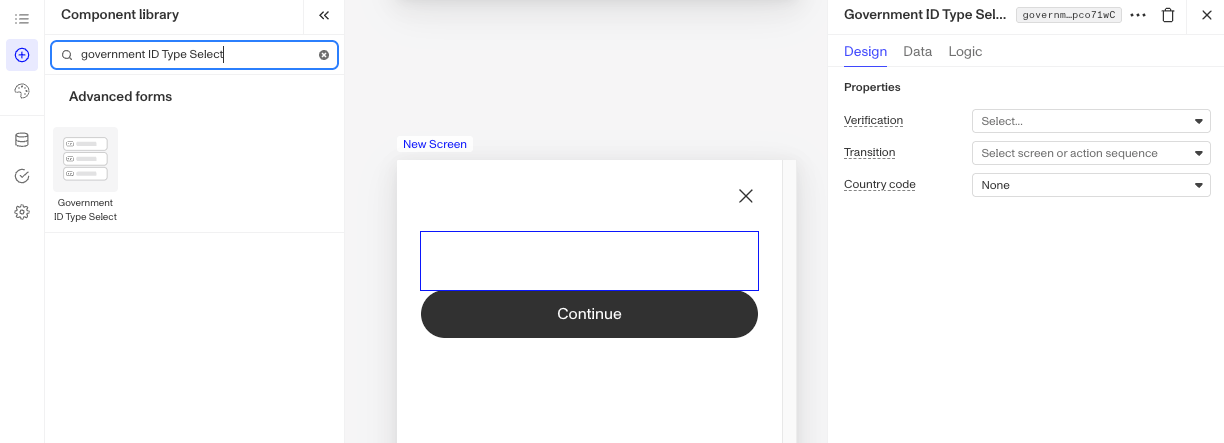
In the Left Panel, search the Component Library for ‘Government ID Type Select’.
-
Drag and drop the Government ID Type Select form component into your screen, and reposition it by dragging it around.
-
Click on the Government ID Type Select form component to open its settings in the Right Panel. The panel has three tabs: Design, Data, and Logic.
- On the Design tab, under Properties:
- Verification: Select the Government ID verification step this component uses. Its assets and localizations are taken from that step.
- Transition: Select the screen or action sequence to transition to after the user selects an ID type. The transition target cannot be changed after the template has been saved: you can only delete it and create a new one. You can choose between two types: Screen and Action Sequence.
- Screen transition moves the user to a different screen. Click the dropdown and select the transition screen from the list of available screens in your Inquiry.
- Action Sequence transition uses an action sequence to determine the next screen. Action Sequences run logic within an Inquiry to determine which screen to show users based on specific conditions. Click the dropdown and select the action sequence.
- Error screen: If the action sequence fails for any reason, users are routed to this screen. Click the Error screen dropdown and select the screen.
- Country code: Select the field that provides the user’s country code, which determines which ID types are shown. If left blank, the country code field configured on the selected Government ID verification step is used instead.
- On the Data tab, choose the field the input is written to. See the Data tab section on the Screen Step components in Inquiries page for details.
- On the Logic tab, add rules that govern when the component appears, and when it does not. See the Logic tab section on the Screen Step components in Inquiries page for details.
- On the Design tab, under Properties:
-
Use the actions at the top right of the panel to copy or delete the component.
-
Close the step. You’ll have to Save and Publish the template to begin using it.
Plans Explained
Government ID Type Select form component by plan
| Startup Program | Essential Plan | Growth Plan | Enterprise Plan | |
|---|---|---|---|---|
| Government ID Type Select form component | Available | Available | Available | Available |