
This question came from a member of the Persona community, a project admin who wanted to add their company logo to an Inquiry.
How to add or update your company logo
You can add or update your company logo to an Inquiry by modifying the Inquiry template:
-
Open the Dashboard.
-
Click on Inquiries > Templates. Click on the Template you want to add or update the logo for.
-
Hover over the Inquiry screen you want to edit and click the Pencil icon, or double-click the screen to open it in the Screen Editing View.
-
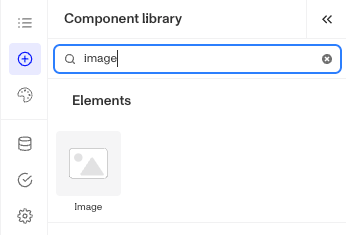
In the Left Panel, search the Component Library for Image.
-
Drag and drop the Image component onto your Inquiry screen. You can reposition it by dragging it around.
-
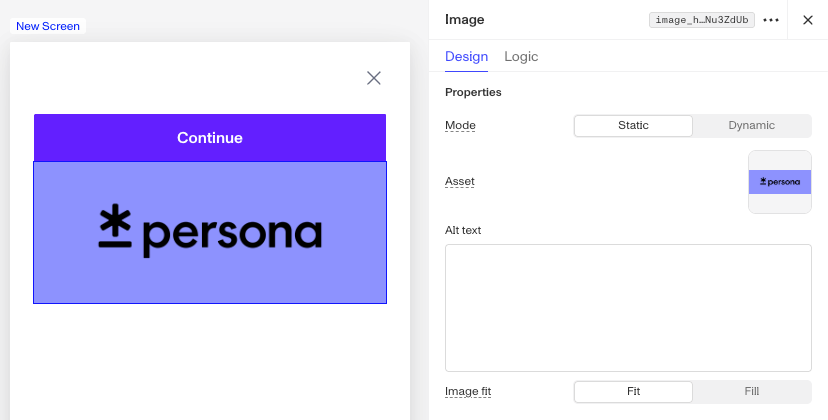
Click the Image component to open its settings in the Right Panel. In the Design tab, under Properties, set the following:
-
Mode: Choose Static to use an uploaded asset, or Dynamic to pull the image from an Inquiry field.
-
Asset: Click Upload. Under My assets, click Add new to upload your company logo, or select Persona assets to browse Persona’s image library.
-
Alt text: Add a text description of the image for accessibility.
-
Image fit: Choose Fit to preserve the image’s aspect ratio, or Fill to stretch the image to the container width.
-
-
On the Design tab, use the Layout and Appearance sections to resize or realign your logo.
-
Move your logo’s placement by dragging the image box around on the screen.
-
In the top right corner, click Save and Publish to save your changes to the Inquiry template.
How to remove Persona’s logo
The “Secured with Persona” logo appears on your Inquiry screens by default and its availability depends on your plan and contract terms. If you would like to remove or replace it, reach out to Persona Support by following these steps:
- Open the Dashboard.
- Click on Documentation > Help Center.
- In the left sidebar, click Submit a request under ‘Get help now’.
This answer was reviewed by Justin Sayarath, a product manager at Persona. FAQs, unlike other articles, are written to provide Persona Community members more specific answers to common questions. While we periodically review responses and answers, please note when this FAQ was last updated as information may have changed since then.