
What is the Inquiry Spacer component?
Spacer is an Inquiry screen component that adds a spacing block to the screen. You can customize its appearance and define logic that governs when it appears.
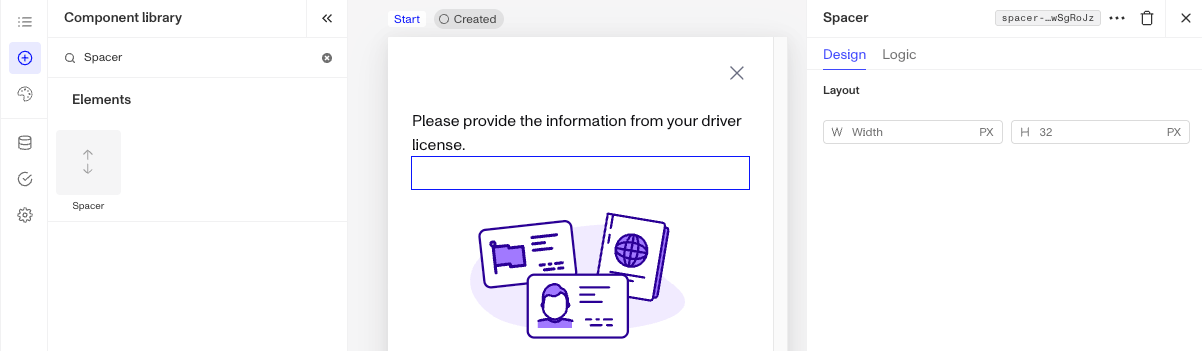
The Spacer component adds white space to create separation between elements. For example, you can include a space between a header and body text to provide some “breathing” room or add a spacer between buttons to prevent accidental taps. Spacers help ensure a clean and visually appealing design.
How do you add an Inquiry Spacer component?
-
Navigate to the Dashboard, and click on Inquiries > Templates.
-
Find and click on the Inquiry template you want to edit, or Create a new template.
-
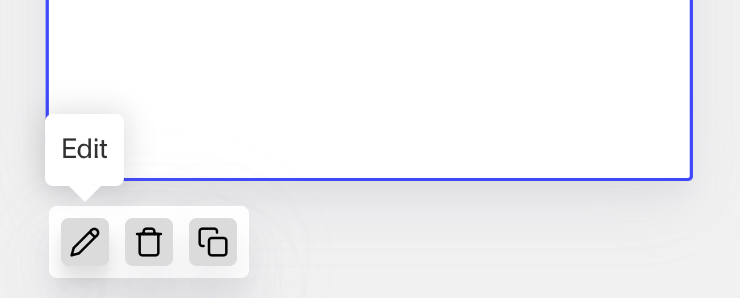
Hover over a screen and click the Pencil icon, or double-click the screen to open it in the Screen Editing View.
-
In the Left panel, search the Component Library for ‘Spacer’.
-
Drag and drop the Spacer component into your screen, and reposition it by dragging it around.
-
Click on the Spacer component to open its settings in the Right Panel. The panel has two tabs: Design and Logic.
- On the Design tab, use the Layout section to style the component. See the Design tab section on the Screen Step components in Inquiries page for details.
- On the Logic tab, add rules that govern when the component appears, and when it does not. See the Logic tab section on the Screen Step components in Inquiries page for details.
-
Use the actions at the top right of the panel to copy or delete the component.
-
Close the step. You’ll have to Save and Publish the template to begin using it.
Plans Explained
Spacer component by plan
| Startup Program | Essential Plan | Growth Plan | Enterprise Plan | |
|---|---|---|---|---|
| Spacer component | Available | Available | Available | Available |