
What is the Inquiry Container component?
Container is an Inquiry screen component that adds a layout element used to group and organize other components to the screen. You can customize its appearance and define logic that governs when it appears.
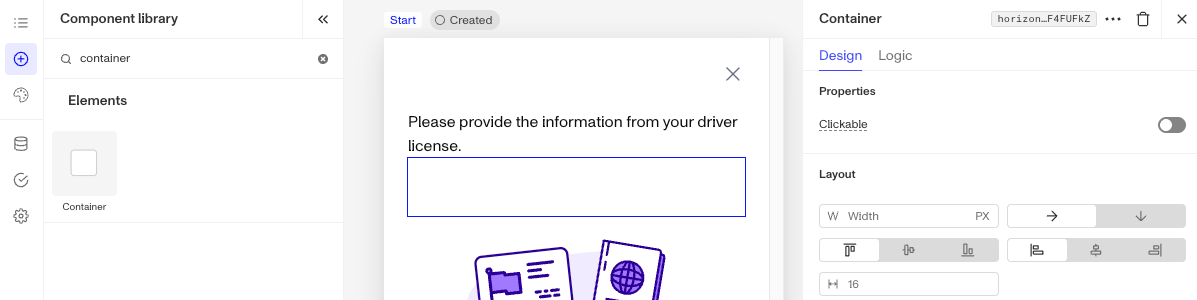
A Container component helps structure content by controlling alignment, spacing and styling. Containers can be used to manage the overall layout of a screen.
There are two types of Container:
- A standard Container groups and organizes other components, controlling their alignment, spacing, and styling.
- A clickable Container does the same, but it is also interactive: when a user clicks anywhere inside it, it triggers a transition, similar to a Button. Turn on the Clickable toggle in the Container’s Properties to make it clickable.
How do you add an Inquiry Container component?
-
Navigate to the Dashboard, and click on Inquiries > Templates.
-
Find and click on the Inquiry template you want to edit, or Create a new template.
-
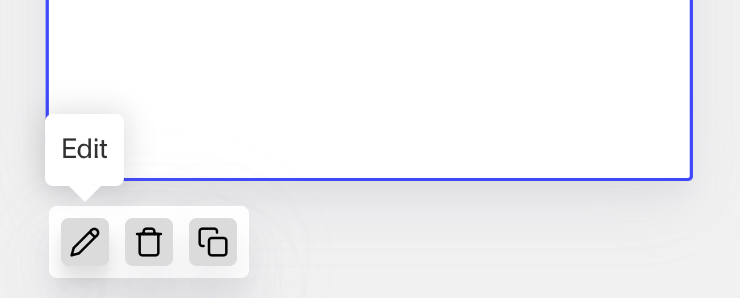
Hover over a screen and click the Pencil icon, or double-click the screen to open it in the Screen Editing View.
-
In the Left Panel, search the Component Library for ‘Container’.
-
Drag and drop the Container component into your screen, and reposition it by dragging it around.
-
To customize the Container component you can drag and drop any component. For example, if you want to add important links you can drag and drop a Text component into the Container.
-
Click on the Container component to open its settings in the Right Panel. The panel has two tabs: Design and Logic.
- On the Design tab, under Properties, use the Clickable toggle to make the Container clickable. When enabled, set a Transition. This defines what happens when users click the Container. The transition target cannot be changed after the template has been saved: you can only delete it and create a new one. You can choose between two types: Screen and Action Sequence.
- Screen transition allows the screen to change to a different screen when the Container is clicked. Click the Screen dropdown menu to select the transition screen. You will see a list of available screens from your Inquiry.
- Action Sequence transition uses an action sequence to determine the next screen. Action Sequences run logic within an Inquiry to determine which screen to show users based on specific conditions. Click the Action Sequence dropdown menu to select the sequence.
- Action Sequence Error Screen: If your Action Sequence fails for any reason, users will be routed to this screen. Click the Action Sequence Error Screen dropdown menu to select the error screen.
- On the Design tab, use the Layout and Appearance sections to style the component. See the Design tab section on the Screen Step components in Inquiries page for details.
- On the Logic tab, add rules that govern when the component appears, and when it does not. See the Logic tab section on the Screen Step components in Inquiries page for details.
- On the Design tab, under Properties, use the Clickable toggle to make the Container clickable. When enabled, set a Transition. This defines what happens when users click the Container. The transition target cannot be changed after the template has been saved: you can only delete it and create a new one. You can choose between two types: Screen and Action Sequence.
-
Use the actions at the top right of the panel to copy or delete the component.
-
Close the step. You’ll have to Save and Publish the template to begin using it.
Plans Explained
Container component by plan
| Startup Program | Essential Plan | Growth Plan | Enterprise Plan | |
|---|---|---|---|---|
| Container component | Available | Available | Available | Available |