
Overview
When might you want to clone a template?
- You want to test changes to a template without affecting a live (active) flow
- You want to use an existing template as a starting point for a new use case
- You want to roll out a redesigned flow alongside the current one before cutting over
What gets copied?
- A new draft template is created based on the source template’s latest version (the latest draft if one exists, otherwise the latest published version)
- All steps, configurations, and settings from that version are copied into the new draft
- The new template defaults to the name “Copy of [original template name]” — you can rename it during or after cloning
What is NOT copied?
- Inquiry data, completed inquiries, or historical data tied to the original template
- Deployments/environment assignments — you will need to publish and deploy the new template separately
- Any unpublished draft changes beyond the version that was copied
Requirements to copy
- You must have Inquiry Template Write permission in your account
- The source template must be in Active status (inactive templates do not show the “Make a copy” option)
Note
- The new template is independent, so changes to the copy do not affect the original
- Workflows that are configured to trigger off the original inquiry template will not automatically trigger off the new copy template
- The inquiry template’s default account type reverts to your organization’s default account type once copied
Copy via the Dashboard
Steps
-
Navigate to the Dashboard, and click on Inquiry > Templates. You’ll see the list of all templates in your organization.
-
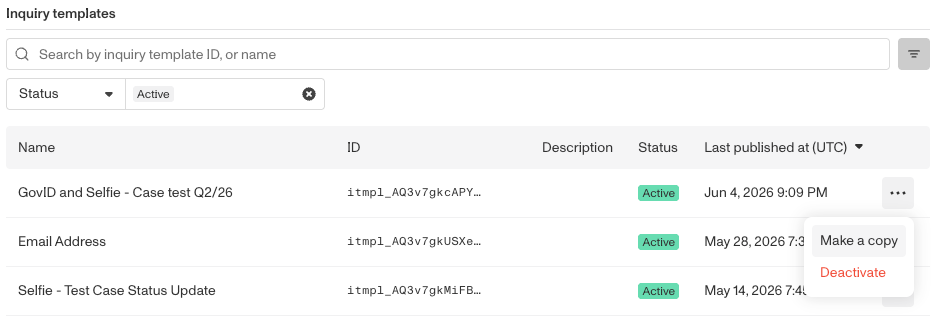
Locate the template you want to copy. Use search or filters if needed. Confirm the template is Active as only active templates can be cloned.
-
Click the overflow menu (the three-dot icon) on the right side of the template’s row in the list.
-
From the dropdown menu that appears, click Make a copy.
-
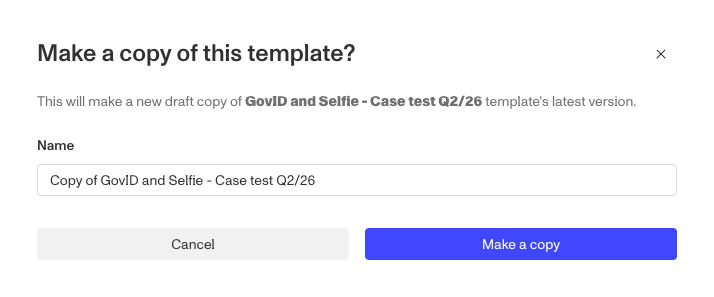
A confirmation modal will appear. The name field is pre-filled as “Copy of [original template name]”. You can:
- Keep the default name, or
- Clear it and type a custom name for the cloned template
-
Click “Make a copy” in the modal to confirm. The Dashboard will show a notice: “Making a copy of your template, this may take a minute…”
-
Once the copy is created, you are automatically taken to the Flow Editor for the new template’s draft version. Publish the copied template before making any edits.
The cloned template starts as a draft and is not deployed to any environment. You’ll need to publish and deploy it separately.
After cloning: next steps
- Publish the template. The UI many require a few seconds for the Publish option to become available
- Rename the template (if you didn’t already) — go to the template settings in the editor
- Make your desired changes in the draft
- Publish the new template when your changes are ready
- Deploy the template to the environment(s) where it should be used
- Update your integration to reference the new template token (e.g.
itmpl_…) if you’re creating inquiries via the API
Key things to know
- Templates are shared across environments. If you want a version of a template that exists only in Sandbox, clone the template and deploy each copy to its respective environment — do not rely on environment filtering of a shared template.
- The “Make a copy” option only appears for active templates. If the template is inactive, reactivate it first, clone it, then deactivate again if needed.
- The source template is tracked. Persona internally records which template a copy was cloned from, so your account history is preserved.
- Active template limits may apply. Some plans limit the number of active templates. If you hit this limit, you’ll see a message in the Dashboard — contact Persona to discuss your options.