
What is the Inquiry Stepper component?
Stepper is an Inquiry screen component that adds a progress indicator showing the steps a user moves through in the Inquiry. Each step reflects its status, such as current, completed, or errored, so users can see where they are and what is left. You can define logic that governs when it appears.
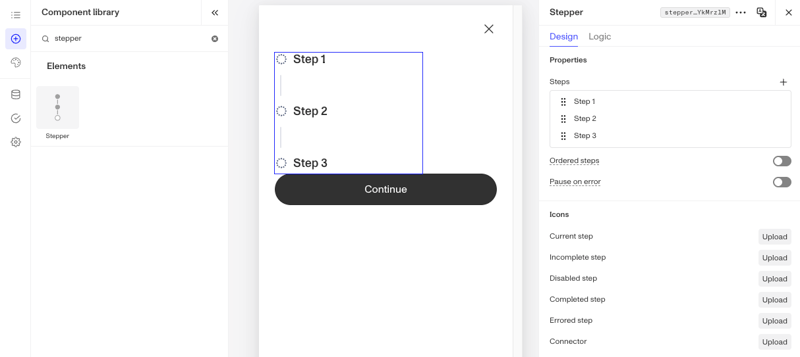
A Stepper is useful for multi-step Inquiries, giving users a clear sense of progress and what remains.
How do you add an Inquiry Stepper component?
-
Navigate to the Dashboard, and click on Inquiries > Templates.
-
Find and click on the Inquiry template you want to edit, or Create a new template.
-
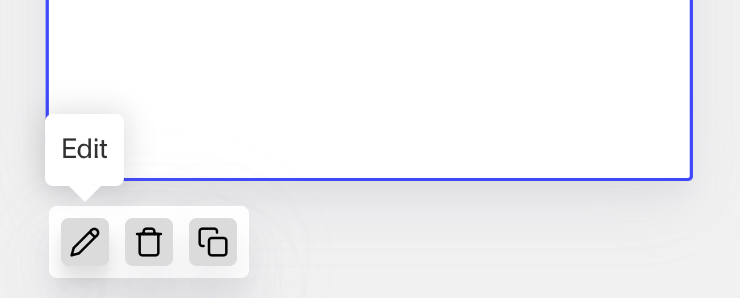
Hover over a screen and click the Pencil icon, or double-click the screen to open it in the Screen Editing View.
-
In the Left Panel, search the Component Library for ‘Stepper’.
-
Drag and drop the Stepper component into your screen, and reposition it by dragging it around.
-
Click on the Stepper component to open its settings in the Right Panel. The panel has two tabs: Design and Logic.
- On the Design tab, under Properties:
- Steps: Add the steps shown in the stepper. Click the + to add a step, drag the handles to reorder, and click a step to edit it. For each step you can set:
- Step name: The label shown for the step.
- Transition: The screen or action sequence the user goes to for that step.
- Activation steps: The Inquiry steps that make this step appear active in the stepper. Each Inquiry step can only activate one step in the stepper.
- Ordered steps: Turn this on to require users to complete each step in order, without skipping ahead.
- Pause on error: Turn this on to stop users from continuing past a step that has errors.
- Steps: Add the steps shown in the stepper. Click the + to add a step, drag the handles to reorder, and click a step to edit it. For each step you can set:
- On the Design tab, under Icons, upload the icons used for each step status from the Asset library: Current step, Incomplete step, Disabled step, Completed step, Errored step, and Connector.
- On the Logic tab, add rules that govern when the component appears, and when it does not. See the Logic tab section on the Screen Step components in Inquiries page for details.
- On the Design tab, under Properties:
-
Use the actions at the top right of the panel to copy, delete, or set translations on the component. To translate the text, see Editing translations for your Inquiry.
-
Close the step. You’ll have to Save and Publish the template to begin using it.
Learn more
Plans Explained
Stepper component by plan
| Startup Program | Essential Plan | Growth Plan | Enterprise Plan | |
|---|---|---|---|---|
| Stepper component | Available | Available | Available | Available |