
What is the Inquiry Country Multi Select form component?
Country Multi Select is an Inquiry screen component that allows a user to choose one or more countries from a predefined list, ensuring standardized and accurate country selection.
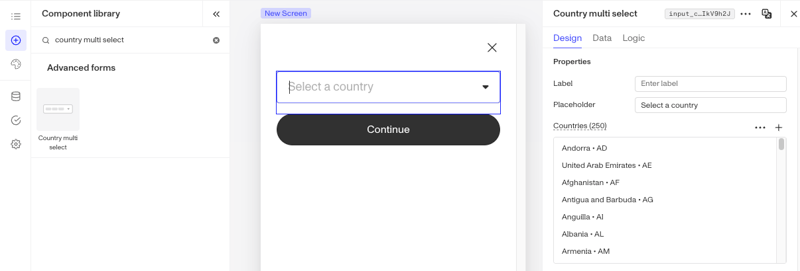
This component is useful for flows that need to collect more than one country, such as covering multiple regions of operation or residency.
How do you add an Inquiry Country Multi Select form component?
-
Navigate to the Dashboard, and click on Inquiries > Templates.
-
Find and click on the Inquiry template you want to edit, or Create a new template.
-
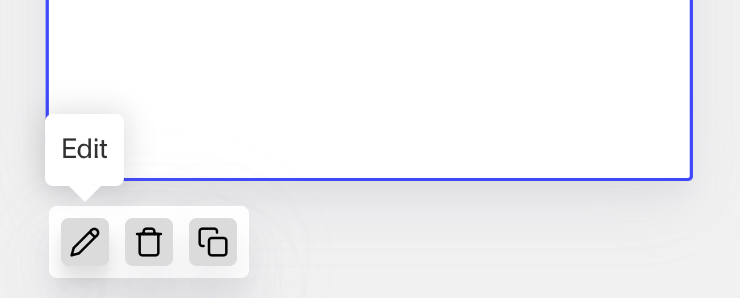
Hover over a screen and click the Pencil icon, or double-click the screen to open it in the Screen Editing View.
-
In the Left Panel, search the Component Library for ‘Country Multi Select’.
-
Drag and drop the Country Multi Select form component into your screen, and reposition it by dragging it around.
-
Click on the Country Multi Select form component to open its settings in the Right Panel. The panel has three tabs: Design, Data, and Logic.
- On the Design tab, under Properties:
- Label: Set the label shown above the field. The Label is a text element displayed above the Country Multi Select component to describe its purpose, such as “Select countries,” helping users understand what information to provide.
- Placeholder: Set the placeholder text shown inside the field. The Placeholder displays temporary text inside the Country Multi Select component, such as “Country,” offering an example or guidance until the user makes a selection.
- Countries: Control which countries appear in the dropdown. All countries are added by default. Click the + to search for and add a country. Use the … menu to import countries from the Government ID verification steps in your flow, reset to the default list, or remove all countries.
- On the Design tab, use the Layout, Typography, and Appearance sections to style the component. See the Design tab section on the Screen Step components in Inquiries page for details.
- On the Data tab, choose the field the input is written to, and customize the field’s behavior, such as whether it is required. You can also add custom validation rules to control when the entry is considered valid. See the Data tab section on the Screen Step components in Inquiries page for details.
- On the Logic tab, add rules that govern when the component appears, and when it does not. See the Logic tab section on the Screen Step components in Inquiries page for details.
- On the Design tab, under Properties:
-
Use the actions at the top right of the panel to copy, delete, or set translations on the component. To translate the text, see Editing translations for your Inquiry.
-
Close the step. You’ll have to Save and Publish the template to begin using it.
Learn more
Plans Explained
Country Multi Select form component by plan
| Startup Program | Essential Plan | Growth Plan | Enterprise Plan | |
|---|---|---|---|---|
| Country Multi Select form component | Available | Available | Available | Available |